

Quick answer: To run a FUT autobuyer bot 24/7: rent a Windows RDP with admin rights, connect via Remote Desktop, install your autobuyer software, configure buy prices and search filters, set human-like delays, and disconnect (never shut down). The bot keeps sniping deals around the clock. Use conservative settings and a secondary account to reduce ban risk, since autobuyers break EA’s rules.
An autobuyer only makes coins if it runs constantly, and it only survives if it runs carefully. Many snipers learn this the hard way: a bot runs fine on a gaming PC for three weeks, then a weekend trip, a power-saving sleep, or a Windows update kills the session right through a TOTW market crash window. That is the exact problem a 24/7 setup solves, and it is cheaper than most people think.
A FUT autobuyer (also called a sniping bot) automatically searches the Ultimate Team transfer market and buys underpriced players the instant they are listed. Profit comes from volume: hundreds of searches per hour, day and night. Your home PC cannot do that reliably. A Windows RDP, which is a Windows computer in a data center that never sleeps, can.
Why Does an Autobuyer Need to Run 24/7?
The transfer market never closes. The best sniping windows are often the worst hours for a human:
- Content drops and pack openings flood the market at all hours, and prices dip fast. A bot watching at 4 AM catches listings a human never sees.
- Weekend League rewards hit on Thursday mornings in most regions, crashing prices on meta cards for a few hours. Miss the window, miss the profit.
- Volume beats timing. Sniping is a numbers game. Ten searches a minute for 24 hours beats one focused hour of manual bidding, every time.
Running the bot on your own PC means it stops when you game, when Windows updates, when the laptop lid closes, or when the power flickers. Every stopped hour is coins left on the table. An always-on server removes all of that. The same principle applies to anything that must never stop: traders use the identical approach to keep MT5 running 24/7 without keeping their PC on.
The Honest Safety Warning (Read This First)
EA Sports prohibits automation on the transfer market. Using an autobuyer can get your account warned, transfer-market banned, or permanently banned. No setup is 100% safe. Anyone who tells you otherwise is selling something.
What experienced snipers actually do to lower the risk:
- Use a secondary account for botting, never your main club with years of progress.
- Keep speeds human. Aggressive search intervals are the fastest way to get flagged. Conservative delays look far less suspicious.
- Take breaks. Bots that run at inhuman consistency for weeks raise flags. Scheduled pauses help.
- Never bot on a brand-new account. Fresh accounts under sudden heavy market activity get reviewed quickly.
This guide covers the technical setup. The risk decision is yours, and you should make it with open eyes.
What You Need Before You Start
Four things, and the setup takes about 30 minutes:
- A Windows RDP with admin rights. The bot needs to install software and run 24/7, which cheap shared RDP plans cannot do. SadeemRDP’s FIFA Fut Bot RDP at $10.99/month is built for exactly this: a Windows machine that stays online around the clock.
- Your autobuyer software (installer or portable files) plus your license key, saved somewhere reachable like Google Drive or email.
- Your EA account login details for the account you will run the bot on (again: consider a secondary account).
- A device to connect from (any Windows, Mac, or Android device with a Remote Desktop client) for the initial setup and occasional check-ins.
If you are unsure whether your current plan allows installations, here is the full breakdown of whether you can install software on a cheap RDP. Short version: shared plans block it; admin plans allow it.
Step-by-Step: Setting Up Your Autobuyer on an RDP
Step 1: Connect to your RDP
Open Remote Desktop Connection on your device, enter the IP address from your provider, and sign in with the username and password they sent after payment. Accept the certificate warning on first connect. You will see a normal Windows desktop. Everything below happens inside that window.
Step 2: Install the autobuyer software
Inside the RDP, open the browser and download your bot from the developer’s official site, or pull the installer from your Google Drive. Run the installer with admin rights and enter your license key. If the bot needs a specific .NET version or Visual C++ redistributable, install those too; most bot developers list the requirements on their download page.
Step 3: Configure your sniping filters
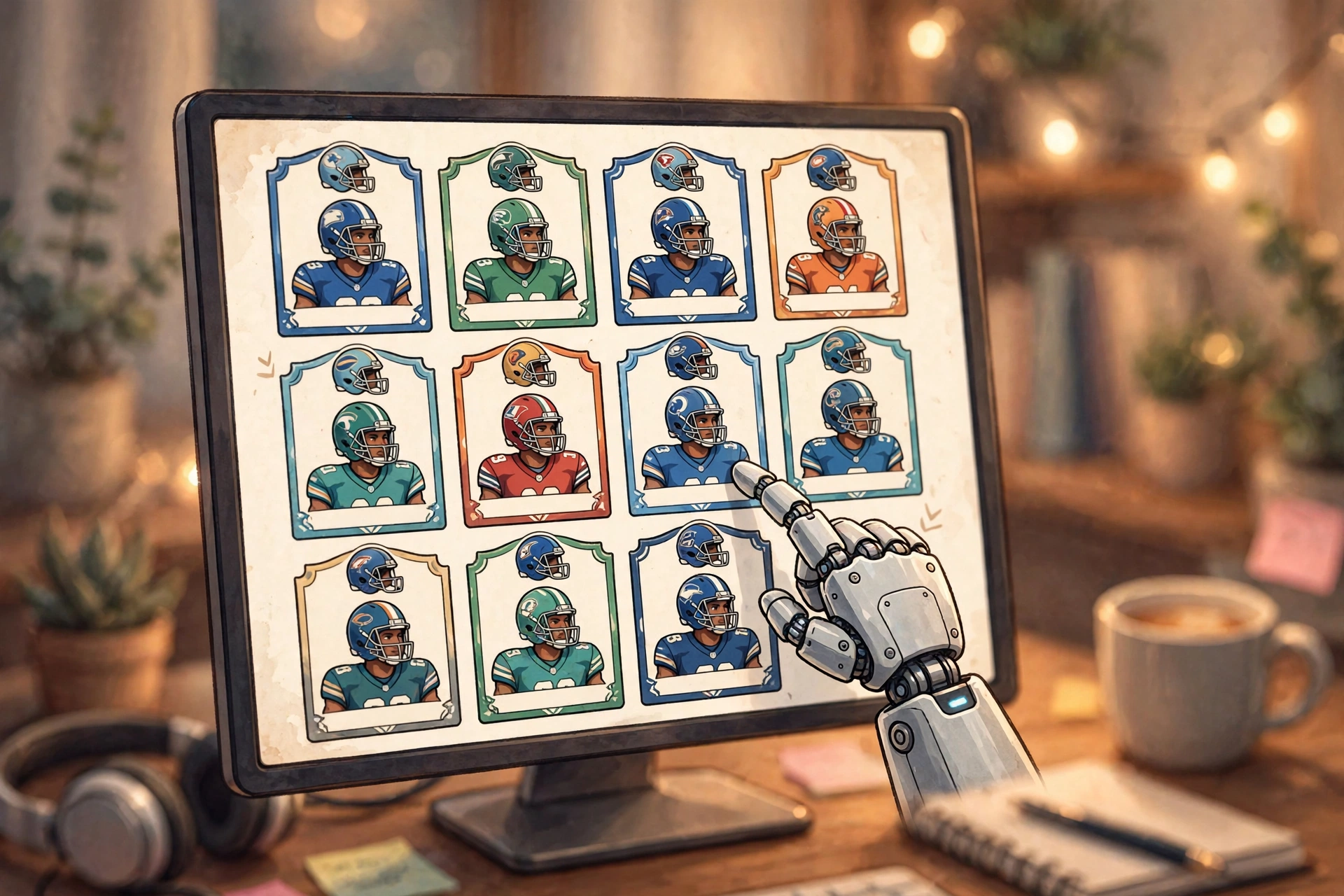
Open the bot and set your target players, max buy prices, and search parameters. Start conservative: a small set of well-known profitable cards with realistic margins. Do not point a fresh bot at fifty players on day one. Let it learn the market rhythm first, and expand the list after a few stable days.
Step 4: Set human-like timing
This is the safety-critical step. Set search delays that a fast human could plausibly manage, enable random pauses between searches, and schedule daily rest windows (for example, two shorter sessions with a gap rather than one flat 24-hour grind). Fast, metronome-perfect searching is the classic detection signature.
Step 5: Test with supervision first
Run the bot for a few hours while you watch. Check that it buys at the right prices, lists won cards correctly, and handles errors (expired sessions, CAPTCHA-style checks, market downtime) without looping insanely. Fix the config now, not at 3 AM.
Step 6: Disconnect properly and let it run
Close the Remote Desktop window with the X. Do not use Start, then Shut down inside the RDP; that powers off the machine and stops your bot. Closing the client leaves your Windows session running on the server with the autobuyer still working.
Keeping It Running Smoothly 24/7
Setup is half the job. Uptime discipline is the other half:
- Check in daily. Reconnect once a day, glance at the bot’s log for errors or missed buys, and confirm coins are moving to your transfer list sensibly.
- Watch Windows Update. A surprise reboot closes your bot. Set active hours to cover the full week on plans where you control updates, and verify the bot restarted after any reboot.
- Keep the RDP clean. Do not install random software on the same machine. A bot server should do one job.
- Track profit weekly. Note coins in versus time running. If a filter stops being profitable after a promo, retire it instead of letting the bot grind for nothing.
- Renew before expiry. A lapsed RDP subscription powers off the machine mid-session. Set a calendar reminder a few days before renewal.
Stop missing snipes while your PC sleeps. Put your autobuyer on a server that never sleeps.
From $10.99/mo · Bot-ready Windows · 24/7 uptime
Common Mistakes That Get Bots (and Accounts) Killed
1. Running at maximum speed on day one. New bots at aggressive int
Related: New to installing software on a remote server? Follow our step-by-step guide on how to install programs on a remote desktop to get any bot or tool installed correctly.
ervals are the most common ban story. Start slow, ramp up over weeks.
2. Botting the main account. Years of club progress should never share a machine with automation risk. Keep botting on a secondary account.
3. Using a home PC. Sleep mode, updates, power cuts, and family members closing windows kill uptime. A data-center machine exists precisely to avoid this.
4. Ignoring the logs. A bot stuck in an error loop for two days is not making coins; it is just generating suspicious traffic. Daily check-ins catch this in minutes.
5. One filter forever. Markets shift with every promo. A filter that printed coins in September can bleed in October. Review weekly.
Frequently Asked Questions
Can I run a FUT autobuyer on my home PC instead?
Technically yes, but it defeats the purpose. Home PCs sleep, update, reboot, and lose power; every interruption stops your sniping during windows you cannot predict. A 24/7 RDP costs around $10.99/month and removes all of that. Most serious snipers consider it a basic operating cost, not an upgrade.
Will EA ban my account for using an autobuyer?
It is possible. Automation breaks EA’s Terms of Service, and penalties range from transfer market bans to permanent account bans. Risk is lower with conservative speeds, regular pauses, and a secondary account, but no setup is risk-free. Never bot on an account you cannot afford to lose.
How much RAM does an autobuyer bot need?
Very little. Most sniping bots are lightweight desktop apps that run comfortably on 2 GB of RAM alongside Windows. CPU and RAM are rarely the bottleneck; stable uptime and a decent connection matter far more. Any bot-focused RDP plan covers the specs easily.
Do I need admin rights on the RDP to install a bot?
Yes. Installing software requires administrator access, which cheap shared RDP plans do not include. You need an admin-capable plan such as the FIFA Fut Bot RDP. Shared plans are fine for browsing or office work, but not for installing and running your own programs.
How do I check on my bot without stopping it?
Just reconnect with Remote Desktop whenever you like. Connecting and disconnecting does not disturb the running session; your bot keeps working the whole time. Close the RDP window when you are done looking, and never click Shut down inside the server.
Final Word
A FUT autobuyer is only as good as its uptime and its settings. Put it on an always-on Windows machine, start with conservative human-like speeds, check the logs daily, and keep it off your main account. Do that, and the bot does what it is supposed to do: work the market while you sleep.
Comments