

To speed up video rendering on a slow computer, edit with low-resolution proxies, enable GPU hardware encoding like NVENC or Quick Sync, close background apps, free up disk space, and render overnight. For big projects that outgrow your hardware, running the render on a remote encoding machine skips the bottleneck entirely.
Waiting four hours for a twelve-minute video to export is the kind of misery that makes people hate their computers. Here is the truth most tutorials skip: your editor is not the problem, and you do not need a new computer. Rendering punishes CPUs harder than almost any other home task, and on an older or budget machine every weakness shows up at once. The fixes below are ordered from the easiest to the most decisive, and the last one removes your computer from the equation completely.
Why does rendering take so long on a slow computer?
Rendering takes so long on a slow computer because every frame is rebuilt from scratch, effects, color grading, and transitions included, while a weak CPU and limited RAM can only process a small number of frames per second.
A 4K video contains roughly four times the pixels of 1080p, so each frame costs about four times the work. Add compressed formats like H.264 or H.265, which must be decoded before they can be edited, plus multicam angles or speed-ramped clips, and the workload stacks up fast. Effects like noise reduction, stabilization, and optical flow are the worst offenders, since they force the computer to analyze neighboring frames for every single frame it outputs. The hidden tax is heat: old laptops throttle their CPUs when temperatures climb, so raising the laptop for airflow can stop renders slowing down halfway through.
How does proxy editing speed up the whole process?
Proxy editing speeds things up because you edit with small, lightweight copies of your footage instead of the heavy originals, and your editor automatically swaps the full-resolution files back in when you export.
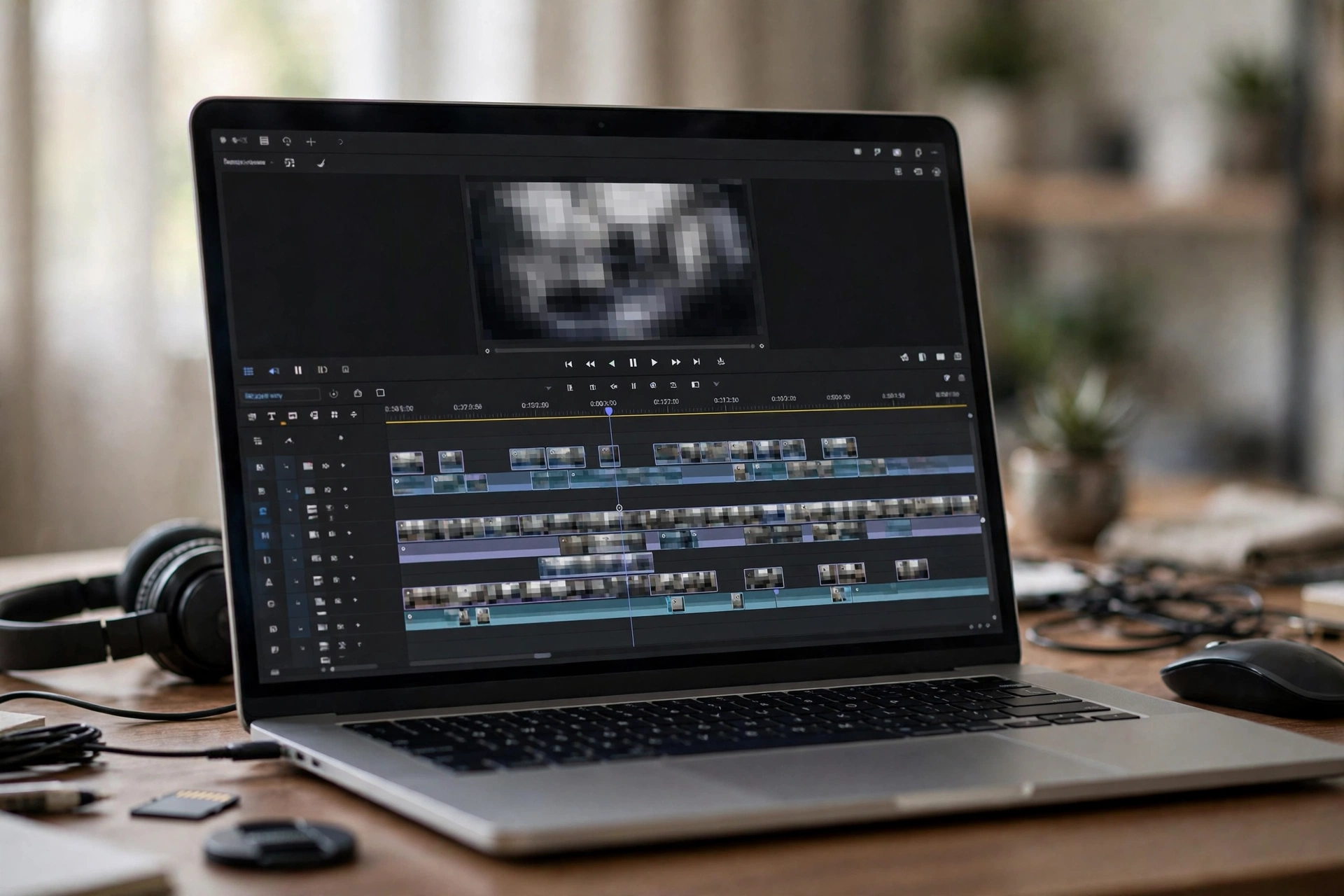
Editors like DaVinci Resolve, whose free version handles proxies well, and Premiere Pro can generate proxies automatically when you import footage. If your editor lacks a proxy button, HandBrake, the free open-source transcoder, can convert your footage to low-resolution editing copies before you start. While editing, also drop your preview resolution to one quarter or one eighth. Your timeline stays fluid because the computer draws far fewer pixels per frame, and since previews do not affect the final export, you lose nothing. This alone fixes the stuttering timeline that most people mistake for a dying computer.
What is the single fastest setting change you can make?
The single fastest change is switching from software encoding to hardware encoding, because it moves the encoding work from your overloaded CPU to a dedicated encoder chip on your graphics hardware that finishes the job far faster.
If you have an NVIDIA card, look for NVENC in your export settings. On Intel processors, it is called Quick Sync, and AMD cards offer their own encoder under names like AMF. Premiere Pro shows a Performance option in the export panel where you can choose Hardware Encoding, DaVinci Resolve lists NVENC and Quick Sync in its Deliver page codec dropdown, and HandBrake exposes them in its Video tab. Hardware encoding can take a noticeable bite out of render times, often the largest single saving of any setting. The honest trade-off is a small quality difference at the same bitrate compared with pure CPU encoding, which you can offset by raising your bitrate slightly. For YouTube uploads and client drafts, the time saved almost always wins.
Can closing background apps really make a noticeable difference?
Yes, closing background apps makes a real difference because a render fights them for the same CPU cores, memory, and disk bandwidth, and on a weak machine even a browser with a dozen tabs can steal a meaningful share of processing power.
Before you hit export, close your browser, pause cloud sync tools like OneDrive or Dropbox, and stop antivirus scans or software updates from running. If you are also running demanding apps on the same machine, our guide to running multiple demanding apps on a weak PC has more ideas for taking pressure off limited hardware. Free disk space matters just as much: keep at least 15 to 20 percent of your drive free, clear your editor’s cache from its preferences, and whenever possible, export to a different physical drive than the one holding your source footage.
Which export settings should you change before every render?
Change the settings that force wasted work: export in a codec your machine encodes quickly, match your timeline resolution and frame rate to your export, and use one-pass encoding when speed matters more than squeezing out the last drop of quality.
H.264 encodes noticeably faster than H.265 on most older machines, so save H.265 for final delivery files only. Turn off two-pass encoding for drafts and test renders, since a single pass is far quicker and the quality gap is invisible in a preview. Match your timeline resolution to your export resolution so the CPU does not rebuild every frame at a new size. Turn off heavy effects like noise reduction and stabilization during test exports.
From $13.99/mo · 16 CPU cores · Amsterdam
Should you render overnight instead of during the day?
Yes, rendering overnight is one of the smartest moves you can make, because your computer can devote every core and all of its memory to the job while you sleep, and long renders stop eating into your workday.
Queue up your exports in your editor’s render queue or Adobe Media Encoder, then start the batch before bed. Disable sleep mode in your system settings so the machine does not drift off mid-render, keep a laptop plugged in with good airflow, and let the queue work through exports, proxies, and test renders in one go. By morning, files that would have tied up your computer for hours during the day are simply done.
When is it smarter to render on a remote machine?
It is smarter to render remotely when your computer stays slow even after all these optimizations, because a dedicated encoding machine with a strong multi-core CPU can finish the job in a fraction of the time while your own PC stays free for other work.
This is exactly what an encoding RDP is built for. You connect to a remote Windows machine through Remote Desktop, copy your project files and footage across, start the render there, and download the finished video when it is done. There is no hardware to buy, no upgrades to install, and no electricity bill for running a hot CPU all night. If you are not sure what this kind of machine involves, read our explainer on what an encoding RDP is and how it works. SadeemRDP’s Encoding RDP plans run on a Xeon E5-2695v4 with 16 CPU cores and 32 GB of RAM in Amsterdam, with prices starting from $13.99 per month.
What are the honest limits of an encoding RDP?
The honest limits are that an encoding RDP gives you limited admin rights rather than full control, only one encoding process can run at a time, and streaming software is not allowed on these machines.
The CPU is shared, which is part of why the price stays low, and the one-process rule keeps the machine fair for every customer encoding at the same time. You can run permitted programs with admin privileges, but if you are unsure about your software’s requirements, read our guide on whether you really need admin access on an RDP before you order. Plans are straightforward: Plan A at $13.99 per month with 50 GB of storage, Plan B at $14.99 with 100 GB, and Plan C at $15.99 with 150 GB. Setup takes a minimum of one hour, or two to three hours when order volume is high. If your remote session ever feels sluggish while moving files around, our guide to fix a laggy remote session covers the usual causes and fixes.
What if you need full control for heavier workflows?
If you need full control, a private Windows VPS is the honest alternative, because it comes with full administrator rights, though it is a general-purpose machine rather than one tuned specifically for encoding work.
SadeemRDP’s private Windows VPS plans start from $6.99 per month with full admin access across the USA, UK, Netherlands, Germany, Canada, France, Australia, UAE, and Singapore. That makes them the right pick if your workflow needs software that demands full system access, custom drivers, or a setup the limited-rights encoding plans do not permit. Choose the encoding RDP for raw rendering throughput at a fixed low price, and the full-admin VPS when control matters more.
Frequently Asked Questions
Will rendering overnight damage my slow computer?
Rendering overnight will not damage a healthy computer, because CPUs are designed to run at full load for hours. The real risk is heat, so keep vents clear, leave the laptop open on a hard surface, and disable sleep mode. If your machine shuts itself off mid-render, that is usually overheating protection, and better airflow fixes it.
Is hardware encoding lower quality than software encoding?
At the same bitrate, hardware encoding can look slightly softer than pure CPU encoding, but the difference is small and mostly visible only on close inspection. Raising your bitrate by a modest amount closes the gap completely. For drafts, social uploads, and client previews, the enormous time saving easily outweighs the difference.
How much free disk space do I need for rendering?
Keep at least 15 to 20 percent of your drive free before a render, more if the project is long or in 4K. Rendering creates large temporary files and media cache, and a nearly full drive slows everything down. If space is tight, move old projects to an external drive and clear your editor’s cache before exporting.
Can I keep using my computer while a remote RDP renders my video?
Yes, that is one of the biggest advantages. The render runs entirely on the remote machine’s CPU and RAM, so your own computer stays completely free for editing, browsing, or other work. Your local internet speed only matters when you upload the project files and download the finished video.
Is an encoding RDP suitable for 4K or very long projects?
It handles 4K and long projects far better than a typical weak home PC, thanks to its 16 CPU cores and 32 GB of RAM. Just remember that only one encoding process runs at a time, and storage is limited to the plan’s quota, so check your footage fits before you upload. Plan C’s 150 GB suits most serious projects.