

To keep MT5 running 24/7 without your PC on, run it on a remote server instead: a forex VPS or trading RDP. Your MT5 terminal and Expert Advisors live on a machine in a data center that stays powered and connected around the clock, and you check in from your laptop or phone whenever you like. Setup takes about 15 minutes, and entry-level trading servers start at $9.99 a month.
If you trade with Expert Advisors, you already know the weak link in your setup. It is not your strategy. It is the machine under your desk.
I have seen traders with a solid backtest and sensible risk wake up to find Windows restarted itself at 3 a.m. to install updates. Your edge means nothing if the computer running it keeps falling asleep on the job.
You do not need a second computer or a laptop screaming all night. You need MT5 to live somewhere that never sleeps. Here is how.
Why Your Home PC Keeps Letting Your EAs Down
An EA is only as reliable as the machine it runs on, and home computers were designed to save power and stay quiet, the opposite of what a trading terminal needs. These are the usual suspects:
Sleep mode and hibernation. Close the lid or walk away for an hour and Windows puts the machine to sleep. Your EA stops the moment it does.
Windows Update restarts. Windows 10 and 11 restart on their own schedule. If that restart lands in the middle of the London or New York session, your terminal is gone until you notice and open it again.
Power cuts and router drops. A two-second internet dropout is invisible when you are browsing. For an EA holding a position through a news spike, it can mean a missed exit. A plain power cut ends everything until someone presses the power button.
Heat and wear. A laptop running 24/7 in a warm room cooks itself slowly: fans clog, batteries swell. Desktops fare better, but none of them were built to run a trading terminal for months without a break.
Any one of these can silently kill your terminal overnight, and you usually find out hours later.
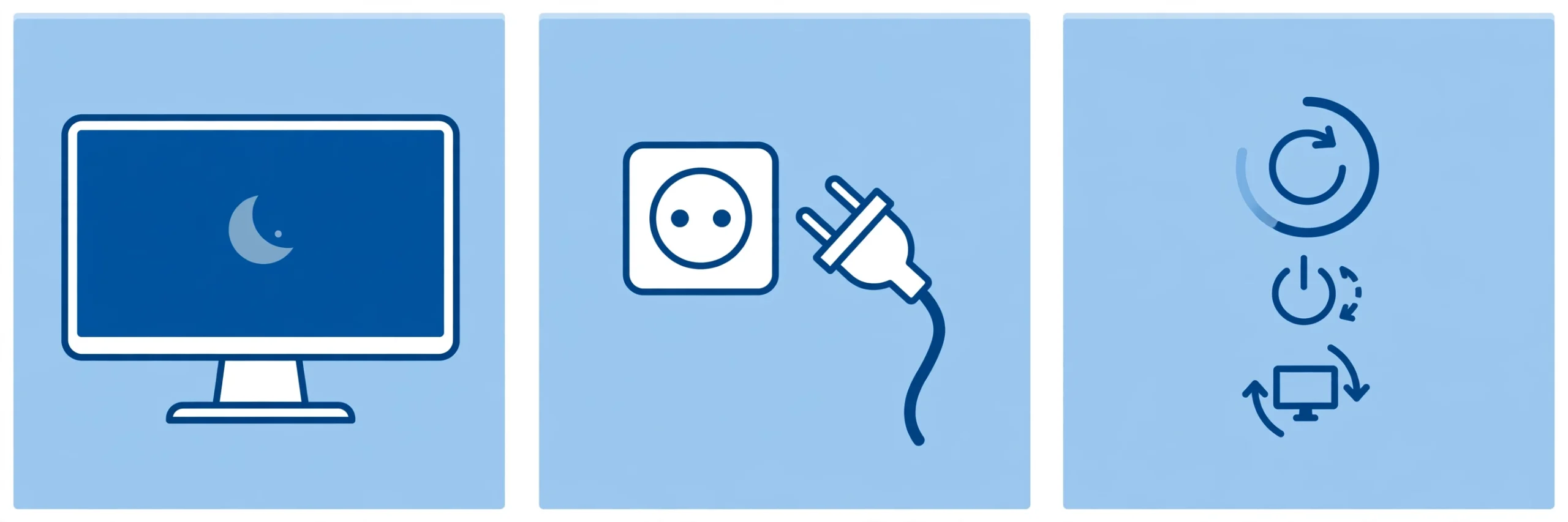
The Simple Fix: Put MT5 on a Server That Never Sleeps
A forex VPS, sometimes sold as trading RDP, is simply a Windows computer sitting in a data center. It has backup power, enterprise internet, and cooling, and nobody ever closes its lid. You rent a slice of it by the month, install MT5 on it once, and connect from your own PC or phone with the Remote Desktop app whenever you want to check in.
When you disconnect, nothing stops. The server keeps running, MT5 keeps ticking, and your EAs keep working through every session while your laptop sits shut on your desk at home.
Traders are not the only ones who figured this out. The same always-on idea is how people run a 24/7 live stream on a VPS: one remote machine, always awake, doing its job while your own computer stays off.
MT5 on a VPS: The Setup Checklist
From a fresh server to a running EA takes about 15 minutes:
- Pick the right location. Your orders travel from the server to your broker, so latency matters. If your broker’s servers are in Europe, a machine in Amsterdam reaches them faster than one on another continent. SadeemRDP’s Forex Trading RDP sits in Amsterdam, which keeps ping low to European brokers.
- Order and wait for activation. Activation is fast after payment, usually minutes. You receive an IP address, a username, and a password.
- Connect with Remote Desktop. On Windows, press Win+R, type mstsc, and enter the IP address. On a Mac or phone, use the free Microsoft Remote Desktop app.
- Install MT5 and log in. Download the terminal from your broker inside the remote session, log in, and tick the save-password box so MT5 signs itself back in after any restart.
- Attach your EAs and allow algo trading. Drag the EA onto the chart and press the Algo Trading button until it turns green. The smiley face in the chart corner confirms the EA is live.
- Tell the server never to sleep. The step people forget: on the remote machine, choose the High Performance power plan and set sleep and hibernate to Never.
- Disconnect, do not shut down. When you are done, close the Remote Desktop window. Do not log off and do not shut the server down. Closing the window ends your viewing session only.
The steps are nearly identical on the older platform. If you trade there too, here is how to run MT4 on a VPS, step by step.
One practical note on plans: EAs do not need full administrator rights, and MT5 installs fine without them. A shared Forex RDP plan at $9.99 a month, with a Xeon Gold 6148 processor, 12 cores, 32 GB of dynamic RAM and 10 GB of storage, runs MT5 and EAs comfortably. Step up to the $14.99 full-admin Forex VPS, with 1 vCore, 2 GB of RAM and 25 GB of SSD in the Netherlands, UK, or USA, only if you need to install extra software that demands administrator access. If you are unsure how much memory your setup needs, see how much RAM a forex VPS really needs.
Keeping Your EAs Alive Through Nights and Weekends
Getting MT5 running is step one. Keeping it running is step two:
- Save the account password in MT5. If the terminal ever restarts, it signs itself back in instead of sitting at a login prompt waiting for you.
- Tame Windows Update. Set active hours to cover the trading week, or let updates install on the weekend. Dropping an MT5 shortcut into the Windows Startup folder makes it launch on its own after every restart.
- Never log off, only disconnect. Logging off the remote session can stop your programs. Closing the Remote Desktop window keeps your session, and your EAs, alive.
- Keep chart clutter down. Every open chart with heavy indicators eats RAM and CPU. Run what you need and close the rest.
- Restart MT5 yourself once a week. Terminals develop small memory leaks over long runs. A quick manual restart on Sunday takes two minutes and prevents most weird behavior.
Do these once and your setup survives nights, weekends, and holidays without babysitting.
Check Your Trades From Your Phone, Anywhere
Once MT5 lives on the server, your phone becomes a window into it. Most traders use both of these:

The MT5 mobile app. Log in to the same trading account on your phone to watch positions, modify stops, and close trades from anywhere. It does not run your EAs; it shows you what the server-side terminal is doing.
The Remote Desktop app. Microsoft’s free app on iOS or Android shows the actual server desktop: the full MT5 terminal, your EAs, your charts. Heavier than the MT5 app, but when something looks wrong, there is no substitute for seeing the real screen.
Push notifications. Set price alerts inside MT5 on the server and enable push notifications to your phone. Your server watches the market; your phone taps your pocket only when something needs you.
The Honest Cost Math: Your PC vs. a $9.99 Server
Let us talk money, because this surprises people. A desktop left on 24/7 draws roughly 60 to 120 watts at idle, which works out to somewhere around $5 to $15 a month depending on your tariff, and more where power is expensive. Then add the wear: fans and drives spinning nonstop, a laptop battery degrading from constant heat, and the afternoon your machine updates itself mid-session.
A Forex RDP plan starts at $9.99 a month, often less than the power bill of the PC it replaces, on hardware built for continuous duty. Annual billing brings the monthly equivalent down further.
But the real comparison was never about dollars. It is the position you could not exit because your home internet blinked at 2 a.m., or the EA that sat dead through the Asian session after a restart. Reliability is the actual product; $9.99 is just how it is priced.
Your EAs deserve a machine that never sleeps. Put MT5 on a 24/7 trading server.
From $9.99/mo · MT4/MT5 ready · 24/7 uptime · Amsterdam low-latency
Frequently Asked Questions
If I close my laptop, does MT5 keep running?
Yes, as long as MT5 runs on the remote server and not on your laptop. Closing your laptop only ends your Remote Desktop viewing session. The server, the terminal, and your EAs carry on untouched. Just never choose shut down or log off on the server itself; close the Remote Desktop window instead.
Do I need a VPS if I only trade manually a few hours a day?
Probably not. If you open MT5, place your trades, and close it again, your own computer handles that fine. A VPS earns its keep when something must run while you are away: Expert Advisors, copy trading, or positions held through news events overnight. Match the tool to the job.
Can I run EAs on the $9.99 shared Forex RDP, or do I need the full-admin VPS?
EAs run perfectly on the $9.99 shared Forex RDP. It carries a Xeon Gold 6148 with 12 cores and 32 GB of dynamic RAM, and MT5 installs without administrator rights. Choose the $14.99 full-admin Forex VPS only if you need extra software or tools that specifically demand administrator access.
How much internet speed does MT5 need on a VPS?
Surprisingly little. MT5 moves tiny packets of price data, just kilobits per second per chart. What matters is stability and latency, not bandwidth. A server in Amsterdam, close to European broker servers, will always beat a fast but distant home connection on execution speed.
Is it safe to leave my broker login on a remote server?
It is as safe as the habits around it. Use a strong, unique password for the server, enable two-factor authentication on your broker account, and never share your RDP login details. Reputable hosts isolate each client’s environment, and you can change your server password anytime from the client area.
Final Word
Keeping MT5 online 24/7 is not about fancy infrastructure. It is about removing the one part of your setup never designed for the job: your home PC. Move the terminal to a machine built to stay awake, follow the checklist once, and get back to your strategy.
If you would rather skip the DIY part, a purpose-built trading server does this out of the box. SadeemRDP has sold Windows RDP and VPS plans since March 2017, with 24/7 support over WhatsApp, Telegram, live chat, and tickets. Take a look at the Forex RDP plans and get your EAs onto an always-on server today.
Comments