
Quick answer: To install programs on a remote desktop you need administrator rights on that machine. On an admin-capable plan the steps are: connect with Remote Desktop, download or upload the installer, run it and approve the admin prompt with your own credentials, then close the RDP window instead of shutting down. Shared RDP plans block installs by design; Admin RDP from $9.99/month gives you the rights you need.
Installing software on a remote desktop feels strange the first time, because the computer you are installing on is hundreds of miles away. In practice it works almost exactly like installing on your own PC, with one decisive difference: your user account must have administrator rights. Get that part right and the rest is familiar. Get it wrong and every installer ends in the same dead end.
Why Installing on RDP Differs From Your Own PC
On your home computer you are the administrator. Installers ask for permission, you click yes, done. On a remote desktop, you are logging into an account someone else created, with permissions someone else chose.
Cheap shared RDP plans give you a standard user account. Windows requires administrator approval for anything that changes the system, and on a shared machine that approval belongs to the provider. When the installer pops up the elevation prompt asking “Do you want to allow this app to make changes to your device?” and you have no admin password, the install stops. This is the single moment where most failed installs end.
On an Admin RDP or a private VPS, you hold administrator credentials. The same prompt appears, you approve it yourself, and the install proceeds exactly like it would at home. So before anything else, confirm your plan’s access level. Still unsure which tier fits your work? Read do you need admin access on RDP for the full decision framework.
Method 1: No-Admin Options (Portable Apps and Pre-Installed Software)
If you are on a shared plan without admin rights, you are not completely stuck. These options need no installation:
- Portable apps. Many programs ship in portable versions that run straight from a folder. Download the ZIP, extract it inside your RDP session, and launch the executable. No installer, no admin prompt. Portable browsers, file managers, and some trading tools all work this way.
- Pre-installed software. Providers commonly pre-install browsers, media players, and office tools on shared plans. Check what is already there before assuming you need to install anything.
- Web apps. Email, documents, spreadsheets, dashboards, and web trading platforms run in the browser with zero installation.
These cover a surprising amount of real work. But they have hard limits: anything with a real setup wizard, a system driver, a Windows service, or a background process that must survive logoffs is off the table. For the complete list of what budget plans can and cannot do, see can you install software on a cheap RDP.
Method 2: Installing With Admin Rights, Step by Step
On Admin RDP ($9.99/month, USA/UK) or a private Windows VPS ($6.99/month), the process mirrors your home PC:
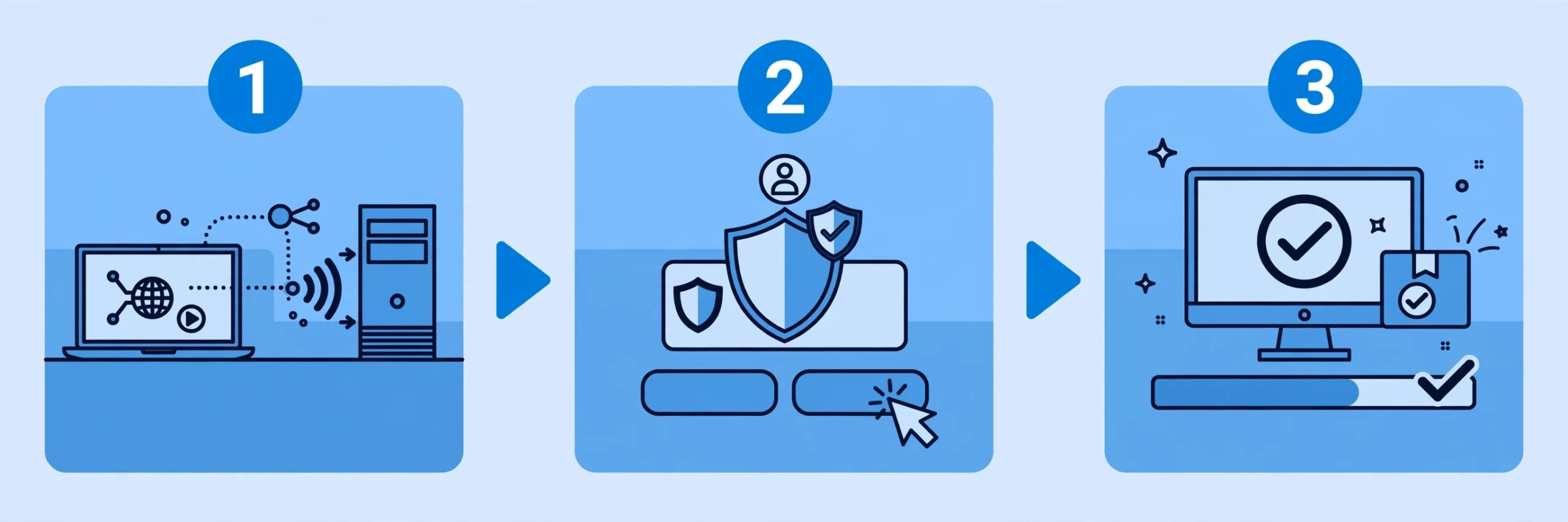
- Connect. Open Remote Desktop Connection on your device, enter the server IP, username, and password your provider sent after payment. Microsoft’s client overview covers the available clients for Windows, macOS, mobile, and browsers if you need a different one (Remote Desktop client overview, Microsoft Learn).
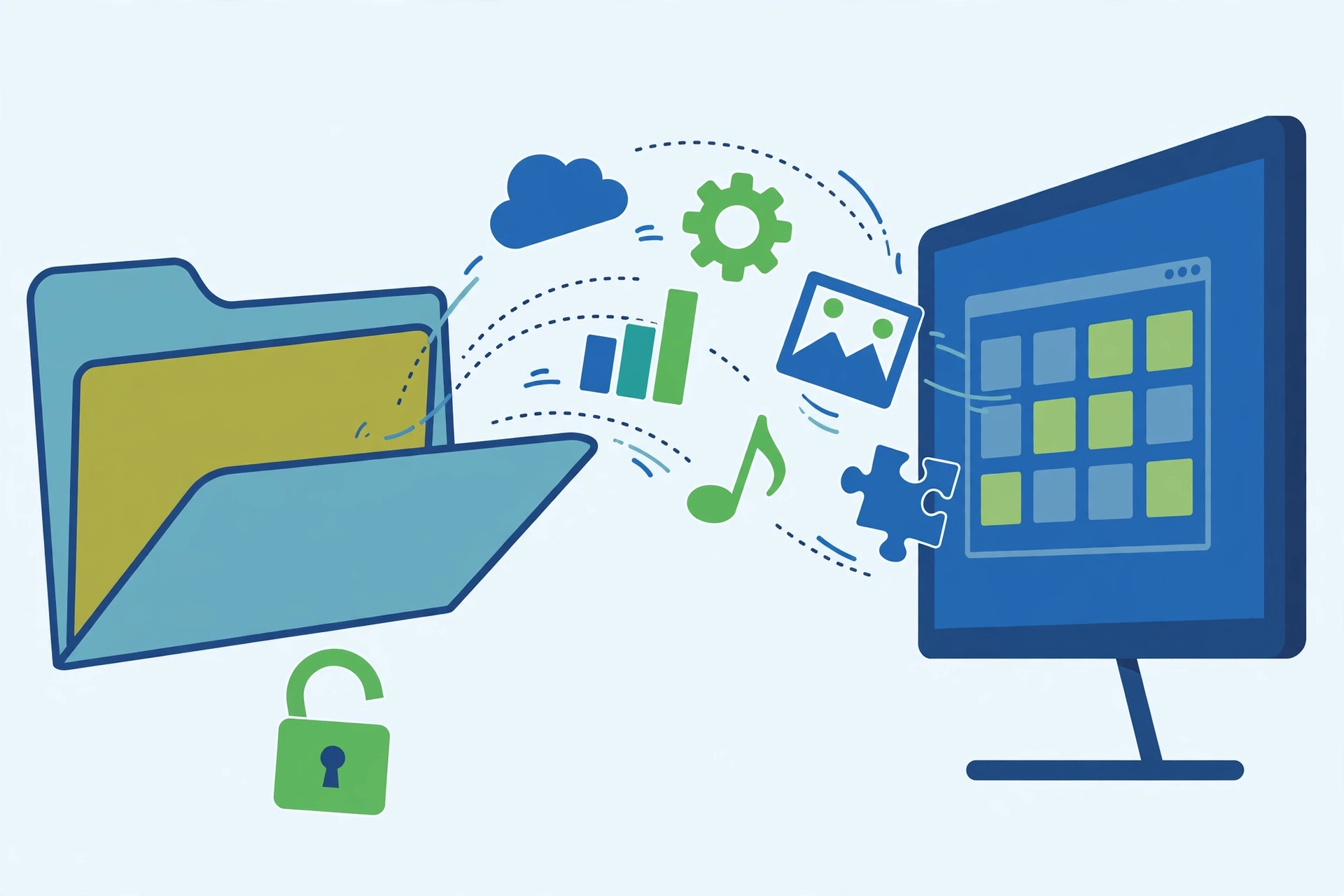
- Get the installer onto the remote machine. Either download it directly using the browser inside the RDP session, or copy it from your own device: select the file locally, copy it, and paste it into the RDP window. Cloud drives like Google Drive work too for larger files.
- Run the installer and approve the admin prompt. Double-click the setup file. When Windows asks for administrator approval, confirm it with your own admin credentials. This is the step shared plans block, and the exact step Admin RDP unlocks.
- Complete the setup wizard. Choose install options as you normally would. Prefer installing for all users when asked, so the program behaves correctly across sessions.
- Configure and test while connected. Open the program, enter your license or login, and confirm it runs. Fix problems now, while you are watching.
- Disconnect by closing the RDP window. Click the X on the Remote Desktop window. Never use Start, then Shut down inside the remote machine. Closing the window ends your session; your installed programs keep running on the server.
That last step is where beginners lose work. Shutting down the remote machine stops everything; disconnecting leaves everything running. It is also the mechanism traders rely on when they run MT4 on a VPS: install once, disconnect, and the terminal keeps working around the clock.
Install anything you need, on your own Windows machine.
Admin RDP gives you administrator rights on a fast USA/UK server, from $9.99/month.
From $9.99/mo · Admin access · Install anything · USA/UK
Keeping Installed Programs Running After You Disconnect
Installing is only half the job for many buyers. Bots, trading terminals, and automation tools need to keep running after you walk away. Two rules:
- Always disconnect, never shut down. Closing the RDP window leaves the session and its programs running. Start, then Shut down powers the machine off and stops everything.
- Check the program survives a disconnect. Most desktop programs keep running fine. Tools that must run even when no user is logged in should be set up as Windows services, which needs admin rights and is one more reason the admin tier matters. A setup like running a FUT autobuyer bot 24/7 depends on exactly this behavior.
Common Install Errors and How to Fix Them
- “Access denied” or an admin prompt with no password. Your plan has no admin rights. No workaround exists on shared hardware; upgrade to Admin RDP or a private VPS.
- Windows SmartScreen blocks the installer. On your own admin machine, click “More info” then “Run anyway” for software you trust. This is normal Windows behavior, not a provider restriction.
- Antivirus quarantines the installer. Legitimate tools, especially trading bots and automation software, sometimes trigger false positives. Verify the download came from the official site, then add an exclusion. Never disable protection for software you cannot verify.
- Installer says the OS is unsupported. Confirm the program supports the Windows version on the remote machine (most RDP servers run a recent Windows Server or Windows 10/11 build). Ask support which build your plan uses.
- Copy-paste of the installer file does nothing. Drive and clipboard redirection can be disabled on some plans. Fall back to downloading the installer inside the RDP browser or uploading it via a cloud drive.
Frequently Asked Questions
Can I install programs on a $1.99 or $3.99 shared RDP?
No. Shared plans at every price point, including Browser RDP ($1.99/month), Starter RDP ($3.99/month), and Basic RDP ($4.99/month), run locked-down standard user accounts with no installation rights. Portable apps that need no installer are the only exception. Any real installer requires Admin RDP ($9.99/month) or a private VPS.
Where should I download the installer, on my PC or inside the RDP?
Downloading directly inside the RDP session is usually fastest, since servers sit on high-bandwidth connections. For files you already have locally, copy-paste through the Remote Desktop client or upload them via a cloud drive. Both methods work; pick whichever is faster for the file size.
Will my programs stay installed if the provider restarts the server?
Yes. Installed programs live on the server’s disk, so maintenance reboots do not remove them. After a provider-side restart you simply reconnect and launch your programs again, or set critical tools to start automatically or run as services so they resume on their own.
Is it safe to install third-party software on my RDP?
As safe as installing it on your own PC, with the same caution: download only from official sources, keep Windows Defender active, and avoid cracked software, which is a fast track to malware and to violating the provider’s terms. On shared Admin RDP machines, also remember that heavy or abusive software can affect the plan’s standing.
Can the provider install software for me instead?
Some providers will install standard, legitimate software on request, but this is a favor, not a feature, and it does not scale: every update and reconfiguration would need another ticket. If installing software is a recurring part of your workflow, having your own admin rights is the practical answer.
Final Word
Installing programs on a remote desktop is straightforward once the access question is settled: no admin rights means portable apps only; admin rights mean the familiar install flow from your home PC. Match the plan to the job before you pay, download the installer inside the session, approve the prompt with your own credentials, and disconnect instead of shutting down. Do that and the remote machine behaves exactly like a PC you never have to carry.
Comments