

Quick answer: You need admin access on RDP only if your work requires installing software, running programs that need elevated permissions, or changing system settings. Browsing, office work, streaming, and downloads run fine without it. If your task needs an installer, Admin RDP from $9.99/month is the right tier; otherwise a cheaper shared plan saves you money.
Most people shopping for their first RDP hit this question within minutes, and it is the single biggest reason buyers end up with the wrong plan. The short version: admin access is not a quality badge that makes an RDP “better.” It is a specific permission, and you either need it for your task or you are paying extra for something you will never use. This guide breaks down exactly which camp you fall into.
What “Admin Access” Actually Means on an RDP
When you connect to an RDP, you are logging into a Windows user account on a remote machine. That account has a permission level, just like accounts on your own computer. A standard user can run programs, browse, and work with files. An administrator can also install software, change system settings, add drivers, and run background services.
On cheap shared RDP plans, your account is a standard user by design. Dozens of users share one Windows server, and no provider can hand every one of them the keys to the whole machine. One person’s misconfigured driver or malware would take down everyone else’s session. So installs are locked out, and that is a feature, not a defect. Microsoft documents how Remote Desktop Services hosts multiple simultaneous user sessions on shared servers, which is exactly the setup budget RDP plans use (Remote Desktop Services overview, Microsoft Learn).
Admin access simply means your account gets those keys: you can install what you want and configure the machine. The question is whether your work actually needs that power.
Tasks That Work Perfectly WITHOUT Admin Access
Plenty of real work never touches an installer. If your task list looks like this, a shared RDP is all you need:
- Web browsing and research. Chrome or Edge, tabs, bookmarks, web apps, all of it runs as a standard user.
- Office work. Documents, spreadsheets, and presentations, especially if the provider pre-installs an office suite.
- Email and communication. Webmail, Slack-style web apps, and messaging clients need no installation.
- Streaming and media. Watching or managing streams, YouTube, and media dashboards runs in the browser.
- Fast downloads. Downloading large files over the server’s gigabit connection and organizing them is a standard-user task.
- Portable apps. Many tools ship as portable versions that run from a folder with no installer at all.
- Web-based trading and dashboards. Browser terminals and analytics platforms work without touching the system.
If everything you do lives in the browser or in pre-installed software, paying for admin rights is paying for a door you will never open.
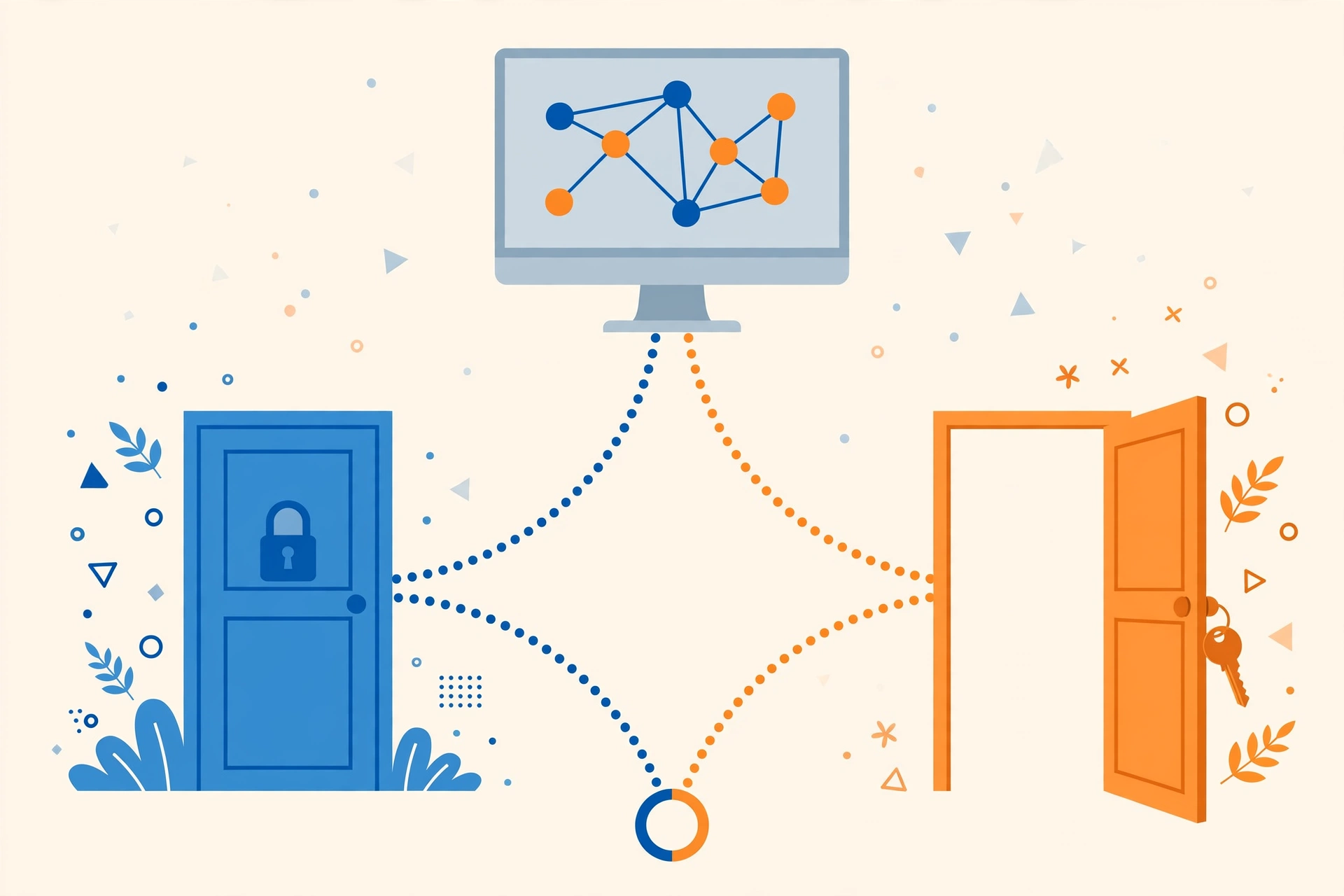
Tasks That DO Require Admin Access
The line is simple: if your task needs an installer, a driver, or a system-level change, you need admin rights. Common examples:
- Installing desktop software. Trading terminals, automation tools, game clients, and custom business apps all ship with installers that demand elevation. This is the most common reason buyers upgrade, and it is covered in detail in the companion guide on how to install programs on a remote desktop.
- Running bots and automated tools. A setup like running a FUT autobuyer bot 24/7 starts with installing the bot, which is impossible on a shared plan.
- VPN clients and network tools. Anything that installs a network driver needs admin approval.
- Development tools. IDEs, runtimes, databases, and local servers install system components.
- Windows services. Programs that must run as background services and survive logoffs need admin rights to register.
- System configuration. Changing regional settings, scheduled tasks, firewall rules, or startup programs.
Notice the pattern: it is not about how “heavy” the task is. Browsing forty tabs is heavier than installing one small utility, but only the installer needs admin rights.
The Three Access Tiers, Plainly Explained
RDP plans fall into three access tiers. Match your task to the tier, not the price tag:
- Tier 1, shared RDP, standard user. Browser RDP from $1.99/month (USA/UK), Starter RDP from $3.99/month, Basic RDP from $4.99/month. Locked-down shared machines. Great value for browser-based and office work; no installs.
- Tier 2, Admin RDP, limited admin rights. From $9.99/month (USA/UK). You get administrator credentials and can install your own software. This is the sweet spot for bots, trading terminals, and custom tools.
- Tier 3, private Windows VPS, full admin. From $6.99/month (USA/UK/Netherlands/Germany/Canada/France/Australia/UAE/Singapore). Your own isolated machine, nothing shared. Full control including reboots, updates, and system configuration.
The jump from $3.99 to $9.99 is the price of the keys. If installing software is the entire reason you are buying the RDP, the cheaper plan was never cheaper, it just postponed the real purchase. For a fuller breakdown of what installs are and are not possible on budget plans, see can you install software on a cheap RDP.
Need to install your own software? Get the admin keys.
Admin RDP gives you install rights on a fast USA/UK Windows machine, from $9.99/month.
From $9.99/mo · Admin access · Install anything · USA/UK
If your session feels sluggish rather than restricted, the cause is usually different — see our guide on why your RDP is lagging and how to fix it.
How to Decide Before You Pay
Ask yourself one question: does my task need an installer or a system change? If the honest answer is no, a shared plan covers you. If the answer is yes, or even “probably, eventually,” go straight to Admin RDP.
Three checks that settle borderline cases:
- Check the software’s download page. If it ships as a portable ZIP with no setup wizard, you are fine on shared. If it ships as an installer, you need admin.
- Ask support before buying. Describe your exact task to the provider’s support team. SadeemRDP runs 24/7 support over WhatsApp, Telegram, live chat, and tickets, and a two-minute conversation beats buying the wrong tier.
- Think about month two. Tasks grow. The buyer who “just needs browsing” in week one is installing a trading terminal in week three. If there is any chance you will install later, the admin tier is the cheaper total path.

What Happens When You Buy the Wrong Tier
The classic story: someone buys a $1.99 or $3.99 shared RDP, downloads the program they actually wanted, double-clicks the installer, and meets the admin prompt with no password to give. Nothing is broken; the plan simply never included the permission. The buyer then pays again for Admin RDP, and the first payment was wasted.
Going the other direction wastes money more quietly. Plenty of buyers pay for admin access and then spend a year doing nothing but browsing and spreadsheets. The permission sat unused while a $3.99 shared plan would have done the identical job.
Both mistakes come from the same place: shopping by price instead of by task. Decide the task first, pick the tier second.
Frequently Asked Questions
Can I get temporary admin access on a shared RDP plan?
No. Providers do not grant temporary admin rights on shared machines because one user’s install affects every user on that server. Even a single program installation requires an admin-tier plan. There is no middle ground on shared hardware, which is why the upgrade decision matters before you pay.
Do I need admin access just to use a browser or office apps?
No. Browsers, email, documents, spreadsheets, streaming, and downloads all run as a standard user. If your whole workflow lives in the browser or in software the provider pre-installs, a shared RDP from $1.99 to $4.99/month handles it, and admin rights would add nothing.
What is the difference between Admin RDP and a private VPS?
Admin RDP ($9.99/month) gives you limited administrator rights on a shared Windows machine: you can install and run your own software. A private Windows VPS ($6.99/month) gives you full admin on your own isolated machine with reboot and update control. For simply installing and running programs, Admin RDP is the simpler pick; for full isolation, choose the VPS.
Can two people share one Admin RDP account?
That depends on the provider’s terms, and sharing credentials is generally discouraged for security reasons. More practically, two active users on one machine will fight over resources and session state. If two people need remote desktops, two plans, or a VPS sized for the workload, is the honest answer.
Does admin access make the RDP faster?
No. Admin rights change what you are allowed to do, not how fast the machine is. Speed comes from the server’s CPU, RAM, and network, not from your permission level. Do not buy Admin RDP to fix lag; a slow shared plan and a fast shared plan differ in specs, not in admin rights.
Final Word
Admin access is a tool, not a trophy. If your work needs installers, drivers, or system changes, it is essential and worth every cent of the upgrade. If your work lives in the browser, it is dead weight on the invoice. Match the tier to the task before you pay, and you will never buy the wrong RDP twice.
If you are also deciding between product types, the RDP vs VPS comparison explains how admin rights differ between shared plans and a private VPS.
Gamers take note: emulator RDP plans come with BlueStacks pre-installed and tuned, so you skip the setup entirely.
Comments