
Quick answer: RDP (Remote Desktop Protocol) lets you control a Windows computer in another location from your own device, as if you were sitting in front of it. Your screen shows the remote machine’s desktop; your keyboard and mouse control it. You only need an internet connection and the free Remote Desktop app. RDP plans start from $1.99/month, and the setup takes minutes.
Most people first hear about RDP the same way: someone mentions renting a computer in another country and working on it from home, and it sounds either like magic or like a scam. It is neither. RDP is a standard, decades-old Microsoft technology, and millions of people use it daily for remote work, automation, and trading. This guide explains it the way you would explain it to a friend, starting with the concept and ending with how to get one.
What RDP Actually Is, In Plain English
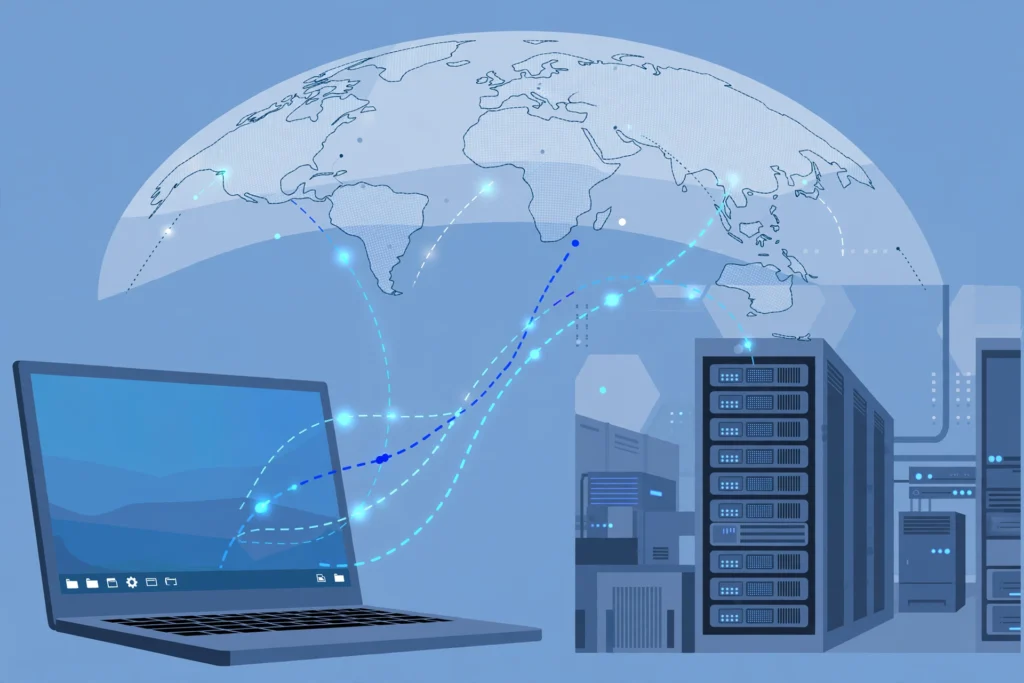
Imagine your home computer, but instead of the machine sitting on your desk, it sits in a data center hundreds of kilometers away. You open an app on your laptop, type in an address, a username, and a password, and suddenly your screen shows a Windows desktop that is running on that faraway machine. You move your mouse, click, type, open programs, download files. Everything happens on the remote computer; your laptop is just a window into it.
That is the whole concept. RDP is the protocol, the agreed-upon language, that Windows computers use to carry on this conversation. Microsoft built it into Windows from the start, which is why connecting to an RDP needs nothing exotic: the free Remote Desktop Connection app that already ships with Windows, or Microsoft’s free Remote Desktop app on Mac, phones, and tablets. Independent explainers like Cloudflare’s RDP overview describe the same basics for readers who want a second source.
How RDP Works, Step By Step
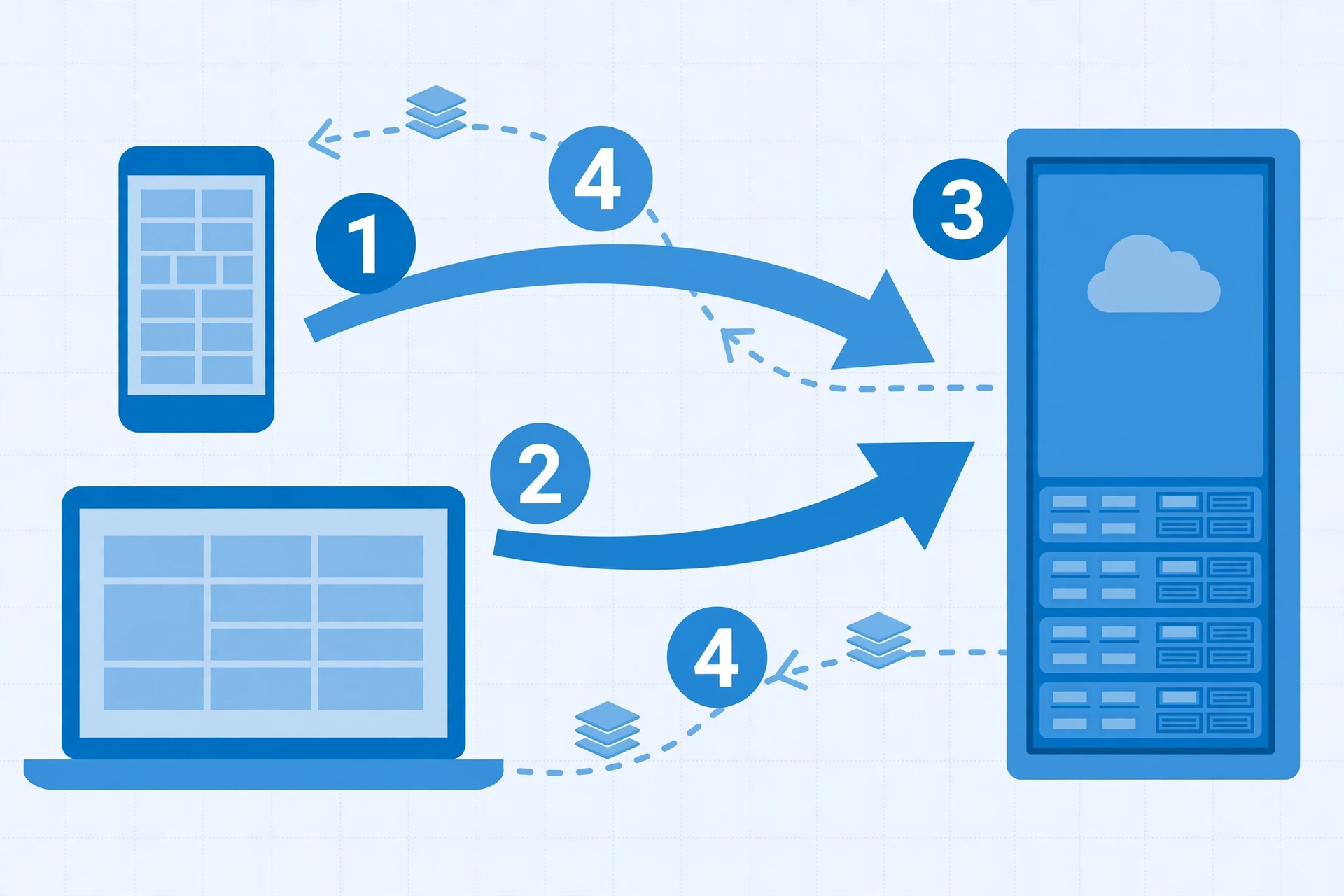
When you click connect, four things happen in order. First, your device opens a network connection to the server, usually on port 3389. Second, the two sides authenticate: you prove who you are with a username and password, often with encryption protecting the exchange. Third, the server starts a session for you and begins sending your screen as compressed images, many times per second. Fourth, every keystroke, click, and scroll you make is sent back to the server and applied to your session.
The clever part is the compression. RDP does not send a raw video stream of your desktop like a movie. It sends only what changed: if you are typing in a document, only the small area around the text updates. That is why a text-heavy session works fine on modest connections while a full-screen video on the remote machine feels heavy. Microsoft documents the protocol’s display handling in its Remote Desktop Protocol reference.
What You Can Actually Do With an RDP
The remote machine is a real Windows computer, so the list is long. Common uses:
- Remote work. Run office software, manage files, and access tools from any device, even a weak laptop or a phone.
- Always-on tasks. Keep trading terminals, bots, and downloads running 24/7 without keeping your own PC on.
- Fast downloads. Servers sit on gigabit connections, so large files download in minutes, then you fetch them at your leisure.
- A computer in another country. A USA or UK RDP gives you a local IP and a desktop in that region for region-specific work.
- Software testing. Try installers and tools on a disposable machine instead of risking your own PC.
- Automation. Run scheduled tasks, scripts, and scraping jobs on a machine that never sleeps.
What an RDP is not: it is not a VPN, it is not anonymous browsing magic, and it does not speed up your home internet. A VPN encrypts your existing connection; an RDP gives you a whole second computer somewhere else. Confusing the two leads to buying the wrong product, so pin this down before spending money.
The Two Flavors: Shared RDP vs Private VPS
RDP plans come in two broad flavors. On a shared RDP, you rent one user account on a machine shared with other customers. It is cheap, Browser RDP from $1.99/month, Starter RDP from $3.99/month, Basic RDP from $4.99/month, and it covers browsing, office work, downloads, and streaming comfortably. You cannot install your own software on these plans, and resources are shared, so performance varies.
A private Windows VPS is your own isolated machine from $6.99/month, in the USA, UK, Netherlands, Germany, Canada, France, Australia, UAE, or Singapore. Nothing is shared, you get full administrator control, and you can install anything. Between the two sits Admin RDP from $9.99/month (USA/UK), a shared plan that does allow installs. The guide on do you need admin access on RDP walks through which tier fits which task, and the troubleshooting guide on fixing RDP lag explains how plan choice affects speed. For the full breakdown, see the RDP vs VPS comparison: key differences and which to buy and the shared vs private RDP guide.
Curious? Try an RDP for less than a coffee.
Browser RDP gives you a working Windows desktop in the USA/UK, from $1.99/month.
From $1.99/mo · USA/UK · Fast activation · 24/7 support
What You Need to Use an RDP
The requirements are short. You need any device with internet access: a Windows PC, a Mac, a Chromebook, an Android phone, or an iPhone. You need the free Remote Desktop app for your device, Microsoft ships one for every major platform. And you need the login details from your provider: a server address, a username, and a password.
On Windows, open Remote Desktop Connection, type the address, enter your credentials, and you are in. The first connection takes a few seconds while the session starts; after that it feels like using a normal computer. Your internet quality matters more than your device’s power, a ten-year-old laptop on a stable connection gives a better session than a new machine on congested Wi-Fi.
Who Should (and Should Not) Buy an RDP
RDP is worth it when you have a task that benefits from a second computer: remote work on a weak laptop, 24/7 automation, trading terminals that must stay online, fast bulk downloads, or a presence in another country. Students, freelancers, and remote workers are the typical buyers, and a $1.99 to $4.99 plan covers most of these uses.
RDP is not worth it when your task is simple browsing you could do locally, or when you need heavy gaming with low latency (remote desktop adds round-trip delay no matter what). It is also the wrong tool if what you actually want is privacy for your existing connection, that is a VPN’s job. Buy for the task, not the hype.
How to Get Started
Getting an RDP is a purchase, not a project. Pick a plan matching your task, pay, and the provider sends your login details. SadeemRDP has sold cheap Windows RDP and private Windows VPS plans since March 2017 from Lahore, Pakistan, with 24/7 support over WhatsApp, Telegram, live chat, and tickets, and fast activation after payment. If you are unsure which tier fits, the rule of thumb from the admin-access guide holds: if your task needs an installer, get Admin RDP or a private VPS; if everything happens in a browser or pre-installed software, a shared plan saves you money. And if your first session feels slow, the lag troubleshooting checklist fixes the common causes in order.
Frequently Asked Questions
Related reading: Video creators should also see what encoding RDP is and how it works, our guide to remote desktops tuned for video encoding workloads.
Is RDP legal and safe to use?
Yes. RDP is a legitimate Microsoft technology used by businesses worldwide for remote work and IT administration. The connection is encrypted, and your provider cannot see your passwords or files beyond what any server host could. Stick to reputable providers with real support and transparent pricing, and keep your login credentials private.
What is the difference between RDP and a VPN?
A VPN encrypts your existing internet connection and routes it through another server; you still use your own computer. RDP gives you an entirely separate computer in another location that you control remotely. Use a VPN for privacy on your own device, use an RDP when you need a second machine for work, automation, or a presence in another region.
Do I need a powerful computer to use RDP?
No. Your device only displays the remote screen and sends your input, so almost any device works, including old laptops, Chromebooks, and phones. The heavy lifting happens on the server. What matters is your internet connection: stable and low-latency beats fast and flaky every time.
Can I install software on a cheap RDP?
On shared budget plans, no: installs require administrator rights, which shared plans do not include. If your task needs installers, you need Admin RDP (from $9.99/month) or a private Windows VPS (from $6.99/month) with full admin control. The full breakdown is in the guide on installing software on a cheap RDP.
How fast is the internet on an RDP?
Servers sit in data centers with gigabit connections, so downloads and uploads on the remote machine are typically far faster than a home connection. Large files that take hours at home can finish in minutes on the server. Your experience of the remote desktop itself depends on your own connection quality and the distance to the server.
Need Android apps or games on a bigger screen? Read what an emulator RDP is and the step-by-step guide to running BlueStacks on a cloud PC.
Comments