
To use RDP for online work from Pakistan, buy a Windows RDP plan, install the free Microsoft Remote Desktop app on your laptop or phone, enter the server IP address and login details sent after payment, and connect. Your remote Windows desktop opens in seconds. Starter RDP plans start at $3.99 a month, and most Pakistani freelancers pay with local methods like EasyPaisa or JazzCash.
For a lot of freelancers, students, and remote workers in Pakistan, the real enemy is not a lack of clients. It is a laptop that takes ten minutes to boot, a power cut in the middle of a client call, or an internet connection that slows to a crawl at the worst moment. RDP, short for Remote Desktop Protocol, solves all three at once. It gives you a fast Windows computer sitting in a data center, and you control it from whatever device you already own. That remote machine stays on around the clock, it never notices load shedding, and a basic plan costs less per month than a dinner out. This guide covers the full picture: what RDP actually does for online work, how to set it up from Pakistan, which plan fits, and how to keep it fast and secure.
What does using RDP for online work actually mean?
RDP lets you see and control a Windows computer that is physically located somewhere else. The machine itself sits in a data center with fast internet and steady power. You open an app on your own laptop or phone, log in, and a full Windows desktop appears on your screen, as if that powerful computer were sitting on your desk.
Your keyboard, mouse, and screen travel over the internet, while all the heavy lifting happens on the server. That is the part that matters for online work. A six-year-old laptop with a weak processor can suddenly feel quick, because the remote server is the one running the browser tabs, the spreadsheets, and the design tools. Your local device is just a window into that machine.
If the term is new to you, our beginner guide explains what RDP is and how it works in plain language before you spend anything.
Why does RDP make sense if you work online from Pakistan?
Three practical reasons keep coming up for Pakistani remote workers. First, power cuts. A remote server does not know what load shedding is; it keeps running while your street goes dark, and your open files and browser sessions are exactly where you left them when the lights come back. Second, hardware. Not everyone can afford a new laptop, and working remotely on a low-end laptop becomes realistic when the demanding work happens on a server instead. Third, downloads and uploads. Big files download on the server’s fast data-center connection, so you are not stuck watching a progress bar crawl on a slow home connection for hours.
One honest note: RDP does not replace your own internet connection. The screen you see is streamed to you, so a reasonably stable connection on your side still matters. What it does is move the parts that need power, speed, and uptime off your desk and into a data center.
What do you need before you start?
You need less than most people expect. Four things, and you are ready.
1. A device you already own. Any Windows PC, Mac, Android phone, or iPhone works. Microsoft’s Remote Desktop app is free on all of them, and the setup takes a few minutes. Even an older phone can drive a full Windows desktop this way.
2. A stable internet connection. Office work, browsing, and document editing feel smooth on a normal broadband or 4G connection. If your connection drops every few minutes, fix that first, because the remote desktop will freeze along with it. Our guide on why RDP lags and how to fix it covers the common causes.
3. A way to pay. Paying from Pakistan is straightforward. The checkout page lists the accepted payment methods, and Pakistani buyers commonly use local mobile wallets such as EasyPaisa and JazzCash for online purchases. Pick the option that suits you and keep the receipt email.
4. An RDP plan. For general online work, the Starter RDP plan at $3.99 a month is the natural entry point. More on choosing below.
How do you set up RDP for online work, step by step?
The whole process takes about fifteen minutes the first time, and under a minute on every later login.
Step 1: Order your plan. Choose the plan that matches your work, complete the checkout, and wait for the activation email. Activation is fast after payment; the email carries your server IP address, username, and password.
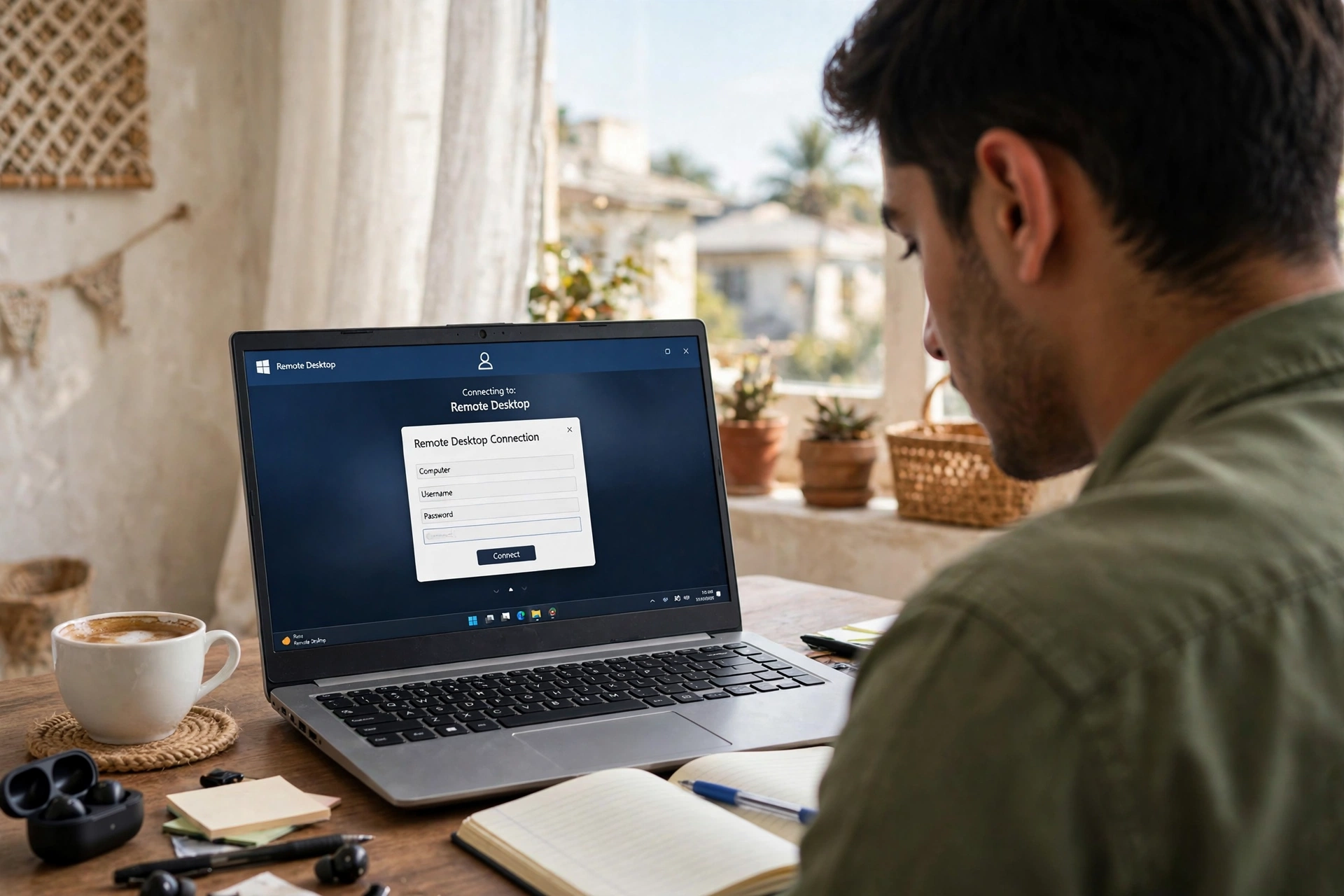
Step 2: Install the Remote Desktop app. On Windows, the Remote Desktop Connection tool is already built in (search for “mstsc”). On Mac, Android, or iOS, download “Microsoft Remote Desktop” from the app store. It is free and maintained by Microsoft.
Step 3: Add your server. In the app, add a new PC or connection and paste the IP address from your activation email. Enter the username and password, and save the connection so you never have to retype them.
Step 4: Connect and adjust. Double-click the saved connection. A full Windows desktop opens. Set the display resolution to match your screen for the sharpest picture, and pin the app to your taskbar or home screen for one-click access from now on.
Step 5: Move your work over. Install the tools you need inside the remote desktop, bookmark your work sites there, and sign in to your accounts. From this point on, your real workstation lives on the server; your local device is just the door.
Which RDP plan is right for online work?
Not every plan fits every job, so match the plan to what you actually do all day. Browser RDP at $1.99 a month covers light browsing and web-based tasks. Starter RDP at $3.99 a month is the sweet spot for most online work: office documents, freelancing platforms, customer support dashboards, and everyday multitasking. Basic RDP at $4.99 a month adds more headroom if you keep many apps open at once. Admin RDP at $9.99 a month is the one to pick if you need to install your own software, because it comes with administrator rights that the cheaper shared plans do not include.
If you are still unsure whether a budget plan is legitimate or a trap, read is buying cheap RDP worth it for an honest breakdown of what to check before paying. Students working with very tight budgets should also see our best cheap RDP for students roundup. The rule of thumb is simple: pay for what your work needs, not for specs you will never use.
From $3.99/mo · Windows RDP · 24/7 uptime
How do you keep your RDP fast and secure?
A remote desktop is a real computer on the public internet, so treat it with the same care you would give your own machine. Change the default password the day you log in, and pick something long that you do not reuse anywhere else. Never share your login details, not even with a teammate; if someone needs access, ask support about the right way to add them. Keep the number of programs running at once reasonable, because every open app eats server resources and can make the session feel sluggish. Choose the server location closest to you when ordering, since shorter distance usually means a snappier response. And keep your own side clean: a laptop full of malware can leak the very password you are typing into the remote session.
What kind of online work runs well on an RDP?
Most desk-based online work fits naturally. Freelancers run their profiles, proposals, and client chats on it. Virtual assistants handle inboxes, calendars, and data entry. Content writers draft and edit in cloud tools. Designers use browser-based design apps. Developers keep code editors and test environments open all day. Customer support agents run helpdesk dashboards that must stay online during their whole shift.
There are limits worth knowing. An RDP is a work machine, not a gaming rig and not a magic income machine. Always check the provider’s terms before installing unusual software, and be realistic: a remote desktop removes the technical obstacles from your workday, but finding clients and doing good work is still on you. Nobody can promise earnings, and you should be suspicious of anyone who does.
Frequently asked questions
Is it legal to use RDP for online work in Pakistan?
Yes. RDP is a standard remote-access technology used by companies worldwide, and using a rented Windows server for freelancing, remote jobs, or study is completely legal in Pakistan. What matters is what you do on it: normal work, business, and learning are fine. Anything illegal stays illegal whether you do it on your own laptop or on a remote server.
Can I use RDP on my phone?
Yes. Microsoft’s free Remote Desktop app runs on Android and iOS, and it handles a full Windows desktop surprisingly well on a phone screen. It is best for checking on things, light editing, and urgent tasks rather than all-day work. For long sessions, a laptop or a tablet with a keyboard is far more comfortable.
How much internet speed do I need on my side?
For office work, browsing, and documents, a stable broadband or 4G connection is enough. Stability matters more than raw speed: a steady 10 Mbps line feels better than a fast line that drops every few minutes. If your session freezes often, the fix is usually your local connection, not the server.
Will my files stay safe on a remote server?
Your files live on the provider’s server, so keep your own backups of anything important, exactly as you would on a home computer. Use a strong unique password, never share your login, and avoid saving sensitive passwords in the remote browser without a password manager. Reputable providers keep their servers maintained, but your backup habit is your real safety net.
Can I install my own software on a Starter RDP?
Starter RDP is a shared plan with limited permissions, so installing arbitrary software is usually not allowed. If your work needs you to install programs, the Admin RDP plan is built for that, with administrator rights included. Read our guide on whether you need admin access on RDP to decide which tier your work actually requires.