
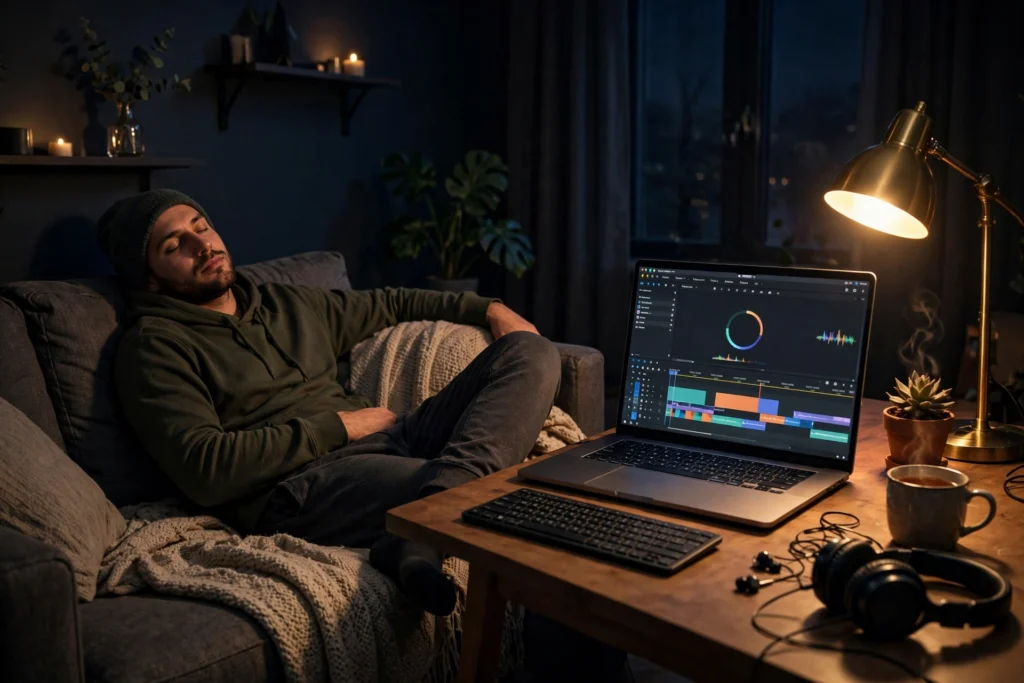
Yes, you can render videos overnight without leaving your own PC on. Queue your renders on a remote encoding machine, shut your PC down, and collect the finished files in the morning. The render runs on the server’s hardware all night, your bedroom stays quiet, and your electricity bill skips the all-night shift.
Every video editor knows the same nightly dilemma. A 20-minute 4K project might need three hours of rendering, and the only way to have it ready by morning is to leave the PC running, fans spinning, room warming up. It works, but it is noisy, it wears your hardware, and one Windows update or power flicker can kill the whole render. There is a calmer way to do it.
Why overnight rendering on your own PC is a bad deal
First, heat. A PC rendering at full load for hours pumps warm air into the room all night. In summer that means a hot bedroom and worse sleep. Second, noise. Fans at full speed are not loud exactly, but they are constant, and constant noise is what keeps people awake. Third, risk. A home PC can reboot for updates, trip over a power cut, or crash on a driver issue, and any of those ends the render with nothing to show for the night.
Fourth, wear. Running a CPU at full load for eight hours every night adds up over months. It is not going to kill a good machine, but it shortens the comfortable life of fans and thermal paste. A remote machine takes that wear instead of your own computer, and that trade alone is worth it for people who render often.
How the remote-render setup works
The idea is simple. You rent a Windows machine in a data center that stays on around the clock. You connect to it with Remote Desktop, open your editing or encoding software there, load your project, and start the render. Then you disconnect and switch your own PC off. The remote machine keeps working through the night. In the morning you reconnect, and the finished video file is waiting.
Nothing about your project changes. You use the same software, the same export settings, the same files. The only difference is where the heavy work happens. If you already know how to use a remote desktop, the learning curve is basically zero. If you want the background first, our explainer on what encoding RDP is and how it works covers the category in plain terms.
How to queue renders so nothing stalls overnight
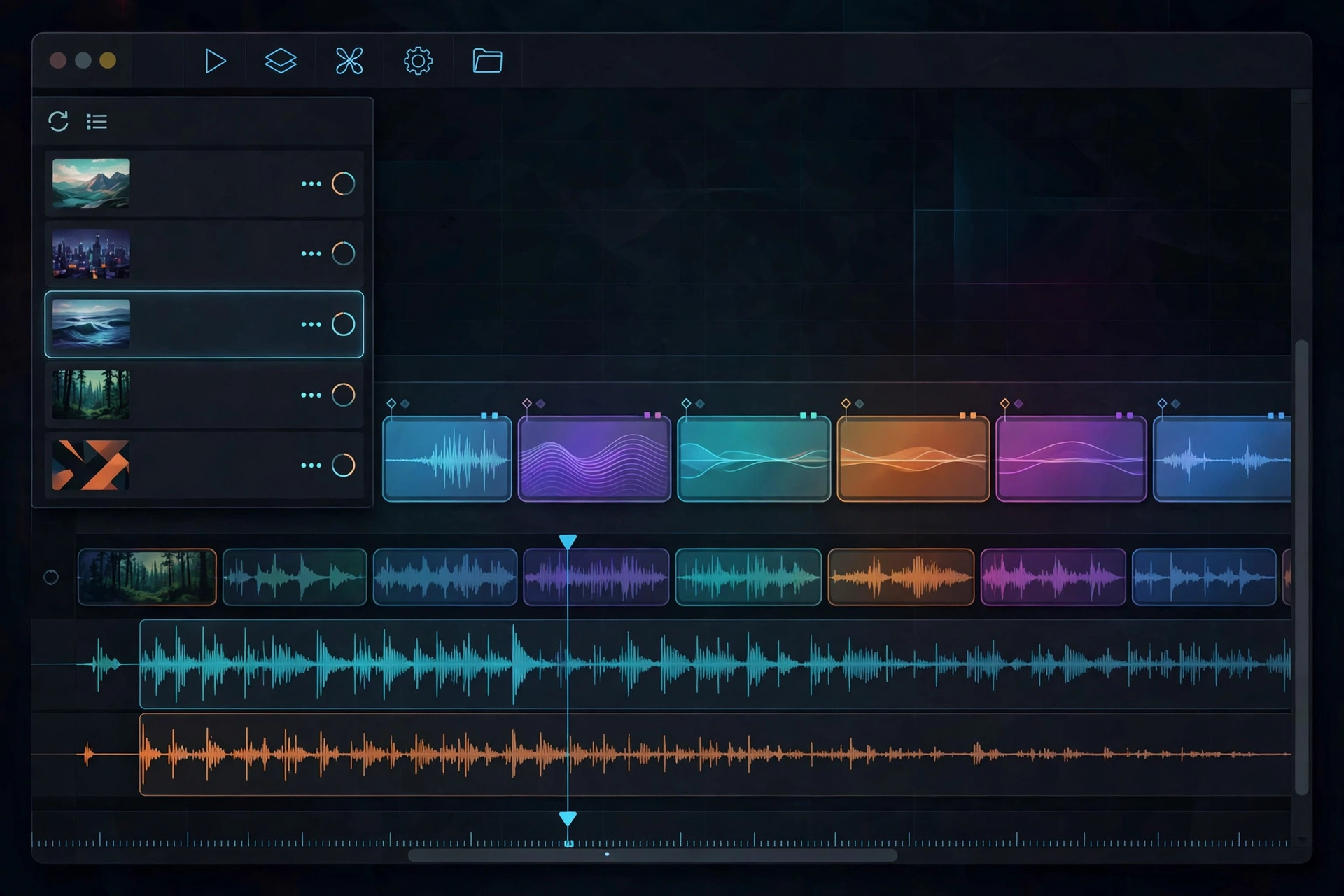
The trick to a smooth night is queuing, not babysitting. Most editors let you line up several exports and walk away:
- DaVinci Resolve: add each timeline to the render queue, then start the whole queue in one click.
- Premiere Pro: send each sequence to Media Encoder, stack them in the queue, and press start once.
- HandBrake: add each video to the queue, pick your preset per file, and let the batch run in order.
Before you disconnect, check three things. One: the output folder has enough free space for every file in the queue, plus a little extra. Two: autosave is on, so a crash costs minutes, not hours. Three: the first render in the queue actually starts cleanly. Watch the first minute of progress, then disconnect with confidence. A queue that stalls on file one wastes the whole night.
What the remote machine needs for overnight renders
CPU cores matter more than anything else for encoding. Video encoding splits beautifully across cores, so a 16-core machine finishes a render far faster than a 4-core one. RAM matters second: 16 GB is comfortable for most 1080p and light 4K work, while heavy 4K timelines with effects want 32 GB. Storage matters third, and it is the one people forget. Raw footage plus finished exports eat space fast, so check the plan’s disk size before you upload a project.
For reference, a typical Encoding RDP setup offers 16 CPU cores and 32 GB of RAM, which handles most overnight queues without breaking a sweat. That is the class of machine built for this job, as opposed to a general remote desktop that happens to have an encoder installed. If your projects are mostly 1080p, even a smaller machine will do the night shift fine; the queue just runs longer.
Getting finished files back in the morning
A finished render is useless if it sits on a remote disk you cannot reach. Plan the return trip before the render starts. The easiest route is a cloud drive: point the export folder at a synced folder, and the file appears on your own PC as it finishes. If the files are huge, a direct download over the remote desktop connection works too, though it takes longer on a slow home connection.
Some editors upload straight from the remote machine. If your final destination is YouTube, exporting on the server and uploading from the server’s datacenter connection can be much faster than downloading to your home first. The simple version is enough: render remote, download or sync in the morning, publish.

From $13.99/mo · 16 cores · Amsterdam location
What this setup cannot do
Honesty matters here. A remote render machine is not a magic speed booster. If your project is badly optimized, with unrendered effects stacked on every clip, it will still take a long time. Encoding speed also depends on the codec: H.264 is slow everywhere, while hardware-friendly codecs move faster. And a shared remote machine can slow down at peak hours when other users are busy, just like any shared service.
Also, an encoding RDP is built for encoding work, not for everything. If you need to run software the provider does not allow, or you need full admin control over the machine, check with support before buying. For straight rendering queues, though, the standard setup fits: install your editor or encoder, queue the work, and let the night do the rest.
If your renders are slow even on a decent machine, the bottleneck might be your workflow rather than hardware. Our guide on speeding up video rendering on a slow computer covers the optimization steps that help everywhere, remote or local.
With the render finished overnight, the next step is getting the file online, so see how to upload large videos to YouTube faster.
Frequently asked questions
Do I need to keep my PC on while the remote machine renders?
No. That is the whole point. Once the render queue is running on the remote machine, you can disconnect and switch your own PC off completely. The remote machine stays on in the data center and keeps working until the queue finishes.
Can I start a render from my phone?
Yes, if you can open a Remote Desktop session from your phone. You can check render progress, add files to the queue, or start a new export from anywhere. Phone screens are small for editing, but they are fine for checking a queue.
What if the render fails halfway through the night?
That is why queues and autosave matter. A good encoder marks failed jobs, and most editors let you restart from the failed item instead of the whole queue. Check the queue in the morning, re-run anything that failed, and you lose one job, not the night.
Is my footage safe on a remote machine?
Your files sit on the provider’s server, so the same common sense applies as with any cloud service. Use a strong password, do not share login details, and download finished work promptly. For sensitive client footage, a private plan gives you more isolation than a shared one.
How much faster is a 16-core remote machine than my laptop?
It depends on your laptop, but the gap is usually large. A typical thin laptop has 4 to 8 cores and throttles under sustained load, while a 16-core server holds full speed all night. A render that takes six hours on a laptop can often finish in two to three hours on a 16-core machine, though exact times vary by codec and project.
Sources: HandBrake official site for batch queue encoding documentation.
For the tool side of big batches, see this HandBrake vs FFmpeg comparison for batch video encoding.