
For most batch video encoding, FFmpeg wins on speed, control, and automation, while HandBrake wins on ease of use. If you want to queue files in a visual app and press start, pick HandBrake. If you want scripts, repeatable settings, and large folders processed with little clicking, pick FFmpeg.
What Is HandBrake, and What Is FFmpeg?
HandBrake is a free, open-source video transcoder with a graphical interface. You open it, add a video, pick a preset, and convert it into a format that plays well on phones, computers, or the web. It hides most of the technical detail behind menus and sliders, which is why many beginners start there.
FFmpeg is a free, open-source command-line toolkit for recording, converting, and streaming audio and video. There is no main window with buttons for each job. You type a command that names the input file, the codec, the quality setting, and the output file, and FFmpeg does the work. You can read the official project pages at handbrake.fr and ffmpeg.org before you install either tool.
How Does Batch Encoding Work in HandBrake?
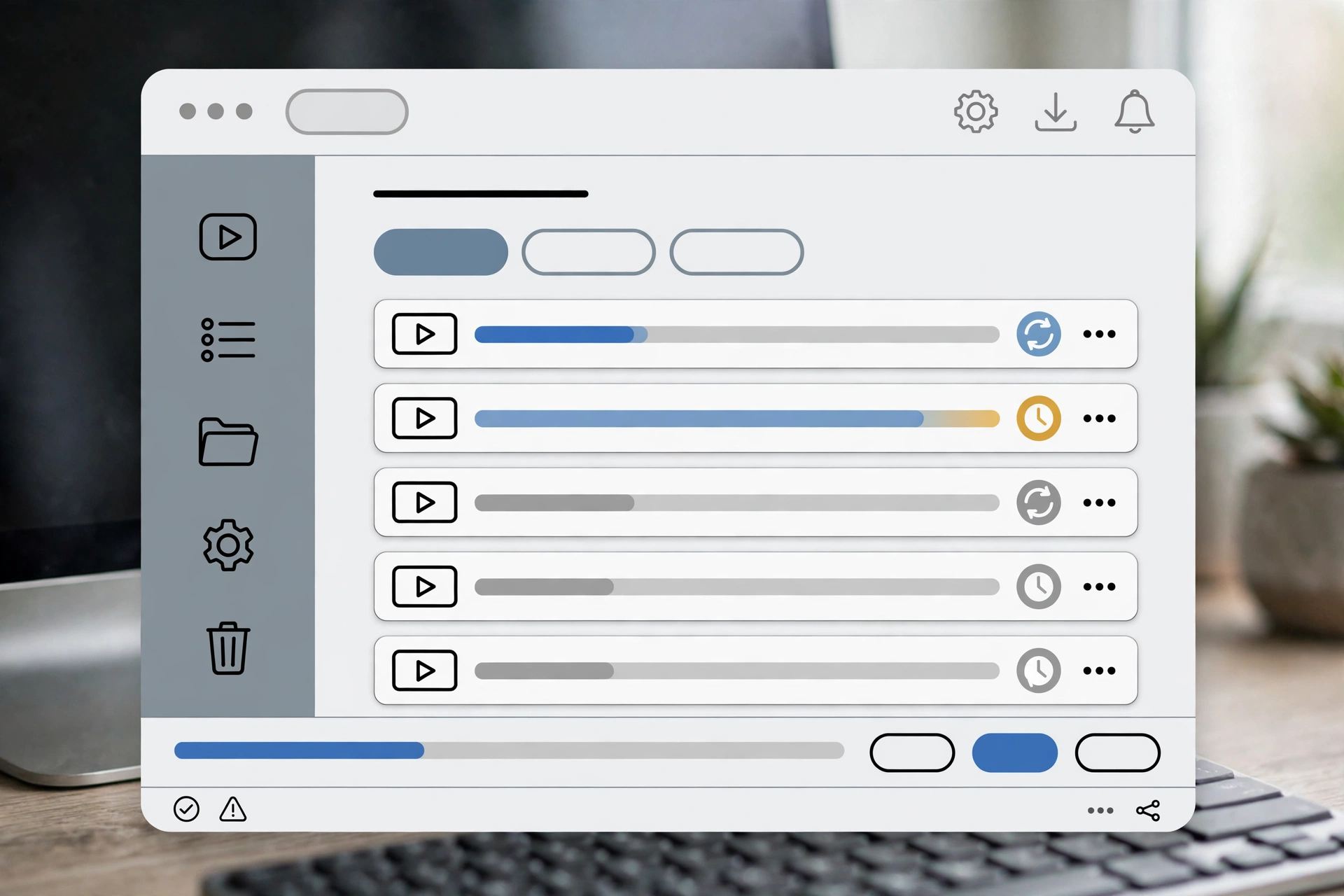
HandBrake handles batches through its queue. You add one file, choose a preset, and add it to the queue. Then you repeat the steps for the next file, or you use the folder scan option to add several files at once and apply the same preset to all of them.
Once the queue is ready, you press start and HandBrake works through the list in order. You can pause the queue, remove a job, or change the order, and you can watch progress for the current file. This setup suits a creator with ten or twenty clips who wants to check each preset before the run starts.
The trade-off is repetition. If every file needs different cropping, subtitles, or audio tracks, you will spend time opening each job and adjusting it by hand. HandBrake also processes queue jobs one at a time by default, so a long list can take a full evening even when each single file converts quickly.
How Does Batch Encoding Work in FFmpeg?
FFmpeg handles batches through scripts and loops rather than a built-in queue window. A simple loop can take every video in a folder, apply the same codec and quality setting, and save each result with a new name. Once that script works for one folder, it works for the next folder with almost no extra effort.
That approach scales fast. You can add rules for file names, skip files that already exist, log errors, and run the job overnight. You can also split work across folders or machines by changing a few lines, which is hard to do by clicking through a queue again and again.

The cost is upfront learning. A typo in a command can overwrite a file or pick the wrong audio track, so testing on one short clip before a full batch is a sensible habit. After that first test, though, the same command can process hundreds of files with consistent results.
Which Tool Is Faster, and Which Gives Better Quality?
Neither tool has a built-in speed advantage that applies in every case, because both rely on the same encoders for common formats such as H.264 and H.265. In practice, speed comes down to the codec, the preset, the quality target, and the processor doing the work. A slow preset squeezes out more quality per megabyte but takes much longer, while a fast preset finishes sooner with larger files or softer detail.
Quality settings work in a similar way in both tools. HandBrake exposes a quality slider tied to a constant quality value, often called CRF, and FFmpeg lets you set that same CRF value directly in the command. Lower CRF values mean higher quality and larger files, while higher CRF values mean smaller files with more visible compression. The trick is to test a short, detailed clip at two or three settings and pick the smallest file that still looks good to you.
Hardware encoding adds another twist. Many modern graphics cards can encode video far faster than a processor, but hardware encoders often produce larger files at the same visual quality, and results vary by card and driver. HandBrake makes hardware encoding easy to select, while FFmpeg gives finer control over the exact hardware encoder and its options. For archival work or uploads where quality matters most, software encoding on the processor is still the safer default.
What Formats and Codecs Can Each Tool Handle?
HandBrake covers the formats most people need, including MP4 and MKV containers and H.264, H.265, VP9, and AV1 video, plus common audio formats such as AAC and AC3. It also handles subtitles, chapters, and basic filters for cropping, scaling, and deinterlacing. For typical YouTube uploads, course videos, and phone-friendly copies, that range is plenty.
FFmpeg supports a much wider list, including older formats, broadcast formats, image sequences, and audio-only conversions that HandBrake does not target. It can also extract audio, trim without re-encoding in some cases, join files, add watermarks, and build complex filter chains in a single command. If your batch includes odd source files from cameras, screen recorders, or old archives, FFmpeg is more likely to accept them without an extra conversion step. For background on the kind of remote setup built for this work, see what an encoding RDP is and how it works.
Which Tool Is Easier to Learn and Use?
HandBrake is clearly easier at the start. The preset list gives you a sane starting point, the preview helps you spot a wrong crop, and mistakes are easy to undo before you press start. A new user can convert a first batch on the same day without reading a manual.
FFmpeg takes longer to learn because every choice must be typed, and error messages can be blunt. The payoff comes later: saved commands become a repeatable recipe, and a batch that took an hour of clicking in a graphical app can take a minute to launch. If you only encode a few videos a month, that payoff may never matter. If you encode every week, it adds up fast.
What Is the Real Bottleneck in Batch Encoding?
The real bottleneck in batch encoding is almost always the processor. Video encoding is CPU-bound work, which means more cores and faster cores finish batches sooner, while a weak laptop will crawl no matter which app you choose. Memory and storage speed help, but they rarely beat a shortage of processing power.
That is also why neither tool makes a slow PC fast. A better preset can cut wasted work, and hardware encoding can speed up some jobs, but a large batch on a low-core machine will still take hours. When encoding becomes regular work rather than a one-off task, moving the job to a machine with more cores is often the change that matters most. If slow renders keep eating your day, these tips for speeding up video rendering on a slow computer are worth reading first.
From $13.99/mo – Amsterdam – Built for heavy encoding
Which Tool Should You Pick for Your Batch Jobs?
Pick HandBrake if you encode in small batches, you like visual controls, and you want to check each file before it converts. It is a strong choice for creators who publish a few videos a week, for teachers turning recorded lessons into shareable files, and for anyone who wants good results without learning command syntax. The queue is simple, the presets are reliable, and the preview window catches common mistakes early.
Pick FFmpeg if you encode large folders, repeat the same job often, or need formats and filters beyond the usual presets. It is a strong choice for editors with weekly backlogs, for teams that standardize on one command for every upload, and for anyone who wants logs, error handling, and file-naming rules built into the process. The learning curve is real, but a single tested script can replace hours of clicking, and that script can be reused, shared, and improved over time.
You can also use both tools together without any conflict. Many people use HandBrake to test a preset on a short clip, then use FFmpeg to apply the matching settings across a full folder. Others use FFmpeg for bulk conversion and HandBrake for a tricky file that needs a quick visual check. The best setup is the one you will actually run on schedule, not the one with the longest feature list. For long jobs, planning an overnight render without leaving your own PC on can also save your local machine for daytime work.
Whichever tool you choose, keep three habits: test settings on a short clip first, keep your original files until you have checked the outputs, and name output folders clearly so a failed batch does not mix with finished files. Those habits prevent more lost time than any single preset change.
Frequently Asked Questions
Can HandBrake batch convert a whole folder at once?
Yes, HandBrake can scan a folder and add its videos to the queue with a shared preset, so you do not have to open each file one by one. You should still check the preset, output folder, and naming pattern before starting, because a wrong setting will repeat across every file in the batch.
Is FFmpeg free, and do I need to install anything else with it?
Yes, FFmpeg is free and open-source, and a standard install covers most common video and audio formats. Some systems need a separate build for certain codecs, so download from the official site and check that your chosen codec works on a short test clip first.
Will switching from HandBrake to FFmpeg make my videos encode faster?
Not on its own, because both tools use the same encoders and the processor sets the pace. FFmpeg can save time through scripts, batch rules, and fewer manual steps, but the actual encoding speed for the same codec, preset, and quality setting will be very similar.
Which quality setting should I use for batch uploads?
A CRF value around 18 to 23 is a sensible starting range for H.264 uploads, with lower values giving higher quality and larger files. Test a detailed 30-second clip at two settings, compare the results on your target screen, and then use the higher CRF that still looks clean.
Can I run large batches without slowing down my main computer?
Yes, you can move the batch to a second machine or a remote desktop with more CPU cores, then keep your main computer free for editing and daily work. That split works well for overnight jobs, but always verify a few finished files before deleting the originals.