
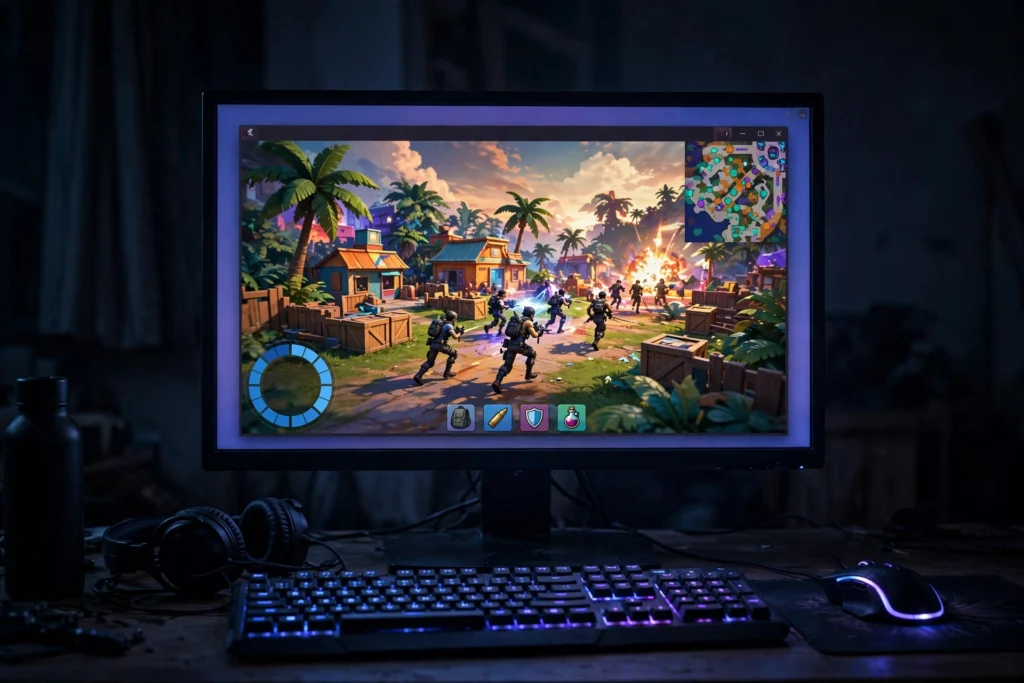
Quick answer: Yes. An emulator RDP is a cloud Windows PC with BlueStacks pre-installed, and PUBG Mobile runs inside it like any other Android game. You connect over remote desktop and map controls to your keyboard and mouse. It suits casual matches on a big screen, but extra input delay makes competitive ranked play feel noticeably worse.
Playing PUBG Mobile on a bigger screen with real keys under your fingers changes the feel of the game. Recoil control gets easier, spotting enemies gets easier, and long sessions stop hurting your thumbs. The usual way to get there is installing an Android emulator on your own PC, but that needs a machine with enough CPU and RAM to spare. An emulator RDP offers another route: the emulator already runs on a rented Windows PC in a data center, and you simply connect to it over remote desktop.
This guide explains exactly how PUBG Mobile behaves on an emulator RDP, what performance to expect, how the emulator matchmaking pool works, and how to set everything up. It also stays honest about the limits, because this setup is not the right choice for everyone.
How does PUBG Mobile run on an emulator RDP?
It runs the same way it would on a home PC with BlueStacks, except the PC sits in a data center. An emulator RDP is a rented Windows computer that comes with BlueStacks already installed. You connect to it through the Remote Desktop Protocol, open BlueStacks, and install PUBG Mobile from the Google Play Store inside the emulator. The game has no idea it is running in the cloud; as far as it can tell, it is on an ordinary Android device managed by BlueStacks.
Your keyboard and mouse pass through the remote connection into the emulator, where BlueStacks keymapping turns them into touch controls: WASD for movement, mouse for looking and aiming, and single keys for firing, jumping, crouching, and healing. The game renders on the server, and what you see is a live video stream of that screen. Every keypress travels the reverse path, from your desk to the server and back to your eyes.
What kind of performance should you realistically expect?
Expect playable but not perfect. On a decent plan and a stable connection, PUBG Mobile holds a steady frame rate at medium settings, with the occasional dip when you drop into a busy area like Pochinki. The bigger factor is not frames but delay: every action carries the round trip between you and the server, which typically adds tens of milliseconds of input lag on top of normal game latency.
That delay is the honest price of cloud play. It is small enough that casual classic matches, arcade modes, and team deathmatch feel natural after a few games of adjustment. It is large enough that close-range spray battles in ranked can feel slightly off, as if your reactions arrive a beat late. Your distance to the server decides most of this: a player in the US connecting to a US server feels far less lag than someone connecting across an ocean, so pick the USA or UK location closest to you. No plan, setting, or tweak removes the round trip entirely, so treat any claim of zero-lag cloud gaming with suspicion.
Two more honest notes. First, the hardware is shared, so peak-hour congestion can cause brief stutters that a dedicated home PC would not have. Second, do not chase the highest frame rate mode on a cloud setup; PUBG Mobile caps frame rate options, and a stable medium setting beats a stuttering high one every time.
Will PUBG Mobile match you against other emulator players?
Yes. PUBG Mobile detects emulator players and places them in a separate matchmaking pool, so your opponents are also playing on keyboard and mouse. This applies whether BlueStacks runs on your own PC or on a cloud RDP; the game cannot tell the difference, and it does not need to.
In practice this keeps things fair. You will not face mobile players who are stuck with touch controls, and they will not face you. If you team up with a friend on a phone, the squad gets pulled into the emulator pool, worth knowing before you invite anyone. The game may show an emulator-detected notice in the lobby, which is normal and not a warning of any kind.
How do you set up PUBG Mobile on an emulator RDP?
Setup takes about ten minutes. The emulator comes pre-installed, so most of the work is signing in and mapping keys.
- Connect to the RDP. Open your remote desktop client, enter the server IP, username, and password from your welcome email, and sign in. Any device with a remote desktop app works, including old laptops and Chromebooks.
- Open BlueStacks. It is already installed on the desktop. Launch it and wait for the Android home screen to load.
- Sign in to the Play Store. Add a Google account inside BlueStacks, the same way you would on a phone.
- Install PUBG Mobile. Search the Play Store, install the game, and let it download its resource packs over the server connection, which is usually fast.
- Map your keys. Open the game controls panel in BlueStacks and assign WASD, mouse look, left-click fire, and keys for jump, crouch, prone, reload, and heal. BlueStacks ships with a default PUBG Mobile scheme, so you can start from that and adjust.
- Set graphics conservatively. Start on Smooth graphics with a medium frame rate. Raise settings only after a few stable matches.
- Warm up in training grounds. Spend ten minutes checking that aiming, firing, and vehicle controls feel right before queueing a real match.
If you want a deeper walkthrough of the emulator side, this guide to running BlueStacks on a cloud PC covers instance settings and multi-instance tricks in more detail.
From $16.99/mo · BlueStacks pre-installed · 24/7 uptime
What do you need on your end for it to feel playable?
A stable connection matters more than a powerful computer on your side. The server does the heavy rendering; your device only needs to display the stream and send your inputs back. A five-year-old laptop handles that job fine.
- Stable internet, not just fast internet. Around 15 Mbps down is plenty, but stability and ping matter far more than raw speed. A wired connection beats Wi-Fi, and Wi-Fi beats mobile data. Close background downloads and streams before a session.
- The closest server region. Pick the USA or UK location with the lower ping from your city. Every extra 50 ms of ping lands directly on your aim.
- A real keyboard and mouse. A basic gaming mouse with adjustable DPI makes aiming far more comfortable than a trackpad. This is non-negotiable for anything beyond casual play.
- Sensible emulator settings. Give BlueStacks enough CPU cores and RAM in its instance settings, and keep the display resolution at 1280×720 or 1600×900 rather than full 1080p if frames dip. Our RDP lag troubleshooting guide walks through the exact settings that help most.
One useful bonus: because the emulator lives in the cloud, you can keep a second app open beside the game, like a browser with a map guide or a chat app, without stealing resources from your match. Players who run several apps at once will find the same multi-app approach that helps weak PCs works here too.
Is an emulator RDP actually worth it for PUBG Mobile?
It is worth it if your phone or PC cannot run an emulator well and you mostly play for fun; it is not worth it if you grind ranked and every millisecond matters. That is the whole verdict in one sentence, and the rest is detail.
Compared with playing on your phone, the RDP wins on screen size, controls, and comfort during long sessions, but loses on latency and on the convenience of playing anywhere. Compared with running BlueStacks on your own PC, the RDP wins when your hardware is too weak, too old, or a Chromebook that cannot run emulators at all, but loses on raw responsiveness because a local emulator has no network round trip. For casual classic matches, arcade modes, and playing with friends on a big monitor, the cloud setup is genuinely enjoyable. For pushing Conqueror or competing in tournaments, stick with the lowest-latency setup you own.
On cost, an emulator RDP from $16.99 per month (USA; UK from $17.99) is cheaper than upgrading a weak PC and far cheaper than a gaming phone, which makes it a reasonable experiment for a month or two before you commit. SadeemRDP has sold Windows RDP and VPS plans since March 2017, activates accounts quickly after payment, and keeps 24/7 support on WhatsApp, Telegram, live chat, and tickets if setup gives you trouble.
Free Fire players can use the exact same setup — here is the honest answer on playing Free Fire on an emulator RDP, including latency limits and control setup.
PUBG Mobile on an emulator RDP is a good test of the whole setup: controls, latency, and stability. Play Android Games on PC Without a Graphics Card (2026) helps if your own PC lacks a GPU, How to Run Android Apps 24/7 on a Cloud PC (2026) covers keeping apps alive, and BlueStacks Lagging on a Low-End PC? 7 Fixes (2026) fixes the stutter that ruins a match.
Frequently asked questions
Can I play PUBG Mobile on an emulator RDP without getting banned?
Yes. PUBG Mobile officially allows emulator play and simply matches emulator players together in their own pool. Playing through a cloud RDP changes nothing about that policy; the game sees BlueStacks either way. Bans come from cheats, hacks, and unauthorized mods, not from where the emulator runs.
How much internet speed do I need for PUBG Mobile on a cloud PC?
Around 15 Mbps down is enough, but stability and ping decide the experience far more than speed. Use a wired connection when possible, close background downloads, and choose the USA or UK server region closest to you. A fast but jittery connection feels worse than a slower stable one.
Will it lag in ranked matches?
There is always some extra input delay compared with local play, because every action makes a round trip to the server. Casual and arcade modes feel fine after a short adjustment, but hot drops and close-range fights in ranked can feel slightly late. If ranked climb is your main goal, a local setup stays the better choice.
Can I use my existing PUBG Mobile account?
Yes. Sign in inside BlueStacks with the same Facebook, Google, or other login you use on your phone, and your level, inventory, and UC carry over. You will still land in the emulator matchmaking pool, since the game matches by input method, not by account.
Do I need a gaming PC at home to use an emulator RDP?
No. The cloud server does all the heavy work, so your own device only runs a remote desktop client. An old laptop, a Chromebook, or a tablet with a keyboard is enough. Put your money into a good mouse and a stable connection instead of new hardware.
By SadeemRDP · Published October 20, 2026 · Last updated: October 20, 2026
Play a different shooter too? Our guide to playing Call of Duty Mobile on an emulator RDP covers the same setup for CODM.
Comments