
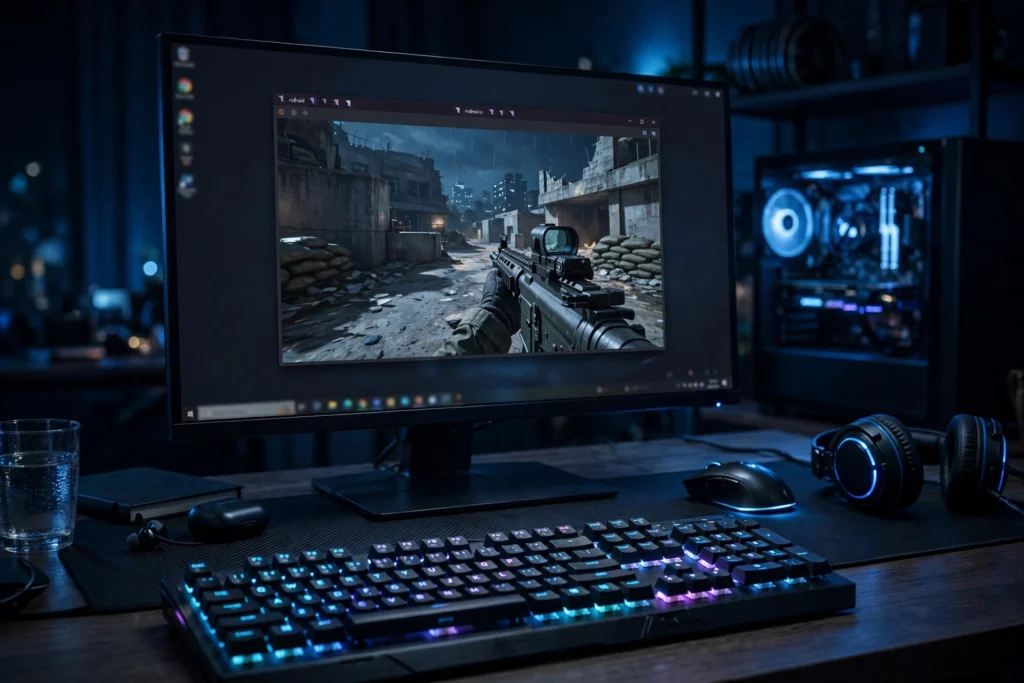
Can You Play Call of Duty Mobile on an Emulator RDP? Full Setup Guide
Yes, you can play Call of Duty Mobile on an emulator RDP. A cloud Windows machine with an Android emulator like BlueStacks pre-installed runs CODM on a remote server, so your weak PC or phone only has to stream the screen. Expect stable 60 FPS in casual matches, but know the honest limits: network latency, shared hardware, and emulator matchmaking pools.
What is an emulator RDP?
An emulator RDP is a remote Windows desktop with an Android emulator already installed on it. Instead of your phone or old laptop doing the heavy lifting, a server in a data center runs the game, and you connect to it with Remote Desktop from any device: an old laptop, a Chromebook, even a phone. If this concept is new, read what an emulator RDP is and who needs one first, then come back.
SadeemRDP sells an Emulator RDP plan built exactly for this: BlueStacks comes pre-installed, the price starts at $16.99 per month, and the servers sit in the USA and UK. You get a working Android-on-Windows setup without touching a single installer.
Can CODM actually run well on a remote machine?
It runs, and for casual play it runs fine. Call of Duty Mobile is not a particularly heavy game by emulator standards. A server CPU from the last decade handles it, and the emulator maps your mouse and keyboard to the game’s touch controls. The catch is the stream between the server and your screen: you press a key, the press travels to the server, the frame comes back. On a decent connection that round trip is small enough that battle royale and multiplayer feel playable. Ranked grinders will feel it more than casual players, but we will get to that honestly in a minute.
How to set up Call of Duty Mobile on an emulator RDP
The setup takes about 15 minutes once your RDP is active. Here is the whole process, start to finish.
1. Order and connect to your emulator RDP
Pick the Emulator RDP plan. SadeemRDP activates it fast after payment, and they send you the IP address, username, and password by email. On your own computer, open the built-in Remote Desktop Connection app (Windows key + R, type mstsc, hit enter), paste the IP, enter the credentials, and you are looking at a Windows desktop that lives in a data center.
2. Open BlueStacks and sign in to Google Play
BlueStacks is already installed, so you just launch it from the desktop or Start menu. The first launch asks you to sign in with a Google account, exactly like a new Android phone. Use a normal account. The emulator then behaves like an Android tablet on your remote desktop.
3. Install Call of Duty Mobile from the Play Store
Open the Play Store inside BlueStacks, search for Call of Duty Mobile, and install it. The download is a few gigabytes, but the server’s data-center connection pulls it in a couple of minutes. Launch the game, let it download its internal data packs, and sign in with your Activision or guest account.
4. Set up keyboard and mouse controls
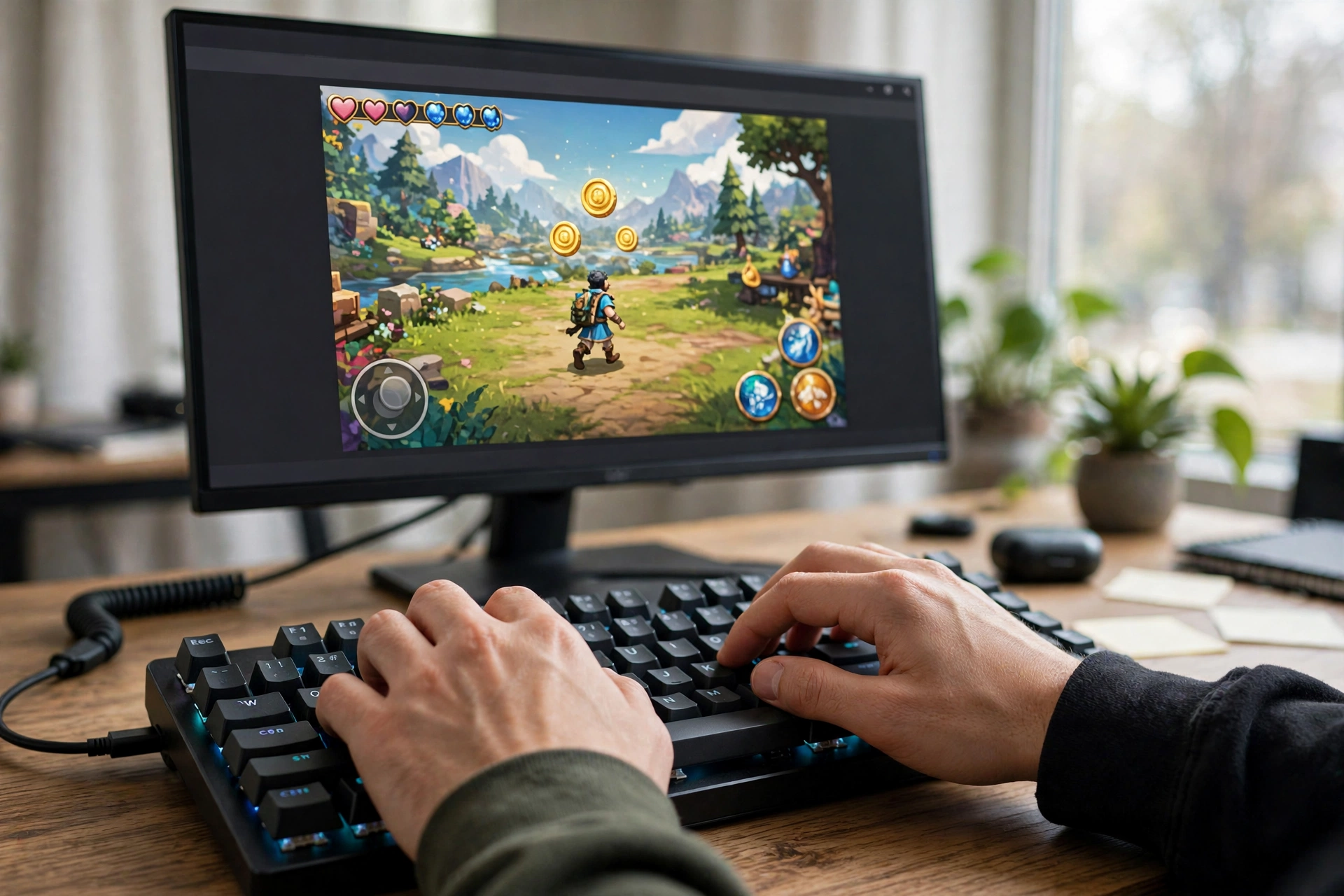
This is the step that makes or breaks the experience. BlueStacks has a key-mapping editor (press Ctrl + Shift + H). WASD for movement, mouse for aim and shooting, Space for jump, C for crouch. Spend ten minutes tuning it. CODM’s mobile HUD maps cleanly to keyboard, and once you are used to it, you will wonder how you ever played shooters on a touchscreen.
5. Tune graphics and performance settings
In CODM’s settings, set graphics quality to Medium or Low and frame rate to Max. This sounds backwards, but on an emulator you want the steadiest frames, not the prettiest textures. In BlueStacks settings, give the emulator at least 4 CPU cores and 4 GB of RAM if the plan allows. Then restart the emulator and you are in business.
What performance should you expect?
Honest numbers: in normal multiplayer matches you should hold 60 FPS with occasional dips when half the lobby lands in the same spot. Battle royale is heavier and will dip more. Your ping is whatever your home connection to the server location is plus the game’s normal routing, so players far from the USA or UK servers will feel more input delay. Use an ethernet cable at home and close background downloads. If your home internet is slow, check how to run BlueStacks on a cloud PC for the optimization walkthrough that applies here too.
What emulator RDP can and cannot do for CODM
Let us be straight about the limits before you spend money. An emulator RDP is shared server hardware, so during peak hours you can get frame stutters that a local gaming PC would not have. It is not the machine for competitive ranked play: between the stream delay and the shared CPU, top-tier lobbies will punish you. Also know that CODM puts emulator players in an emulator matchmaking pool, so you will mostly face other emulator users, not phone players. For casual matches, zombie mode, and grinding battle passes on a weak PC, it is more than good enough.
From $16.99/mo · BlueStacks pre-installed · USA/UK servers
Can you get banned for playing CODM on an emulator?
Playing on BlueStacks itself is allowed. Activision knows emulators exist and handles them with the separate matchmaking pool mentioned above. What gets accounts banned is third-party cheats, macros, or modified APKs, and that applies whether you play on a phone or a server. Stick to the official Play Store version inside BlueStacks, use normal key mapping, and you have the same ban risk as any other legitimate player: effectively none.

Is emulator RDP better than just buying a better phone?
It depends on your budget and what you already own. A mid-range gaming phone costs several hundred dollars up front. An emulator RDP costs $16.99 a month and also runs your other Android apps, lets you play on a big monitor, and keeps the game running when you close your laptop. If you already have a decent local setup, run multiple Android apps at once on a weak PC is worth a read, because the same cloud approach fixes that problem too. If your only device is a low-end phone with a cracked screen, the RDP route is the cheaper fix by a wide margin.
If Free Fire is more your game, the same cloud setup applies — see whether you can play Free Fire on an emulator RDP and what the honest limits are.
CODM on a remote machine raises the same questions as any emulator game: performance, controls, and bans. Can You Play PUBG Mobile on an Emulator RDP? (Guide) is the closest comparison, Play Android Games on PC Without a Graphics Card (2026) helps if your home PC is weak, and BlueStacks Lagging on a Low-End PC? 7 Fixes (2026) covers the lag fixes that matter most in a shooter.
Frequently Asked Questions
Do I need admin access on the emulator RDP to install games?
No. BlueStacks is pre-installed and the Play Store handles game installs like a phone does, so you never touch Windows admin settings. If you ever need a plan where you install your own Windows software, the Admin RDP plan from $9.99 per month is the one with admin rights.
How much internet speed do I need for a smooth session?
A stable 10 to 15 Mbps down is enough for a crisp Remote Desktop stream at 1080p. Stability matters more than raw speed: packet loss and jitter hurt more than a lower speed number. Wired connections beat Wi-Fi every time.
Can I play with friends who are on phones?
Mostly no. CODM’s matchmaking puts emulator players together in their own pool, so you cannot queue ranked with phone-only friends. You can still play together in custom rooms, which is how most emulator squads handle it.
Will the RDP run the game while my PC is off?
Yes. The server runs 24/7 in the data center regardless of what your own devices do. Your game session, downloads, and the emulator all stay alive. You reconnect whenever you want, from any device.
What if CODM lags on the emulator RDP?
Check three things in order: your home connection (run a speed test, switch to ethernet), the server load (avoid peak evening hours if you see stutters), and your BlueStacks settings (lower graphics, cap FPS). If lag persists every session, ask support whether a different server location would route better for you.
The bottom line
Call of Duty Mobile on an emulator RDP is a real, working setup, not a hack. You get the game on a big screen with keyboard and mouse for $16.99 a month, no new hardware required. Casual play and battle-pass grinding feel great. Ranked sweats should keep their expectations honest or their local rig ready. If that trade-off sounds fair to you, the setup above gets you playing in about 15 minutes.
Want the bigger picture on how remote desktops work? Start with what RDP is and how it works, then pick the plan that fits.
Comments