
How to Run Windows Programs on a Mac With RDP
You can run Windows programs on a Mac with RDP by connecting to a Windows computer in a data centre and opening its desktop in a window on your Mac. Install the free Microsoft Remote Desktop client, sign in with your provider’s details, and the program runs remotely while you control it from your Mac.
Every Mac owner hits this at some point. A client sends a file that only opens properly in a Windows-only tool, or a piece of business software has no Mac version. You do not want to replace your Mac, and you probably do not want to rebuild it either, just to run one or two programs.
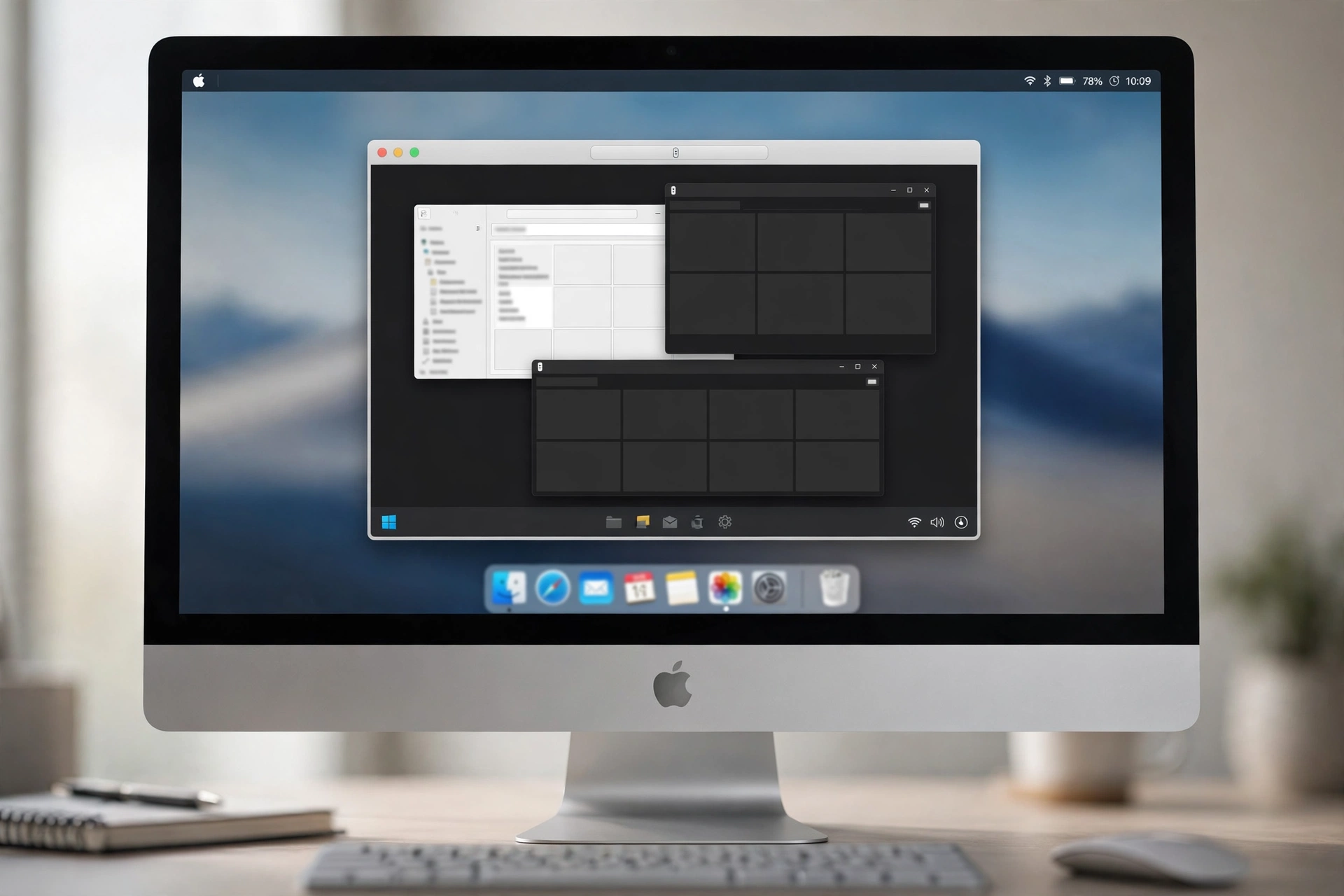
Remote Desktop Protocol, usually shortened to RDP, gives you a third option. Instead of putting Windows on your Mac, you rent a Windows computer that lives in a data centre and you control it from your Mac over the internet. The program runs on that remote machine, but the window sits on your Mac screen like any other app. If a remote desktop is new to you, start with what RDP is and how it works first.
Why use RDP instead of installing Windows on your Mac?
For one or two Windows programs, RDP is usually the simpler choice because you rent a ready-made Windows machine instead of changing anything on your Mac.
Compare it with the two local routes. Parallels and similar tools run Windows inside a virtual machine on your own Mac, so Windows shares your Mac’s processor, memory, and storage. That works well if you live in Windows apps all day, but it is a heavy setup for an occasional program. Boot Camp is the other classic route, but it only works on Intel-based Macs, it needs a chunk of your disk set aside for Windows, and you have to restart your Mac every time you switch systems.
RDP avoids all of that. Nothing gets partitioned, nothing gets installed on your Mac beyond a small client app, and you never restart. You open a window, do the Windows-only task, and close it when you are done. The remote machine keeps your Windows programs installed and ready even when your Mac is off.
There is one honest trade-off. RDP needs a stable internet connection, because your keystrokes travel to the remote machine and its screen comes back to you. On a good connection this feels close to local use. On a weak connection you will notice delays, and graphics-heavy Windows programs may feel laggy on a remote machine. For office tools and most business apps, that trade-off is easy to live with.
How do you set up the Microsoft Remote Desktop client on a Mac?
Setting up the Microsoft Remote Desktop client on a Mac takes a few minutes, and most of that time is just typing in the connection details your provider sends you.
First, download the Microsoft Remote Desktop client from the Mac App Store. It is free, and it is the official client, so stick with it rather than a random third-party app. Microsoft’s own Remote Desktop Services documentation covers the underlying technology, and Apple Support has general Mac help if you get stuck on the Mac side.
Next, open the client and add a PC. You will need three things from your RDP provider: the server address (an IP address or hostname), a username, and a password. SadeemRDP sends these after payment, and activation is fast after payment. Type the server address into the “PC name” field, add a user account with the username and password, and save the connection under a clear name, like “Work Windows PC”.
Before your first connection, check two settings. Under display, pick a resolution that suits your screen; starting in a window rather than full screen makes the first session easier to manage. Under devices and audio, leave clipboard sharing on, since you will want copy and paste between Mac and Windows. Then double-click the saved connection. The first time, macOS may ask about a certificate; that prompt is normal for a remote server, and you accept it to continue. After that, the Windows desktop opens in a window on your Mac, and you can open your program exactly as you would on a Windows PC.

How do you move files and copy text between your Mac and the remote desktop?
Moving files and text between your Mac and the remote desktop is straightforward once you know which method fits each job.
For text, plain copy and paste usually works in both directions when clipboard sharing is turned on in the client. Copy a paragraph on your Mac, paste it into the Windows program, and it should land as normal text. Formatting sometimes drops along the way, so if a pasted document looks odd, paste it as plain text first and reformat it inside the Windows program.
For files, the cleanest method is folder redirection. In the client’s settings for your connection, you can share a folder from your Mac with the remote desktop. That folder then shows up inside the remote Windows session, and anything you drop into it on your Mac appears on the remote side, and the other way round. This is the best route for regular work files.
For one-off transfers, cloud storage is often simpler. Upload the file from your Mac to a drive or storage service, then download it inside the remote desktop’s browser. It adds a step, but it works even when folder sharing is not set up, and it doubles as a backup.
How do you get the best performance and display from a remote Windows session?
The best performance from a remote Windows session comes from a steady connection and a few display settings, not from a faster Mac, because the heavy work happens on the remote machine.
Start with your connection. A wired connection beats Wi-Fi when you can manage it, and closing video calls or large downloads on your own network during a session removes the most common cause of stutter. If the session still feels slow, drop the display settings a notch: a lower resolution or reduced colour depth cuts the data travelling back and forth, and the smoothness gain is often bigger than the visual loss.
On the display side, try both windowed and full-screen modes and keep the one that suits the task. Full screen feels most like using a real Windows PC, and it helps when a program has wide toolbars or many panels. A window is better when you need to glance at Mac apps beside it. If text looks blurry on a Retina screen, turn on the client’s option to optimise for Retina displays; it sharpens text at the cost of a little extra bandwidth.
Also keep the remote desktop tidy and close programs you are not using on the remote machine, since every open app takes a share of its resources. And set honest expectations for demanding software: video editing, 3D work, and fast-moving games are the weakest fit for a remote desktop, and they may feel laggy even on a good connection. Standard office and business programs usually feel close to local.
From $1.99/mo · USA/UK · 24/7 support
Which SadeemRDP plan fits running Windows programs on a Mac?
The right plan depends on what your Windows program needs to install and run, and the honest answer is that the cheapest plan covers everyday programs but not every program.
Browser RDP from $1.99 per month (USA/UK) is a sensible starting point for everyday Windows software: office tools, browsers, accounting packages, and light business apps that install without special permissions. If the program you need is a standard desktop app used for regular tasks, this is usually enough.
Shared plans do have limits, though, and this is the part to check before you buy. A shared Browser RDP plan does not come with full admin access, so programs that need admin rights to install, programs that install drivers, and programs that change system settings may not work on it. If your program needs that level of access, step up to Admin RDP from $9.99 per month, which includes limited admin, or a Private Windows VPS from $6.99 per month, which comes with full admin and is yours alone. If you are unsure, check with support first rather than guessing; SadeemRDP has offered cheap Windows RDP and private Windows VPS since March 2017 from Lahore, Pakistan, with 24/7 support over WhatsApp, Telegram, live chat, and tickets.
Before you choose, read do you need admin access on RDP for more on the admin question. And if your Mac itself is old or low on power, it barely matters here, because the remote machine does the work; how to work remotely on a low-end laptop covers that angle for older machines.
Frequently Asked Questions
Do I need to install Windows on my Mac to use RDP?
No. RDP connects you to a separate Windows computer in a data centre, so your Mac stays exactly as it is. You only install the small Microsoft Remote Desktop client, sign in with the details from your provider, and the Windows desktop opens in a window on your Mac.
Will Windows programs run at full speed over RDP?
Most everyday programs, like office tools and business apps, run well over a stable connection and feel close to local use. Graphics-heavy programs are the exception and may feel laggy, because every screen update has to travel over the internet. Your connection quality matters more than your Mac’s own speed here.
Can I install any Windows program on a shared RDP plan?
No, not every program. Shared plans do not include full admin access, so programs that need admin rights, drivers, or system changes may fail to install. If your program needs those permissions, Admin RDP from $9.99 per month or a Private Windows VPS from $6.99 per month with full admin is the safer choice.
Is my work safe on a shared remote desktop?
Your files sit on a machine shared with other users, so treat it like any shared computer. Use a strong, unique password, log out when you finish, and do not store banking details or other highly sensitive data on it. For private client work, a private VPS gives you a machine that is yours alone.
Can I use RDP on an older or low-spec Mac?
Yes. The remote machine does the heavy work, so your Mac only has to run the Remote Desktop client and show the picture. Older Macs handle that fine as long as the internet connection is steady. Close unused Mac apps during a session if your Mac is short on memory.
Comments