
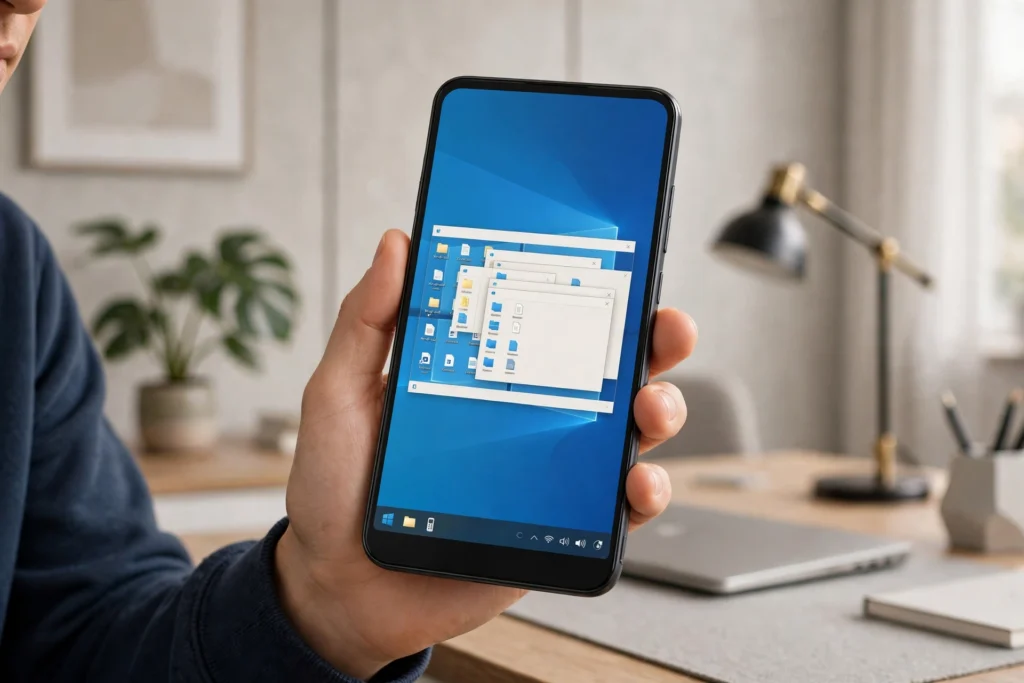
How to Connect to RDP From an Android Phone
To connect to RDP from an Android phone, install the Microsoft Remote Desktop app, add your Windows PC with its computer name or IP address and your Windows username and password, then tap the PC to open the desktop on your phone. The PC needs Remote Desktop turned on, and both devices need internet.
A Windows desktop on a phone sounds odd until you need it. Maybe you are away from your desk and a file is sitting on your home PC, or you need to check something on a remote machine while you are out. That is where Remote Desktop Protocol, or RDP, comes in handy. If you are new to the idea, first read what RDP is and how it works before you start changing settings.
One honest note up front: a phone screen is small for long desktop work. Small text, window dragging, and long documents will feel cramped compared with a laptop, and touch controls take a bit of getting used to. Still, for quick checks and short tasks, RDP on Android works well, especially with a stable connection.
What do you need before you connect to RDP from Android?
You need three things before you connect: a Windows PC with Remote Desktop turned on, the login details for that PC, and the official Remote Desktop app on your Android phone. Without Remote Desktop enabled on the PC, the app has nothing to connect to, so that step comes first.
On the Windows PC, open Settings, go to System, then Remote Desktop, and turn it on. Note down the PC name shown there, plus the username and password you use to sign in to Windows. Your phone also needs a steady internet connection. Wi-Fi is usually the better choice, since mobile data can drop in weak signal areas and a dropped connection will freeze the session.
How do you install the Remote Desktop app on Android?
You install it from Google Play by searching for Microsoft Remote Desktop and installing the official app published by Microsoft Corporation. It is free, and it is the safest choice, because third party apps that promise the same thing can be unreliable or unsafe.
Open the Play Store, search for “Remote Desktop”, and check that the publisher is Microsoft Corporation before you tap Install. You can also open the Remote Desktop app on Google Play directly. Microsoft also lists its official apps on the Microsoft Learn page on Remote Desktop clients, which is worth a quick look if you use more than one device.
How do you add your Windows PC to the Remote Desktop app?
You add a PC by tapping the plus button in the app, choosing “Add PC”, and entering the computer name or IP address plus your Windows user account. That saved entry is what you tap each time you want to connect, so it is worth getting it right the first time.
Tap the plus icon, then “Add PC”. In the PC name field, type the computer name or IP address of the Windows machine. Then tap “Add user account” and enter the username and password for that PC. You can save the account so you do not type the password every time, but only do that on a phone you control, with a screen lock set. Tap Save, then tap the PC to connect.
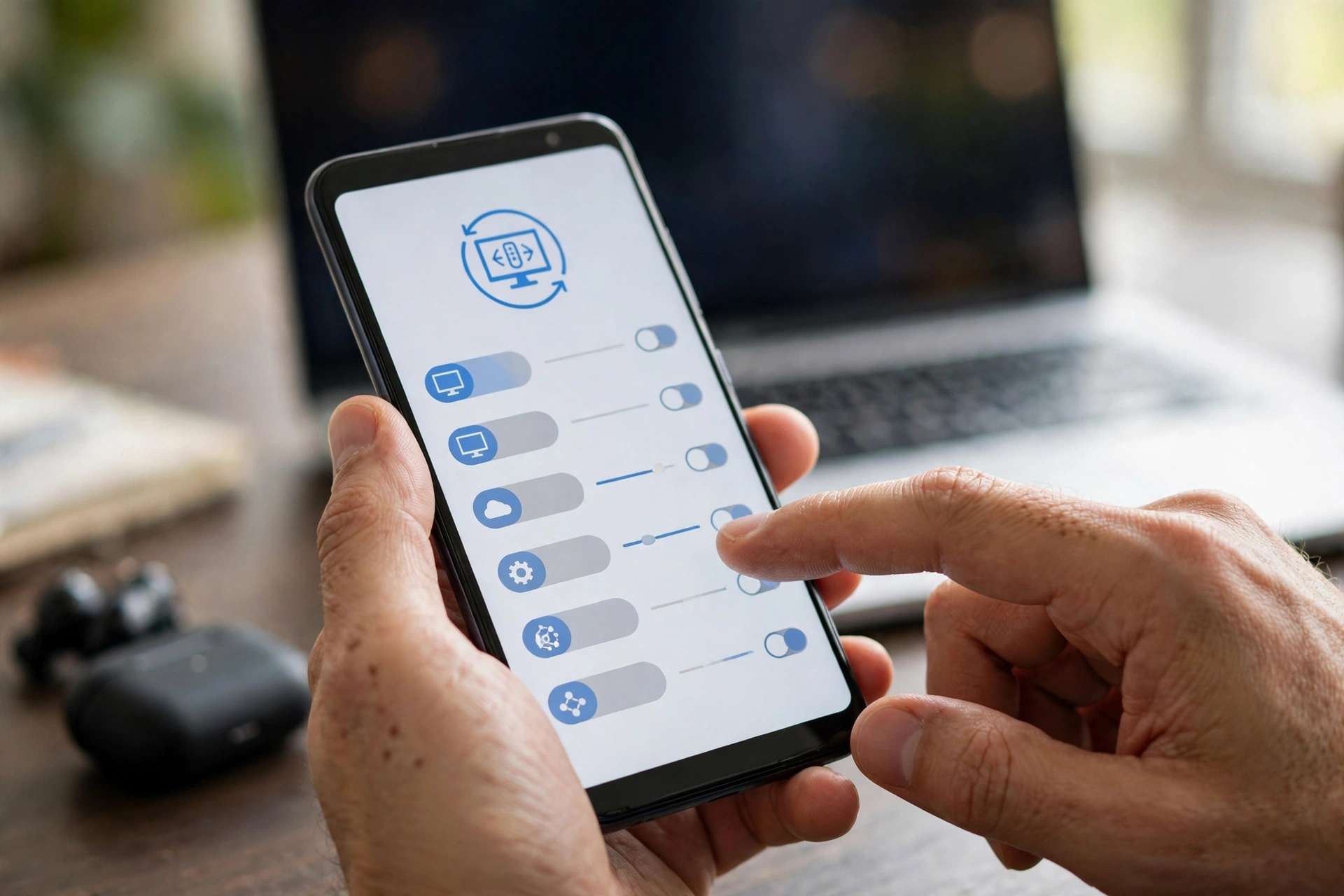
How do you control a Windows desktop with touch on Android?
You control it with touch in two main modes: direct touch, where you tap the screen as if it were the PC screen, and mouse pointer mode, where your finger moves a cursor around. Most people find mouse pointer mode easier for precise clicks, while direct touch feels quicker for simple taps.
When the desktop first opens, try tapping an icon or the Start button to see how it responds. To right click, long press on the spot, or switch to mouse mode and use the right click button in the toolbar. Pinch to zoom in when text is too small, and drag with one finger to scroll. It feels strange at first, and that is normal. The steps feel familiar if you have used RDP on a Chromebook, where the screen is bigger but the controls work in a similar way.
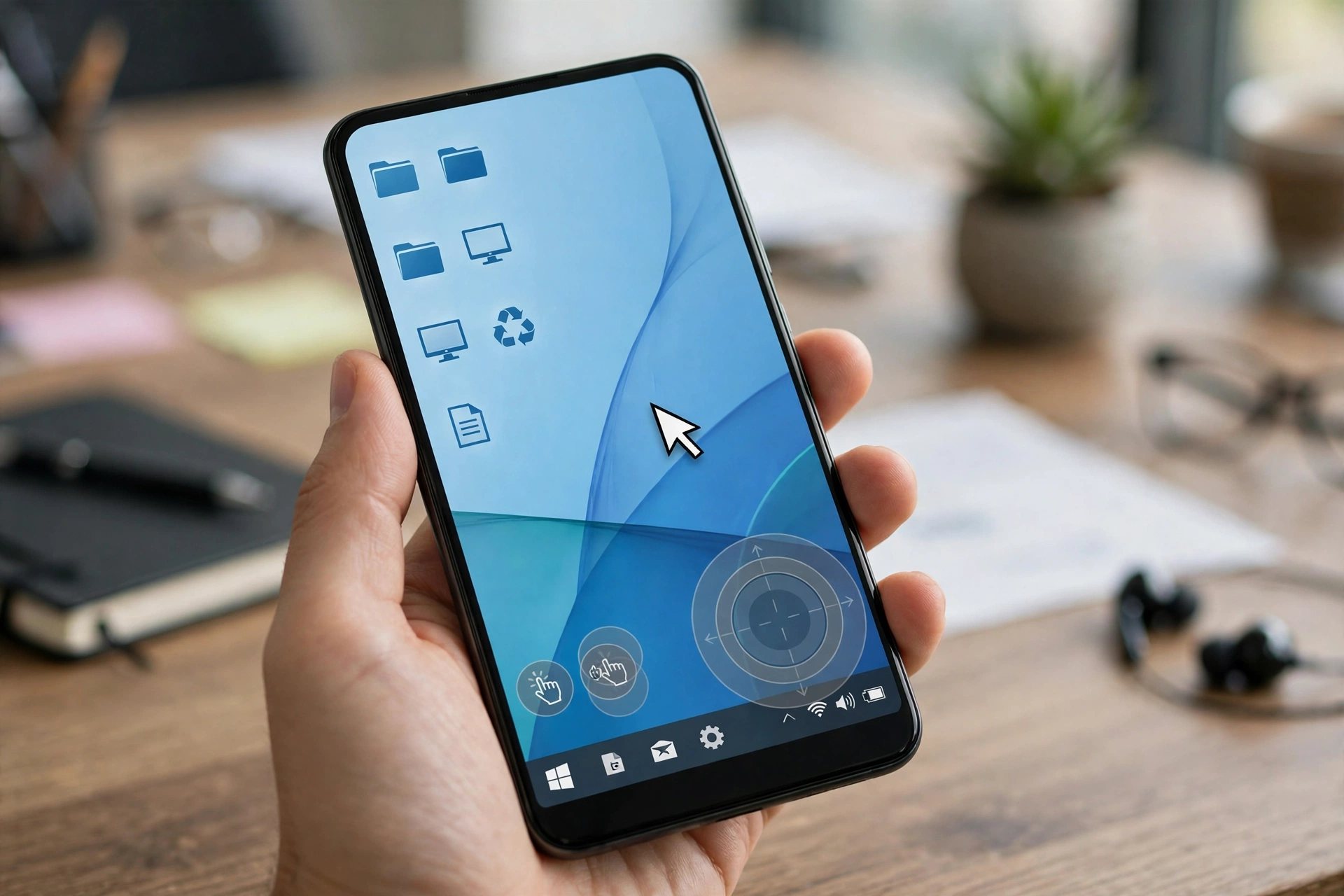
How do you set up display, keyboard, and mouse options?
You set these up from the connection settings before you connect, and from the toolbar during a session, by choosing a resolution that fits your phone screen and switching between touch and mouse modes. A lower resolution makes text larger and easier to read, which helps a lot on a small screen.
For typing, tap the keyboard icon in the toolbar to bring up your phone keyboard. It works for passwords, search boxes, and short documents, but long typing sessions are tiring on a phone. A Bluetooth keyboard helps if you plan to type a lot. For special keys like Ctrl, Alt, or the Windows key, look for the extra keys row in the app keyboard toolbar.
From $1.99/mo · USA/UK · Full Windows desktop on your phone
What about files and clipboard between your phone and PC?
File transfer and clipboard sharing on Android RDP are limited, so do not expect the same drag and drop experience you get on a desktop. You can usually copy and paste plain text between your phone and the remote PC, but file copying depends on the app setup and the storage options on your phone.
For files, the reliable route is cloud storage or email. Upload a file from the remote PC to a cloud drive, then open it on your phone. That avoids failed transfers and keeps a copy you can reach later. The same simple approach helps when you work remotely on a low-end laptop, where a cloud workflow often beats fiddling with transfer settings.
Why does RDP fail to connect, and how do you fix it?
Most RDP failures come down to three causes: wrong login details, a PC that is not reachable, or a network setting that blocks the connection. Checking those three in order fixes most problems without changing anything else.
Start with login details. A wrong username, a changed password, or a typo in the PC name will all stop the connection, so re-enter them carefully. Next, check that the PC is on and awake, since a sleeping or switched off PC cannot accept a connection. Finally, look at Network Level Authentication, often shortened to NLA. This Windows security setting asks for your login before the full desktop loads, so make sure the account you use is allowed for remote access and meets the NLA requirement.
How do you keep an RDP connection from your phone secure?
You keep it secure by using a strong, unique Windows password, keeping your phone locked, and avoiding open public Wi-Fi for remote sessions unless you have no other choice. RDP gives full access to a PC, so the login details deserve the same care as a bank password.
Use a long password that you do not reuse anywhere else, and turn on a screen lock with a PIN, fingerprint, or face sign-in on your phone. Do not save the RDP password in the app on a shared phone, and sign out properly when you finish. On public Wi-Fi, avoid sensitive work unless you are using a trusted VPN you already use. Note too that shared plans have limited or no admin access, so do not expect to install software on a basic plan.
The same basics apply on other devices. You can run Windows programs on a Mac with RDP in much the same way, with the same need for correct login details and a stable connection.
What else do people ask about RDP on Android?
Can I connect to RDP from an Android phone without a PC of my own?
Yes, you can use a rented Windows RDP plan instead of your own PC, using the same app and steps. The provider sends you the server address and login details after payment, and you enter those in the app. SadeemRDP offers Browser RDP from $1.99 per month for USA and UK locations, with fast activation after payment and 24/7 support.
Is the Microsoft Remote Desktop app free on Android?
Yes, the official Microsoft Remote Desktop app is free on Android. You still need a Windows PC to connect to, or a paid RDP plan if you do not own one, and your provider may charge for mobile data. Avoid paid copies of the app, since the official free version is the one Microsoft supports.
Why is the text so small on my phone screen?
Text looks small because a full Windows desktop is squeezed onto a phone screen. Fix it by lowering the session resolution in the connection settings, or by pinching to zoom in. Mouse pointer mode also helps, since you can click small buttons more precisely than with a fingertip.
Can I print or move files from my phone through RDP?
Printing and file transfer through RDP on Android are limited, and do not work as well as on a desktop. The workaround is cloud storage: save the file from the remote PC to a cloud drive, then open or print it from your phone. For short text, clipboard copy and paste works, but files are better moved through the cloud.
Is it safe to use RDP on public Wi-Fi?
It is best to avoid RDP on public Wi-Fi, because open networks are easier to snoop on and a session gives full access to a PC. If you must connect, use a trusted VPN, keep your Windows password strong and unique, and sign out when you finish. For sensitive work, wait until you are on home Wi-Fi or mobile data.
Connecting to RDP from an Android phone takes a few minutes to set up and a little practice to control well, but once the saved PC is in the app, later connections take only a tap. Start with short tasks, learn the toolbar and mouse mode, and keep your login details safe.
Related reading: how to connect to RDP from an iPhone.
Related reading: how to use RDP on Linux.
Related reading: using multiple monitors with RDP.
Comments