
Quick answer: To run MT4 on a VPS: rent a Windows VPS, connect with Remote Desktop, install MT4 from your broker, copy your Expert Advisors into the MQL4 folder, attach them to charts, and switch on Algo Trading. Then disconnect (don’t shut down); MT4 keeps trading around the clock, even with your home computer off.
I learned why traders use a VPS the hard way. Years back, an EA was running on my laptop during the London session when my power flickered for ten seconds. By the time everything rebooted, I had missed the entry my strategy was built around. That one trade would have covered a year of VPS costs. I moved MT4 to a server and never looked back.
If you are new to this: a VPS is simply a Windows computer in a data center that stays on all the time. You connect over the internet, it behaves like a normal Windows desktop, and your MT4 runs there instead of on your laptop.
Why Run MT4 on a VPS Instead of Your Home PC?
Four practical reasons:
- It stays on. Data centers have backup power and redundant internet; your home does not. A VPS is designed for 24/7 operation, so your EAs survive power cuts, laptop updates, and closed lids.
- Lower latency to your broker. If your broker’s trade server is in London or Amsterdam and your VPS sits in Amsterdam, orders travel a much shorter distance than from Lahore, Karachi, or Delhi. For scalping EAs, those milliseconds matter.
- Your computer stays free. MT4 with charts and an EA is not light. Offloading it keeps your laptop usable for real work.
- Consistent environment. Same Windows, same MT4 build, same EA settings, day after day. No surprise antivirus scans or family members closing your terminal.
One caution: a forex VPS is tuned for trading. Broadcasting video is a different workload with different hardware; we cover how to run a 24/7 live stream on a VPS separately. Don’t buy a trading plan for streaming.
What You Need Before You Start
Gather these five things and the whole setup takes about 20 minutes:
- A Windows VPS or Forex RDP plan (2 GB RAM minimum). SadeemRDP’s Forex Trading RDP starts at $9.99/month on shared hardware in Amsterdam, close to most EU broker servers. Want your own isolated machine with full admin rights? The Forex Trading VPS at $14.99/month (1 vCore, 2 GB RAM, 25 GB SSD; Netherlands, UK, USA) is the cleaner option.
- Your RDP login details. After payment you receive an IP address, a username, and a password. Activation is fast once payment clears.
- The MT4 installer from your broker. Always download it from your own broker’s website, not a random mirror. Your broker’s build comes preconfigured with their servers.
- Your EA and indicator files (.ex4 or .mq4 files) plus any .set files with your settings, saved somewhere you can reach, like Google Drive or email.
- Any Windows, Mac, or Android device to connect from (Windows has Remote Desktop built in; the rest use the free Microsoft Remote Desktop app).
Step-by-Step: Running MT4 on a VPS
Step 1: Connect to your VPS with Remote Desktop
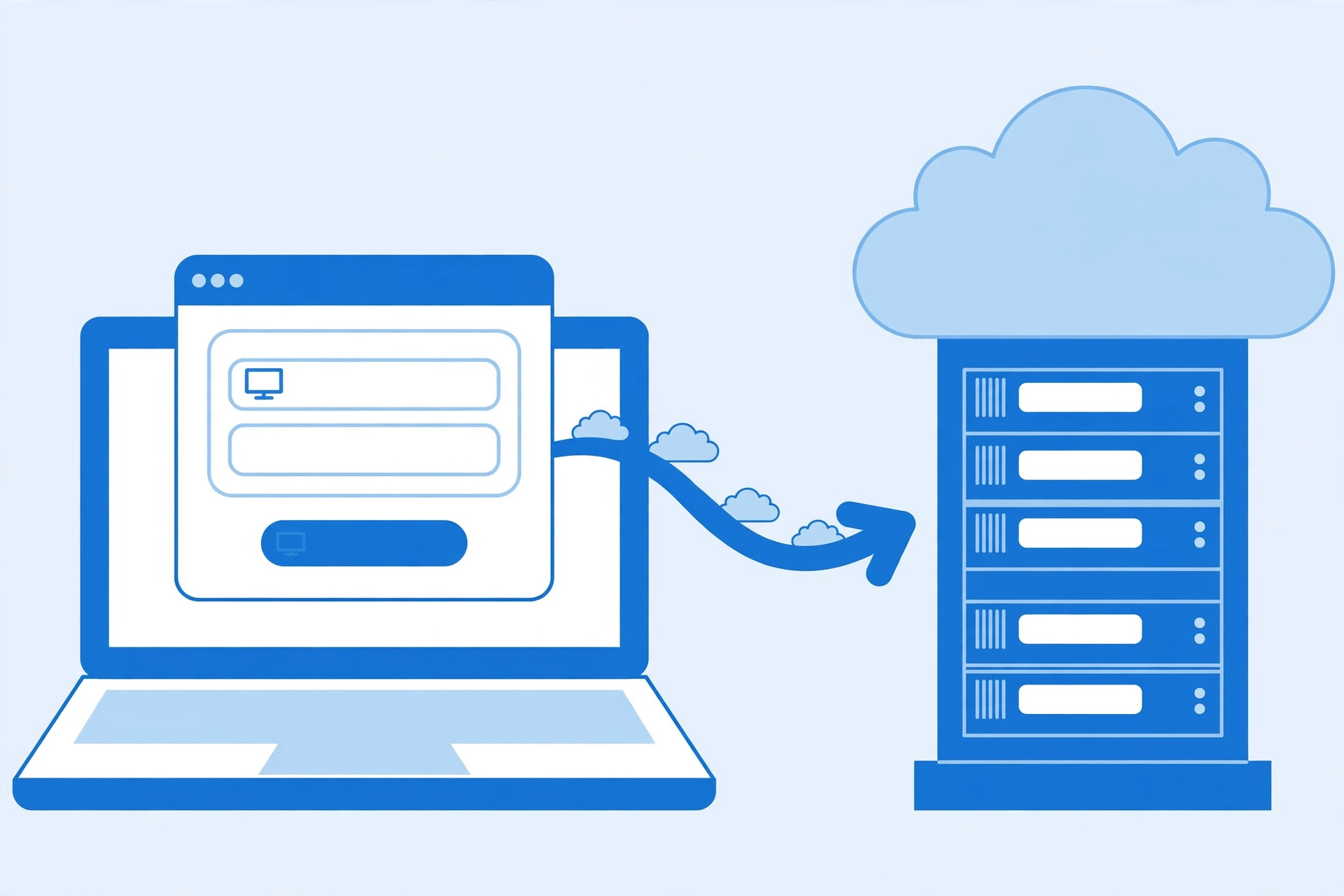
On Windows, open “Remote Desktop Connection,” enter the IP address your provider sent, and click Connect. Enter the username and password, accept the certificate warning (normal on a fresh server), and you’ll see a Windows desktop. That’s your VPS; everything below happens inside that window.
Step 2: Install MT4
Inside the VPS, open the browser, go to your broker’s website, and download their MT4 installer. Install it, then log in with your account number, password, and correct server name. Wait until prices are ticking and history loads. Flat charts mean a wrong server name, so check your broker’s welcome email.
Step 3: Copy your EAs, indicators, and set files
On your home computer, copy the files, then paste them straight into the RDP window; Remote Desktop shares your clipboard. Drop Expert Advisors into MQL4 > Experts and indicators into MQL4 > Indicators (in MT4: File > Open Data Folder). Google Drive works too: upload at home, download inside the VPS browser.
Step 4: Attach the EA to a chart
Open the chart for the pair and timeframe your EA targets. In the Navigator panel (Ctrl+N), drag your EA onto the chart. On the Common tab tick “Allow Algo Trading”; on the Inputs tab load your .set file or enter parameters. Click OK; the EA’s name appears in the chart’s top-right corner.
Step 5: Switch on Algo Trading
This is the button everyone forgets. The “Algo Trading” button on MT4’s toolbar must be pressed (green). If it’s red, your EA sits idle no matter how perfect the setup. Check the Experts and Journal tabs for errors; they tell you exactly what’s wrong.
Step 6: Disconnect properly and verify it keeps running
The critical part: close the Remote Desktop window with the X, or use “Disconnect.” Never use Start > Shut down inside the VPS; that powers off the machine and stops your EA. Closing the RDP client leaves your Windows session running on the server with MT4 still trading.
To prove it, wait ten minutes, reconnect, and check the Journal tab for fresh entries with recent timestamps. The same always-on approach works for MT5 too: here is how to keep MT5 running 24/7 without keeping your PC on.
Setting Up an Expert Advisor for True 24/7 Trading
Getting the EA on the chart is half the job; making it survive real conditions is the other half:
- Leave “Allow DLL imports” off unless your EA’s developer explicitly requires it. Random DLLs from forums are how accounts get compromised.
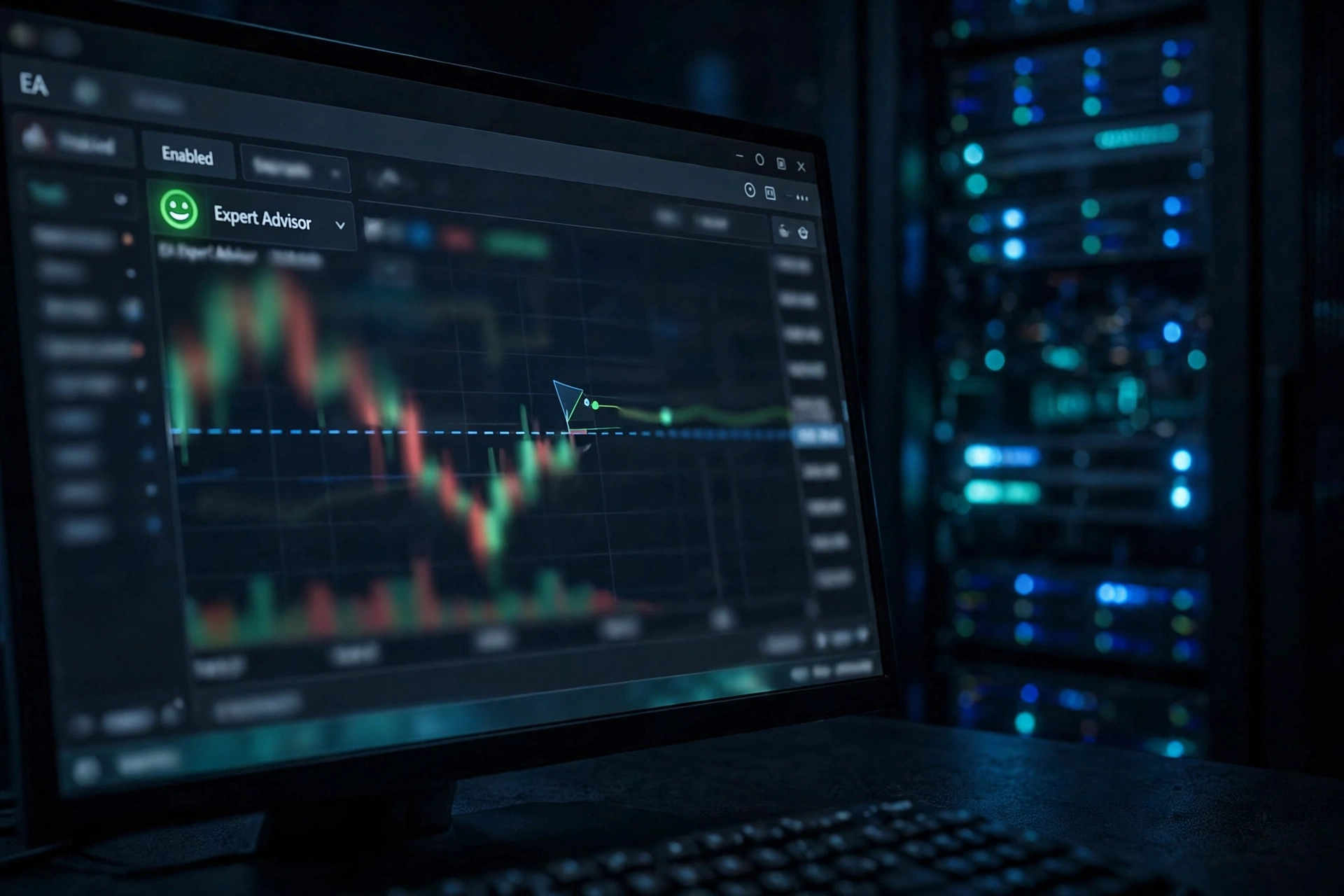
- Watch for the smiley face in the chart’s top-right corner: smiling means the EA is live, frowning means something is blocking it. Check it after every reconnect for the first week.
- Fix your GMT offset. A VPS in Amsterdam runs on a different clock than your home, and many EAs filter trades by session time. Check the server time in Market Watch and adjust the EA’s GMT offset input.
- Back up your setup: save charts as templates and keep .set file copies off the VPS, so a server move takes minutes.
- Don’t overload one terminal. One MT4 with one or two EAs and a handful of charts is comfortable on 2 GB; three terminals with fifteen charts each needs more. See the table below.
How Much RAM Does MT4 on a VPS Actually Need?
MT4 is old and light, but EAs, indicators, and open charts add up. In practice:
| Setup | RAM needed | Notes |
|---|---|---|
| 1 MT4 terminal, 1 EA, a few charts | 2 GB | Comfortable. The standard starting point. |
| 2 terminals or 3-4 EAs | 2-4 GB | OK on 2 GB with under ten charts per terminal. |
| 3+ terminals, heavy indicators | 4 GB+ | Time to size up. Backtests and optimization need even more. |
Storage barely matters: MT4 plus a few EAs fits in under 2 GB, so the 10 GB on the $9.99 Forex RDP plan or the 25 GB SSD on the $14.99 VPS is plenty. RAM and a stable connection matter more, which is why the Amsterdam location is popular with EU broker clients. For the full picture on picking the right server, see our guide on how to choose the best forex VPS for MT4/MT5.
Common Mistakes Traders Make on a VPS
1. Shutting down instead of disconnecting. The number one killer. Start > Shut down powers off the virtual machine and your EA stops. Just close the RDP window. Tape a note to your monitor if you have to.
2. Letting Windows Update reboot the machine. A surprise reboot at 3 AM closes MT4. Set active hours to cover the trading week and stop auto-restarts where your plan’s admin rights allow. Check the Journal tab every Monday morning to confirm everything survived the weekend.
3. Picking a VPS far from the broker. A VPS in the USA while your broker’s server is in London adds latency to every order. Match the VPS location to your broker’s server location; with an EU broker, a Netherlands-based plan is the sensible pick.
4. Running everything on the minimum spec. Five MT4 terminals with twenty charts each plus a backtest on 2 GB of RAM will crawl. Size the plan to the workload, not the price tag.
5. Weak passwords and no firewall sense. Your VPS sits on the public internet. Use a strong password from day one, and don’t install random software on a machine that holds your trading account.
Tired of your home PC crashing mid-trade? Run MT4 on a server that never sleeps.
From $9.99/mo · MT4/MT5 ready · 24/7 uptime · Amsterdam low-latency
Once MT4 is up and running, most traders come back to the same three questions: sizing, platform choice, and speed. How Much RAM Does a Forex VPS Need? (2026) helps you size a plan for the terminals you actually run, MT4 vs MT5 on a VPS: Which Is Better in 2026? is worth a read if you are still picking a platform, and How to Reduce Latency in Forex Trading: 5 Proven Fixes covers the ping fixes that matter once trading is live.
Frequently Asked Questions
Can I run MT4 on a VPS for free?
Some brokers offer a free VPS if you keep a minimum balance or monthly volume, but the specs are bare minimum and you lose it if volume drops. A paid plan from $9.99/month gives consistent specs, your choice of location, and support when something breaks at 2 AM. For live accounts, paid is the sane choice.
How much RAM do I need to run MT4 on a VPS?
For one MT4 terminal running one or two Expert Advisors, 2 GB of RAM is enough. If you run multiple terminals, many charts, or heavy custom indicators, step up to 4 GB. CPU matters less for live trading than for backtesting: a shared plan with plenty of cores handles live EAs easily, while optimization and backtests deserve a full VPS.
Will my EAs keep trading if I close the Remote Desktop window?
Yes. Closing the RDP client only ends your viewing session; the Windows session on the server keeps running with MT4 and your EAs active. The danger is clicking Start, then Shut down or Log off inside the VPS, which stops everything. Always disconnect by closing the RDP window, then verify by reconnecting later and checking the Journal tab.
Should I use MT4 or MT5 on a VPS?
Use whichever platform your broker and your EAs support. MT4 still has the larger library of Expert Advisors and most retail forex strategies are written for it. MT5 is faster at backtesting and handles more symbols. The VPS setup process is identical for both: install, attach the EA, enable algo trading, disconnect.
Is running MT4 on a VPS safe for a live account?
Yes, it is standard practice among retail and professional traders. The VPS itself doesn’t change your trading risk; it only changes where the platform runs. Protect the account the same way you would anywhere: a strong unique password on the VPS, two-factor authentication on your broker account, and EAs from sources you trust.
Final Word
Moving MT4 to a VPS is cheap and immediately noticeable: no more power cuts, laptop sleep, or internet drops during news. Set it up once, verify it survives a disconnect, then check the Journal weekly.
Comments