
To enable Remote Desktop on Windows 11, go to Settings, then System, then Remote Desktop, and switch it on. You need Windows 11 Pro, Enterprise, or Education, because Home cannot host a remote session. You also need admin rights and the PC name or IP address to connect from another device.
By SadeemRDP Team
Last updated: November 8, 2026
Remote Desktop turns a Windows 11 computer into a machine you can reach from anywhere. You sit at a laptop, a tablet, or a phone, and you see the full desktop of the other computer. It is handy for reaching a work PC from home, helping a family member, or keeping a server running without sitting in front of it.
The setup takes a few minutes, but there are two catches people run into. The first is the Windows edition: Home cannot host a session at all. The second is admin rights: turning the feature on and opening the firewall needs an administrator account. This guide covers the steps, the fixes for the common errors, and when a rented remote desktop is the simpler answer.
Does your Windows 11 edition support Remote Desktop?
Windows 11 Pro, Enterprise, and Education can host a Remote Desktop session. Windows 11 Home cannot. That is the single most common reason the option is missing from Settings. A Home computer can connect to another computer as a client, but it cannot accept incoming connections itself.
Check your edition before you start. Go to Settings, then System, then About, and look at the Edition line. If it says Home, you have three choices: upgrade to Pro through the Microsoft Store, use a third-party remote access tool instead, or use a rented Windows desktop that already accepts remote connections. Upgrading to Pro is a paid upgrade, so weigh it against what you actually need the remote access for. If you only need a Windows desktop you can reach from anywhere, a rented plan can be cheaper than the upgrade.
How do you turn on Remote Desktop in Settings?
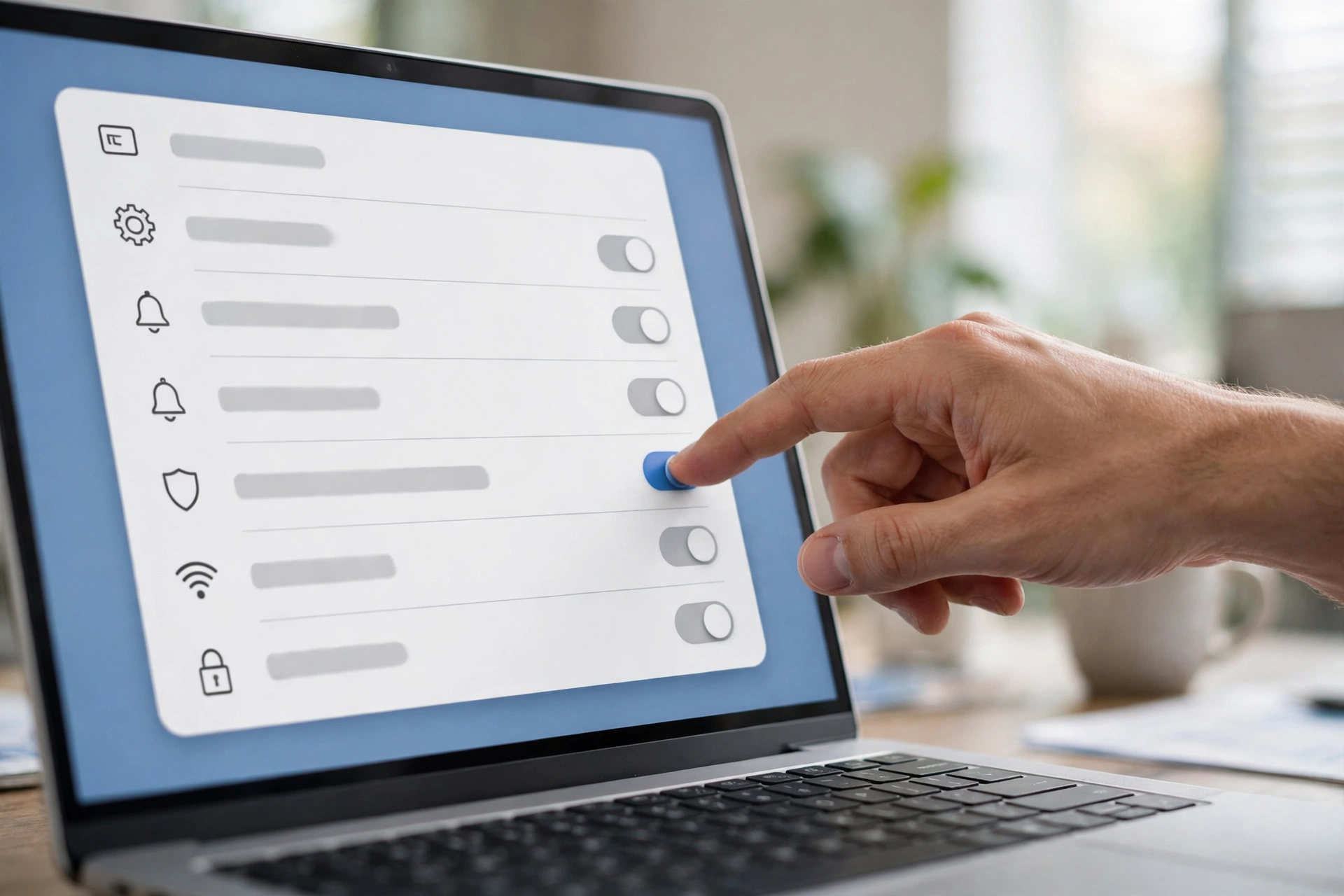
On Windows 11 Pro, open Settings and go to System, then Remote Desktop. Switch the toggle to On and confirm when Windows asks. The page also shows the PC name, which you will need to connect later. Write it down, or copy it somewhere safe. You can also give the computer a shorter, clearer name on the same page by choosing Rename.
While you are on that page, check the option that requires devices to use Network Level Authentication. Leave it on. It asks anyone connecting to prove who they are before the login screen even appears, and it blocks a whole class of automated attacks. Turning it off makes connections slightly easier, but it is not worth the risk on any computer that holds real work. If you are unsure whether your plan gives you the admin rights this step needs, this guide to admin access on RDP explains the different access levels and what each one lets you do.
How do you allow it through the firewall and find your PC name?
Turning the toggle on normally adds the firewall rule for you, but it is worth checking. Open Windows Security, go to Firewall and network protection, then Allow an app through firewall. Look for Remote Desktop in the list and make sure the box is ticked for the network you use. If the box is unticked, incoming connections will be blocked even though the setting is on.
Your PC name is shown on the Remote Desktop settings page, and it is also under Settings, then System, then About, next to Device name. You can connect using the PC name when both computers are on the same network. For connections from outside the home or office, you need the public IP address of the network, plus a router rule that forwards port 3389 to your computer. That last step is where many people get stuck, and it is also where the security risk lives, so read the safety section below before opening anything to the internet.
How do you connect from another computer or phone?
Microsoft makes a free Remote Desktop client for Windows, macOS, Android, and iOS, so you can connect from almost any device. Install the client, add a new PC, and type the PC name or IP address. Enter the username and password of an account on the remote computer, and the desktop appears in a window or full screen.
On a phone, the same client works with touch, and you can switch between touch mode and a mouse pointer mode for precise clicks. A phone screen is small for full desktop work, but it is fine for checking something quickly, restarting a program, or watching a long task finish. The steps for a phone are covered in detail in this guide to connecting to RDP from an Android phone, and the same ideas apply to iPhone. Microsoft publishes the official Remote Desktop clients documentation with download links for every platform.

From $9.99/mo · Install your own software · 24/7 support
What if Remote Desktop will not connect?
The most common cause is the remote computer being asleep or off. Remote Desktop cannot wake a computer that is fully powered down unless Wake on LAN is set up, so check the power settings first. Set the computer to never sleep, or at least to stay awake while plugged in, if you need to reach it at any hour.
The next checks are quick. Confirm both devices are on the same network or VPN, confirm the PC name or IP is typed correctly, and confirm the account you are signing in with has a password set, because blank passwords are refused for remote logins. If the error mentions Network Level Authentication, update the Remote Desktop client on the device you are connecting from, since old clients sometimes fail the check. If the connection starts and then drops, the problem is often the network, and the same fixes in this guide to RDP disconnects apply to a home computer too. As a final check, confirm the firewall rule is still enabled after a Windows update, because updates sometimes reset it.
Is it safe to leave Remote Desktop on?
Remote Desktop is safe when it is set up with care, and risky when it is not. The rules are simple. Use a strong, unique password on every account that can connect. Keep Network Level Authentication on. Keep Windows updated. And do not open port 3389 directly to the internet unless you know what you are doing, because automated scanners probe that port constantly and try common passwords thousands of times a day.
The safer way to reach a home computer from outside is a VPN into your home network, or a remote access tool that does not expose the port at all. If you need a machine that is reachable around the clock without touching your home router, a rented Windows desktop in a data center is built for exactly that. Providers handle the network security, the machine stays on, and you connect with the same client. The trade-off is admin rights: installing your own software on a rented desktop needs a plan that allows it, which is why this guide to installing programs on a remote desktop is worth reading before you choose a plan.
When is a rented RDP a better option than your own PC?
Your own PC works well when it is already on and you only need it occasionally. A rented RDP wins when the computer must be reachable all the time, when your home internet is slow or unreliable, or when power cuts are common. The rented machine lives in a data center with stable power and a fast connection, so it stays online while your home PC sleeps.
It also wins when you need a Windows machine but only own a Mac, a Chromebook, or a phone. Instead of buying a second computer, you rent a desktop and connect to it with the same Remote Desktop client. Plans start from $1.99 a month for simple browsing and office work, and Admin RDP from $9.99 a month adds the rights to install your own software. If you need full control over the server, a private Windows VPS is the next step up.
Enabling Remote Desktop on Windows 11 is a five-minute job once the edition and admin rights check out. Turn it on in Settings, keep Network Level Authentication enabled, confirm the firewall rule, and connect with the free client from any device. Keep the port closed to the open internet, use a strong password, and the setup will serve you well. When your own PC cannot stay on around the clock, a rented desktop is the simpler answer.
Frequently Asked Questions
Can I enable Remote Desktop on Windows 11 Home?
No. Windows 11 Home cannot host a Remote Desktop session, and the option does not appear in Settings. Home can only connect to another computer as a client. To host a session you need Windows 11 Pro, Enterprise, or Education, or you can use a rented Windows desktop that already accepts remote connections.
Do I need admin rights to enable Remote Desktop on Windows 11?
Yes. Turning on Remote Desktop and changing the firewall rules needs an administrator account. A standard user account cannot enable it. On a rented desktop, the same rule applies: shared plans with limited admin will not let you change these settings, so you need an admin plan or a private VPS.
What is the default port for Remote Desktop?
Remote Desktop uses port 3389 by default. On a home network you rarely need to think about it, because the client connects through the local network. Port 3389 only matters when you connect from outside the network, and opening it directly to the internet is risky without a VPN or other protection.
Why does Remote Desktop say the PC cannot be found?
The usual causes are a wrong PC name or IP address, the remote computer being asleep or off, or the firewall blocking the connection. Check the PC name in Settings, confirm the computer is awake, and confirm the firewall rule is enabled. If you connect from outside the home, confirm the router forwards port 3389 to the right computer.
Can I connect to Remote Desktop from my phone?
Yes. Microsoft offers a free Remote Desktop app for Android and iOS. Install it, add your PC by name or IP address, sign in with your Windows account, and the desktop appears on your phone. Touch mode works for taps, and a mouse pointer mode is available for precise clicks on small controls.