
How to Use RDP on a Chromebook (Step by Step)
You can use RDP on a Chromebook through a browser based remote desktop client, with no Windows install needed. Open the web client, enter the server address, username, and password, and your Windows desktop opens in a Chrome tab. A stable internet connection matters more than the Chromebook model you own.
A Chromebook is a great everyday machine. It boots fast, it stays light, and it handles browsing, email, and documents without fuss. The catch shows up the moment you need a Windows only program. You cannot install Windows software on ChromeOS, and that one limit can block a whole task. Remote Desktop Protocol, or RDP, gets around it in a simple way. Instead of running Windows on your Chromebook, you connect to a Windows computer somewhere else and control it from your browser. Your Chromebook stays exactly as it is. The heavy work happens on the remote machine.
Which remote desktop app should you use on ChromeOS?
The short answer is the Microsoft Remote Desktop web client, because it runs in the browser and ChromeOS does not need a Windows app installed. You open a web page, sign in with your connection details, and the Windows desktop appears in a tab. That is the cleanest route for most Chromebook owners, and it works on modest hardware too.
Do not confuse this with Chrome Remote Desktop. That is Google’s own tool, and it is handy for reaching a computer you already own, like your home PC from a cafe. It is not the same thing as connecting to a rented Windows RDP server. For a hosted RDP plan, you want the Microsoft web client, or another RDP client that supports the standard RDP connection details your provider sends you: a server address, a username, and a password.
If you are still unsure what RDP actually is, it helps to start with the basics. This guide to what RDP is and how it works explains the idea in plain terms before you touch any settings. Once the idea clicks, the setup steps below feel much less technical.
How do you set up RDP on a Chromebook step by step?
Setup takes about ten minutes once you have your login details. Keep them close before you start, because you will need the server address, username, and password together.
First, open Chrome on your Chromebook and go to the Microsoft Remote Desktop web client. Microsoft documents this client in its official Remote Desktop web client guidance, which is worth a quick look if you want the official version of these steps. Next, add a new connection. Type in the server address exactly as your provider gave it to you, including any port number shown after a colon. Small typing mistakes here cause most failed connections, so copy and paste the address when you can rather than retyping it by hand.
Then enter your username and password, and save the connection. Give it a clear name, like “Work Windows” or “College PC”, so you can spot it fast later. Click the connection, wait a few seconds, and the Windows desktop should load inside the tab. If it asks about a certificate warning, read it carefully and only continue when the address matches the one your provider sent you. Never type your password into a connection page whose address you do not recognise.
Once you are in, try a few ordinary tasks first. Open the browser on the remote desktop, open a document, and check that your files and programs are where you expect them. If something looks off, log out and double check your details before you assume the service is broken. Wrong ports, extra spaces pasted into the password field, and Caps Lock left on are the usual culprits, and all three are quick fixes.
How do you make the keyboard and trackpad feel right?
A Chromebook keyboard is close to a Windows keyboard, but a few keys sit in different places, and that can trip you up in the first session. The Search key, for example, does not behave like the Windows key by default, and there is no dedicated Delete key on many models. The fix is simple. Learn the two or three shortcuts you actually use, like copy, paste, and switching windows, and test them inside the remote session before you start real work.
For the trackpad, two finger scrolling and right click with two fingers usually carry over fine. If the pointer feels too fast or too slow, change the sensitivity in your Chromebook settings rather than fighting it inside the session. Full screen mode helps a lot too. Press the full screen key, or use the client’s full screen option, and the Windows desktop fills the display so your Chromebook shelf and browser tabs stop getting in the way. When you need to jump back to ChromeOS, move the mouse to the top of the screen or use the client’s exit shortcut. After a day or two, most people stop noticing the difference at all.
One more practical tip: if you work with a lot of typing, a cheap USB keyboard can make long sessions much more comfortable. It is not required, and plenty of people work happily on the built in keyboard, but for all day writing or data entry, the bigger keys pay for themselves quickly.
From $1.99/mo · USA/UK · 24/7 support
What works well on a Chromebook RDP session, and what does not?
Most everyday work runs well. Browsing, documents, spreadsheets, email, and study tools all feel normal on a decent connection, and that is exactly why many students pick this route. If your Chromebook struggles with heavy web pages, an RDP session can even feel faster, because the remote machine does the processing and your Chromebook only shows the picture. This is one reason RDP pairs so well with budget hardware, as covered in this guide to working remotely on a low end laptop.
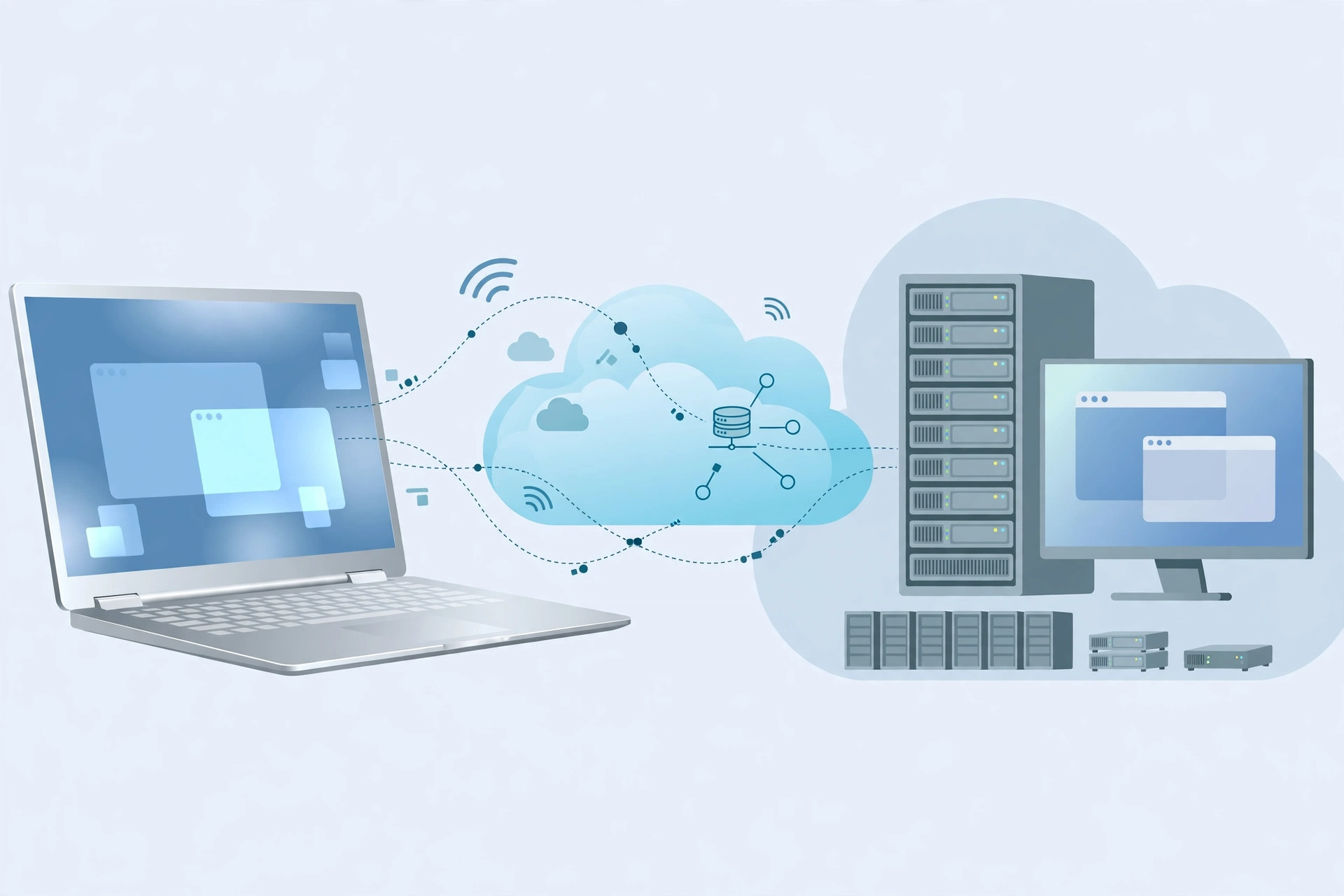
There are honest limits, though, and it is better to know them now than to discover them mid project. First, RDP needs a stable internet connection. On shaky public Wi-Fi, the picture can lag or freeze for a second, and video calls or fast moving video will suffer first. Second, a Chromebook cannot install Windows software locally, so everything Windows related lives on the remote machine, not on your device. Third, shared RDP plans cannot install every program. Admin rights are limited on shared plans, so software that needs deep system access may be blocked. If a specific program is essential to you, ask the provider’s support team before you buy. A quick question up front saves a refund request later.
Sound and printing can also be patchy. Basic audio usually works, but if you need high quality sound or a local printer connected through the session, test it early. None of these limits make RDP a bad choice. They just mean you should match the plan to the job, which brings us to the next question.
When is a cheap plan enough, and when do you need a private plan?
A cheap shared plan is enough for most Chromebook users. If your work is browsing, documents, online study, light office tasks, or running a program that does not need admin rights, a low cost plan covers it. SadeemRDP has sold cheap Windows RDP and private Windows VPS plans since March 2017 from Lahore, Pakistan, with 24/7 support over WhatsApp, Telegram, live chat, and tickets, and fast activation after payment. Its Browser RDP starts from $1.99 per month on USA and UK locations, which makes it an easy first step if you only need a Windows desktop in a browser tab.
Step up to a private plan when you need control. Full admin access, the freedom to install your own software, and dedicated resources matter for heavier or more specialised work. Private Windows VPS plans suit people who run business tools, development software, or programs that a shared plan will not allow. Students on a tight budget, on the other hand, often do fine on the cheapest tier, and this roundup of the best cheap RDP plans for students is a good place to compare options before spending more than you need to.
The simple rule is this. Start with what your actual tasks demand, not with the biggest plan on the page. You can always upgrade later if your work grows, but you cannot get back money spent on power you never used. And if you are ever unsure, a short message to support describing the program you need to run will usually settle the question in minutes.
Frequently Asked Questions
Can a Chromebook run Windows programs without RDP?
No. ChromeOS cannot install or run Windows software directly, so a Windows only program will not open on a Chromebook by itself. RDP solves this by running the program on a remote Windows machine and showing you the screen. Your Chromebook only needs Chrome and a stable connection.
Do I need to install anything on my Chromebook to use RDP?
Not for the web client route. The Microsoft Remote Desktop web client runs inside Chrome, so there is nothing to install and no system change to make. You just open the client page, add your connection details, and sign in. Chromebook Help from Google at support.google.com/chromebook covers general Chromebook settings if you need them.
Will RDP work on a slow or old Chromebook?
Usually yes, because the remote machine does the heavy processing. What matters most is your internet connection, not the age of the Chromebook. A steady connection gives a smooth session even on older models, while a weak connection causes lag on any device. Close extra tabs and streams if the picture stutters.
Can I install any software I want on a cheap RDP plan?
No. Shared plans, including Browser RDP from $1.99 per month, do not include full admin access, so some programs cannot be installed. Check with support before buying if a particular program is essential. If you need full control to install your own software, a private Windows VPS plan is the right fit.
Is my data safe when I use RDP on a Chromebook?
Your session is protected by your login details, so use a strong password and never share it. Sign out when you finish, especially on a shared Chromebook, and avoid saving passwords in the browser on a device other people use. These basic habits keep a remote session as safe as any other online account.
Related reading: connecting to RDP from an Android phone.
Related reading: connecting to RDP from an iPhone.
Related reading: how to use RDP on Linux.
Related reading: using multiple monitors with RDP.
Comments