
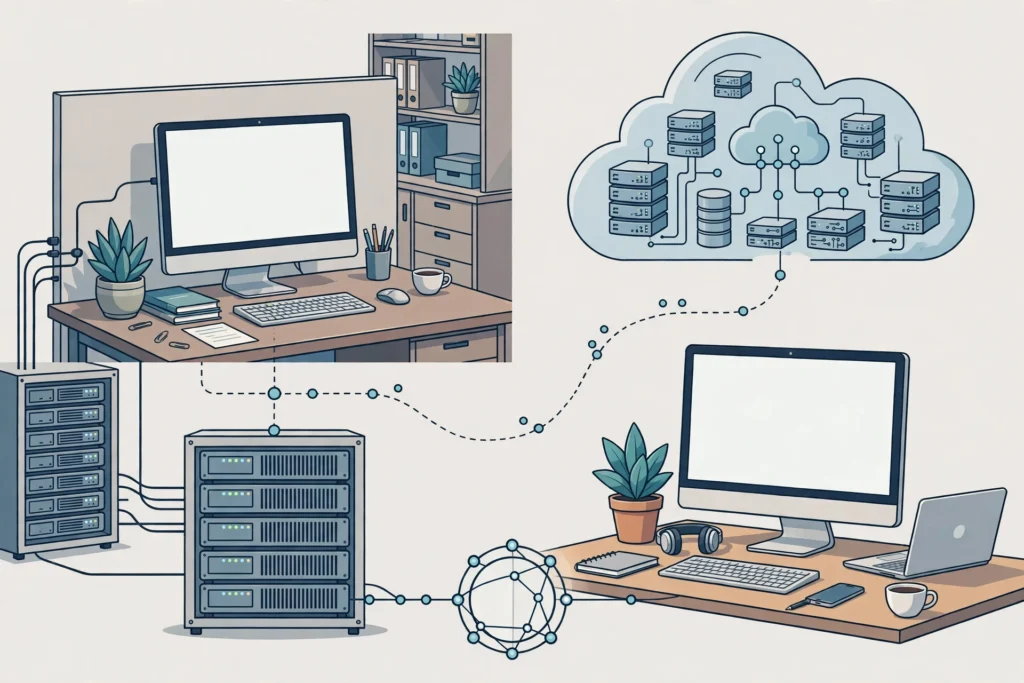
RDP, TeamViewer, and AnyDesk solve different problems. TeamViewer and AnyDesk let you control your own computer from somewhere else, so that computer must stay switched on. An RDP gives you a separate Windows computer in the cloud that stays on around the clock, which suits steady remote work better.
What Is the Real Difference Between RDP, TeamViewer, and AnyDesk?
The real difference comes down to whose computer you are using. With TeamViewer and AnyDesk, you are reaching into your own PC from another device. You see its screen and move its mouse, but nothing changes about where the work lives. It still lives on that one physical machine at home or in the office.
An RDP works the other way round. It is a separate Windows computer hosted in a data centre, which you connect to over the internet. You do not need to leave a home PC running or worry about someone at home turning it off at the wrong moment. Your work, your browser tabs, and your files sit on that remote machine, ready whenever you sign in.
That distinction matters more than brand names or feature lists. If you only need to help a relative fix a setting once in a while, controlling your own PC from afar is plenty. If you work remotely every day, an always-on second machine starts to make more sense.
How Does Each Option Work in Practice?
TeamViewer and AnyDesk follow a simple pattern. You install the software on the computer you want to control and on the device you will control it from. You connect with an ID and a password or an access code, then operate the remote screen as if you were sitting in front of it. It is handy for grabbing a file you left at home or showing someone how to change a setting.

The catch is easy to miss until it bites you. The host computer has to be on, connected, and not asleep. A power cut, an update restart, or someone switching the machine off will end your session. You also share that machine with whoever else uses it, so privacy and interruptions can become a real issue during work hours.
An RDP session feels similar on the surface, because you still see a Windows desktop in a window. The difference sits underneath. You sign in to a machine that is built to stay on. You can close your laptop, move to another device, and come back later to find the same desktop waiting. For daily remote work, that steadiness is the whole point. If you want the basics first, this guide to what RDP is and how it works explains the idea in plain terms.
How Do RDP, TeamViewer, and AnyDesk Compare Side by Side?
Side by side, the choice is less about which tool is “best” in the abstract and more about which setup fits your day. The table below puts the practical differences in one place.
| Feature | RDP | TeamViewer and AnyDesk |
|---|---|---|
| What you control | A separate Windows computer in the cloud | Your own existing computer |
| Must your home PC stay on? | No | Yes, and it must stay awake and online |
| Always-on access | Yes, the remote desktop stays available | Only while your own PC is running |
| Best for | Steady daily remote work | Quick help and occasional access |
| Works from a weak device? | Yes, the heavy lifting happens remotely | Only as well as your own PC allows |
| Separate workspace | Yes, work stays apart from your personal PC | No, you share one machine |
Notice what the table does not promise. It does not claim one option is better for every person. Remote-access software is excellent at what it was built for: reaching a computer you already own. An RDP is excellent at a different job: giving you another computer that does not depend on the one sitting on your desk.
Many remote workers use both kinds of tools at different times: remote-access software to check a home PC, then an RDP for the bulk of the working day. There is no rule that says you must pick one forever.
What About Cost, Setup, and Always-On Access?
Cost is where people often compare the wrong things. TeamViewer and AnyDesk are software products that run on hardware you already bought, so the cost conversation starts with your own PC and connection. An RDP is a service, so you pay a monthly fee for the remote machine itself, and that fee covers a computer that stays on without you managing hardware.
Setup tells a similar story. Remote-access tools need installing and configuring on both ends, and you need to keep the host machine healthy. An RDP needs a different kind of setup: you choose a plan, you get login details, and you connect. The trade-off is real, though. A separate computer means learning where your files live and how you move work between machines. It is not hard, but it is not zero effort either.
Always-on access is the clearest dividing line. If your work depends on a desktop that is there in the morning and still there after lunch, an RDP wins on reliability because it does not hinge on a home PC staying awake. If you only pop in now and then, that advantage matters less. For a closer look at the wider choice, see this breakdown of RDP versus VPS and which one you should buy.
When Does a Separate RDP Computer Make More Sense?
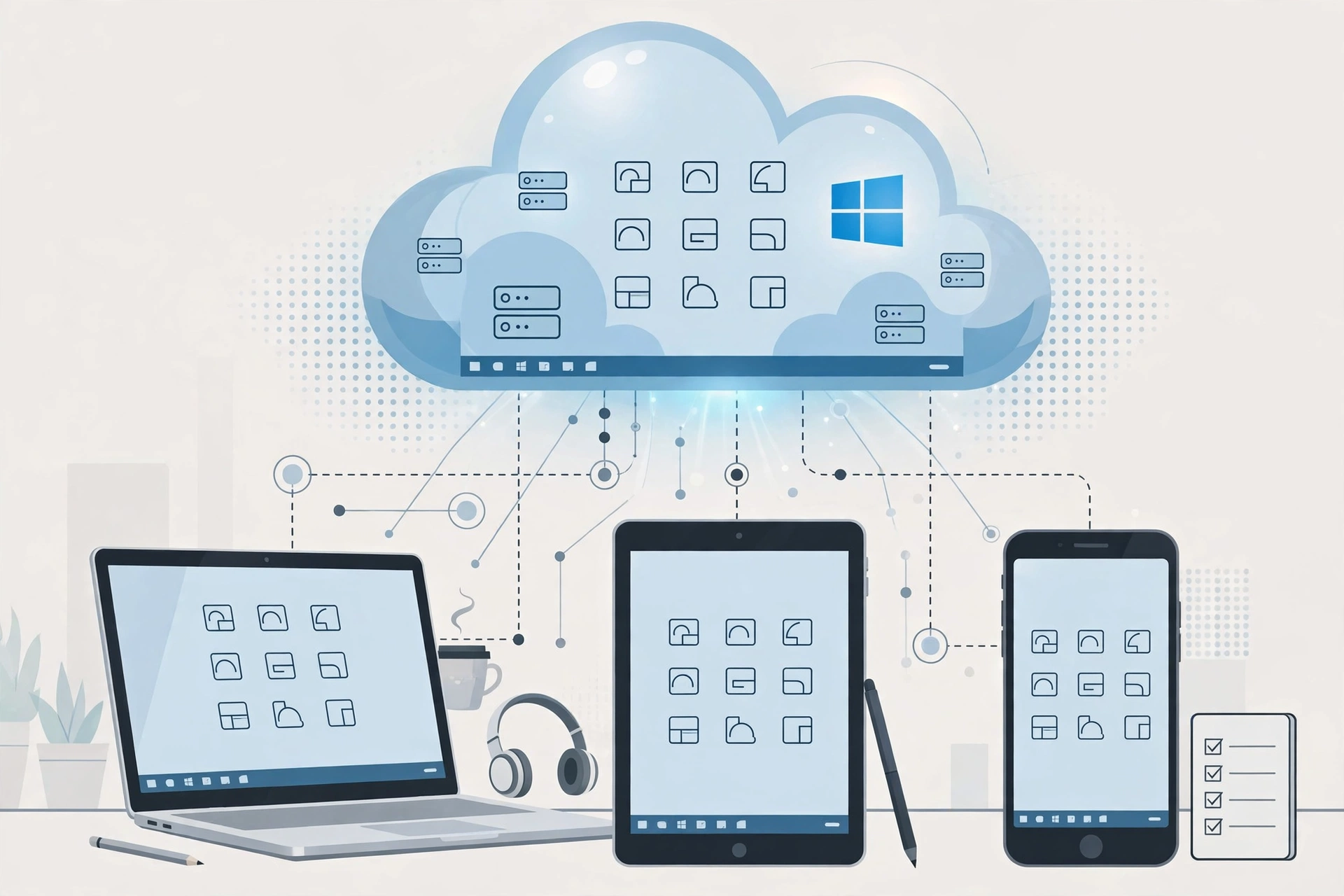
A separate RDP computer makes more sense when remote work is your normal day, not an exception. It fits people who work from a low-end laptop, a borrowed machine, or a tablet, because the remote desktop carries the workload while the local device mostly shows the screen. It also fits people who want a clean split between work and personal use.
It makes sense, too, when other people share your home PC. You do not have to negotiate screen time or worry about someone closing your work. Your remote desktop is yours alone. Support matters here as well: if something goes wrong with the remote machine, you want help from the provider rather than troubleshooting alone.
For many everyday remote workers, a Starter plan is enough to start. The Starter RDP from SadeemRDP costs from $3.99 per month and gives you an always-on Windows desktop with 24/7 support, a sensible entry point for trying the separate-computer approach.
From $3.99/mo · Always-on Windows desktop · 24/7 support
When Should You Stick With TeamViewer or AnyDesk?
You should stick with TeamViewer or AnyDesk when the job is short, simple, and tied to your own PC. Helping a parent change a printer setting, grabbing a document you forgot, or checking something on your office machine are all perfect fits. You already own the computer and know where everything is, and you do not need a second machine for a ten-minute task.
They are also the right call when you need to see exactly what someone else sees on their screen. Tech support and training are much easier when you can point, click, and guide in real time on the person’s own machine. An RDP cannot do that job, because it gives you a different computer, not access to theirs.
Be honest about frequency, though. Occasional access and daily work are not the same need. If you find yourself keeping a home PC awake all day or working around other users just to stay connected, that is a sign the balance has tipped. You have simply outgrown what the tool was built for. You can read the official descriptions on the TeamViewer website and the AnyDesk website to compare their stated uses.
What Are the Honest Limits You Should Know?
Every option here has limits, and it helps to name them before you choose. TeamViewer and AnyDesk are fine for quick help on your own PC, but they cannot fix a switched-off computer, a dead internet connection at home, or a machine that someone else needs at the same time. They are remote controls, not replacement computers.
An RDP has limits of its own. It is a separate computer with its own monthly cost and its own learning curve. You need a decent internet connection to use it comfortably. It also does not replace a local PC for heavy offline work: if you regularly work without internet, a remote desktop will frustrate you.
The sensible question, then, is not which tool wins, but which limit you can live with. If your main need is occasional access to a machine you already own, remote-access software is the simpler pick. If your main need is a steady, always-on workspace for daily remote work, a separate RDP is the cleaner fit. That point matters if you work remotely on a low-end laptop.
Frequently Asked Questions
Can I use TeamViewer or AnyDesk instead of buying an RDP?
Yes, if your goal is to control a computer you already own. TeamViewer and AnyDesk let you reach your own PC from another device, which covers quick help and occasional tasks. They do not give you a second computer, so they cannot replace an RDP for daily remote work.
Does my home computer need to stay on for TeamViewer or AnyDesk?
Yes. Your home or office computer must stay switched on, awake, and connected to the internet for the whole session. If it sleeps, restarts for an update, loses power, or gets switched off, your remote session ends. An RDP avoids this because the remote computer is hosted elsewhere and built to stay available.
Is an RDP better than TeamViewer for full-time remote work?
For full-time remote work, an RDP often fits better because it provides a separate always-on workspace that does not depend on your home PC. You can sign in from different devices and return to the same desktop. TeamViewer and AnyDesk remain better for short help sessions on your own machine.
Do I need a powerful laptop to use an RDP?
No, and that is one of the main attractions. With an RDP, the remote machine handles the desktop workload while your local device displays the screen and sends your keyboard and mouse input. A modest laptop or shared computer can still give you a usable Windows workspace, as long as your internet connection is stable.
What should I choose if I only need remote access once in a while?
Choose TeamViewer or AnyDesk if you only need remote access once in a while. Controlling your own PC is simpler for occasional tasks, and you avoid paying for a separate machine you rarely use. Save the RDP option for the point where remote work becomes a daily routine.
Creators who move their work to a cloud desktop often hit the same next problem, so see how to upload large videos to YouTube faster.
Comments