
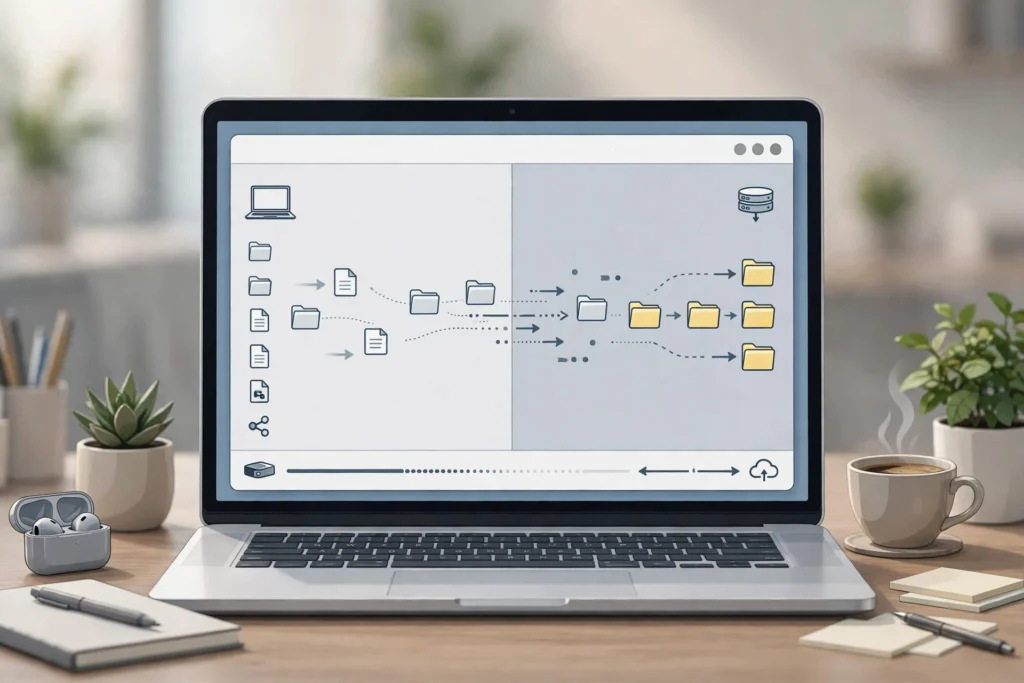
How to Transfer Files Between Your PC and RDP
To transfer files between your PC and RDP, open the Remote Desktop Connection settings before you connect, turn on drive redirection for your local drives, then copy and paste files in File Explorer on the remote desktop. For larger files or when drive redirection is blocked, use cloud storage instead.
Moving a file to a remote desktop should feel as simple as moving it between two folders on your own PC. In practice, it depends on the method you pick, the size of the file, and the settings on both machines. Get those right and most transfers just work.
If you are still new to remote desktops, start with what RDP is and how it works. The short version is that RDP shows you a Windows desktop running on another machine, and you control it over the internet. File transfer is a separate feature on top of that connection, so it needs its own settings, even when the desktop itself connects without a problem.
How does drive redirection move files between your PC and RDP?
Drive redirection shares one or more drives from your local PC with the remote desktop, so those drives appear inside the remote session as if they were plugged into the remote machine. You can then copy a file from a local drive to the remote desktop, or the other way round, using File Explorer in the normal way.
On the remote desktop, the shared drive usually shows up under This PC with a name that includes your local drive letter and your PC name, for example “C on DESKTOP”. That naming helps you tell local and remote drives apart, which matters when both machines have a C drive.
How do you turn on drive redirection before you connect?
You turn on drive redirection in the Remote Desktop Connection app before you connect, under Local Resources, by ticking the Drives option in the More settings. This step has to happen before the session starts, because changing it mid-session does not always take effect straight away.
Open Remote Desktop Connection on your PC, click Show Options, then go to the Local Resources tab. Click More under Local devices and resources, expand Drives, and tick the drive or drives you want to share. Click OK, then connect as usual. When the desktop opens, open File Explorer and look under This PC for your shared drive.
Microsoft lists its official Remote Desktop clients and their settings on the Microsoft Learn page on Remote Desktop clients, which is worth checking if you connect from a different device later. The menus look a little different on each client, but the idea is the same: the local resource must be allowed before the session begins.
What can you copy with the clipboard, and where does it stop working?
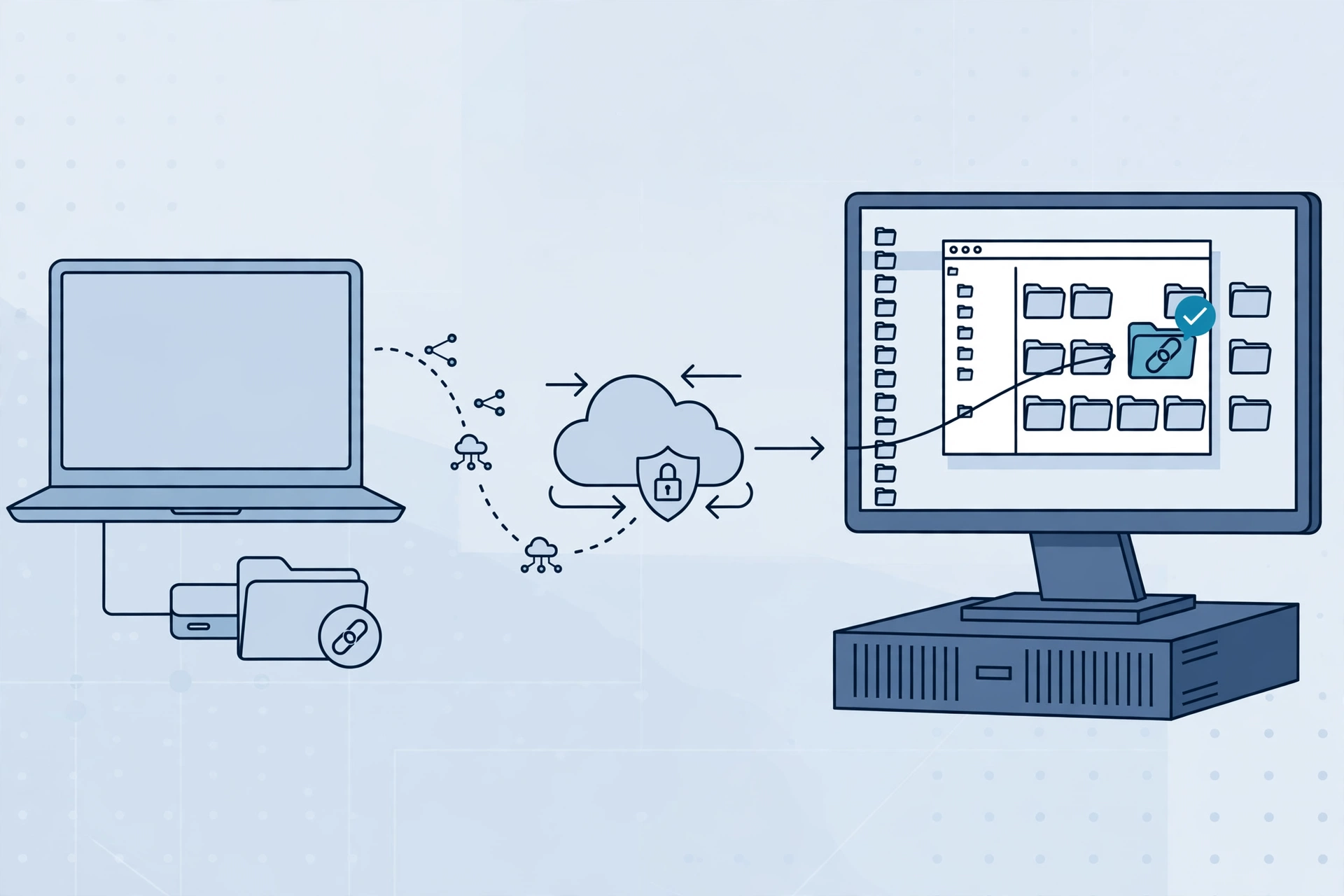
The clipboard handles text and small files between your PC and the remote desktop, but it is not built for large files, and file copy through the clipboard can fail or stall where a direct drive copy would work. Text, such as a password from a password manager or a short paragraph, usually copies across without trouble, while a large video file is a different story.
Clipboard sharing also has to be turned on. In Remote Desktop Connection, the Clipboard option sits on the same Local Resources tab as drive redirection. If it is off, copy and paste between the two machines simply will not happen, even though copy and paste inside each machine still works fine. That is a common source of confusion, because everything else in the session looks normal.
When is cloud storage the better route for file transfer?
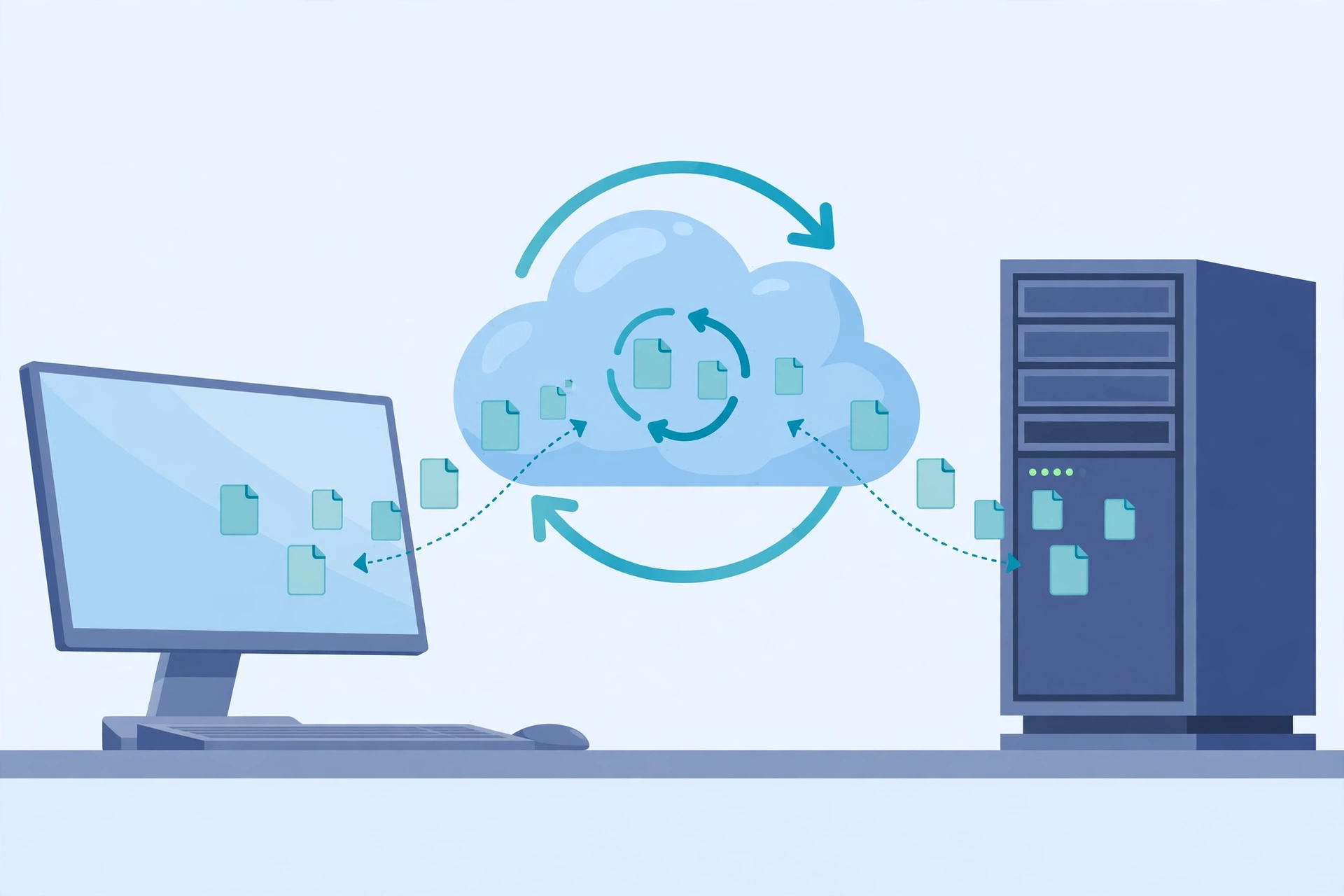
Cloud storage is the better route when drive redirection is blocked, when you need the same file on several devices, or when you want a backup copy that stays available after the session ends. You upload the file from one machine, then download it on the other, with no direct link between the two desktops.
This route also helps when you are working from a device that does not support drive redirection well, such as a phone or a borrowed laptop. The cloud drive becomes the middle step, and both machines only need a browser and an internet connection. It is the same practical approach that helps when you work remotely on a low-end laptop, where keeping the workflow simple beats fighting with settings.
How should you handle large files without breaking the session?
Handle large files by splitting the job into smaller parts where possible, using drive redirection or cloud storage rather than the clipboard, and leaving the session alone until the transfer finishes. Large transfers are the ones most likely to stall if the connection drops or the session is closed early.
Before a big transfer, check the free space on the remote desktop and the file size on your local PC. A transfer that runs out of space partway through can leave a partial file that looks complete until you try to open it.
From $3.99/mo · Fast activation · 24/7 support
Why is your local drive not showing, or a copy blocked?
A missing drive or a blocked copy is usually caused by drive redirection being off, a policy on the remote machine that blocks redirected drives, or a clipboard setting that was never turned on. Working through those three causes in order solves most cases.
First, disconnect and check the Local Resources settings again, making sure Drives is ticked for the drive you need. Second, check whether the remote plan restricts drive redirection. Some rented plans limit sharing for security reasons, and then cloud storage is the supported workaround.
If the drive shows up but a copy is refused, check the destination folder permissions on the remote desktop and the free space there. A read-only folder or a full drive will block the copy with an error that can look like a connection problem. Copying to the remote Desktop or Documents folder first, then moving the file to its final location, often makes the problem clearer.
Why are transfers slow, and what can you do about it?
Transfers are slow mainly because the file has to travel over your internet connection, so the speed depends on your upload speed for files going to the remote desktop, and on the remote side for files coming back. A slow home upload link will make even a straightforward transfer feel long, and that is normal, not a fault in RDP itself.
To speed things up, avoid other heavy downloads or video calls on the same connection during a transfer, and close extra remote windows you do not need. Compressing a folder into a single archive before copying can also help, since one large file often copies more steadily than many small ones.
How do you keep file transfers safe on a shared RDP plan?
You keep transfers safe by moving only the files you need, avoiding sensitive documents on a shared plan unless you have to move them, and deleting temporary copies from the remote desktop when you finish. A remote desktop is a working machine, not a private vault, so treat files left on it accordingly.
Do not store passwords, identity documents, or financial files on a remote desktop longer than needed, and do not share a drive holding your whole personal folder when you only need one file. Share only what the transfer needs, then turn sharing off for the next session where the client allows it.
The same care applies when you use RDP for online work from Pakistan, where a steady connection and a clear routine matter as much as the settings. A simple routine helps: copy in, work, copy out, delete the temporary copy, and sign out properly.
What else do people ask about transferring files to RDP?
Can I drag and drop files directly into the RDP window?
Drag and drop into the RDP window does not work reliably in the standard Windows Remote Desktop client, so do not rely on it. Use drive redirection and copy and paste in File Explorer instead, or use cloud storage when redirection is blocked. These methods are supported and give you a clear result you can check.
Why can I copy text but not files between my PC and RDP?
Text and files use different sharing settings, so clipboard text can work while file copying stays off. Check that both Clipboard and Drives are turned on under Local Resources before you connect. If files still fail, try a drive copy in File Explorer rather than a clipboard paste, since large files often stall through the clipboard.
Is it safe to transfer personal files to a rented RDP plan?
It is reasonably safe for ordinary work files if you use a strong, unique password, share only the drive you need, and delete temporary copies when done. Avoid moving highly sensitive documents on a shared plan unless necessary, and never leave passwords or identity files sitting on the remote desktop after the task is finished.
What is the fastest way to move a large file to RDP?
The fastest reliable way is usually drive redirection with a single compressed archive, on a stable connection with no other heavy downloads running. Cloud storage can be just as good, and sometimes better, when it supports resuming an interrupted upload. Avoid the clipboard for large files, since it is the method most likely to stall.
Do I need extra software to transfer files to RDP?
No, you do not need extra software for basic transfers, since drive redirection and clipboard sharing are built into the Remote Desktop client. Extra tools only make sense for special cases, such as automated syncing, and they add setup and risk. Start with the built-in options, and only look further if they are blocked on your plan.
File transfer between your PC and RDP comes down to one habit: set up drive redirection before you connect, use the clipboard only for text and tiny files, and fall back to cloud storage when a direct copy is blocked or the file is large. Keep the routine simple, check that the copied file is complete, and clear up temporary copies when you finish.
Related reading: how virtual assistants use RDP for client work.
Comments