
How Virtual Assistants Use RDP for Client Work in 2026
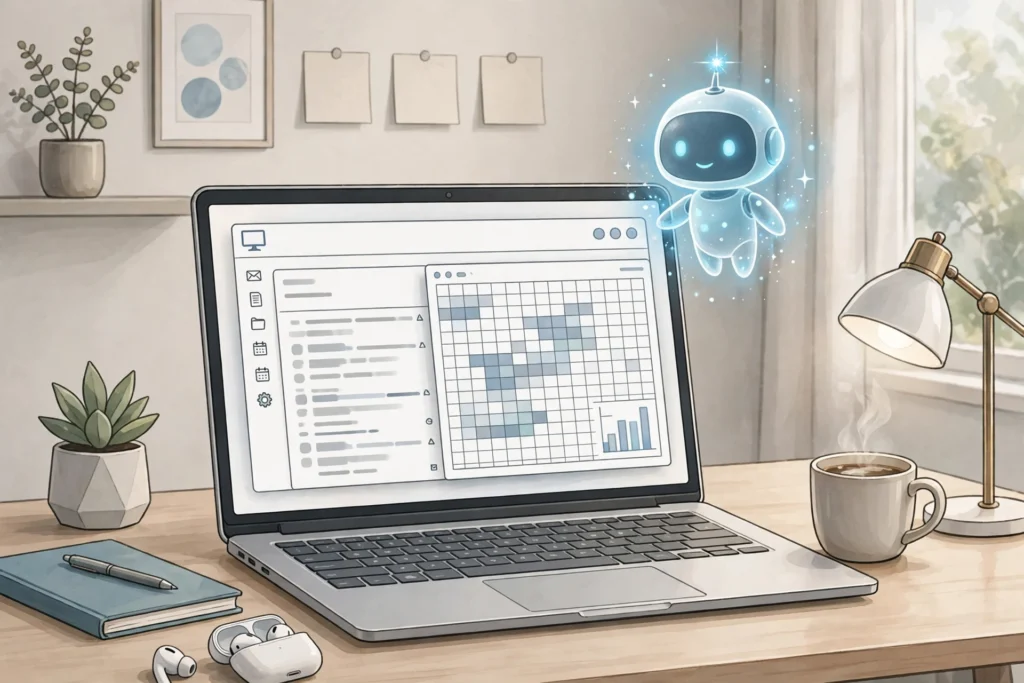
Virtual assistants use RDP for client work by signing in to a separate Windows desktop hosted online, where they handle inbox, data entry, research, scheduling, and social posting support. The remote desktop stays on around the clock, keeps client work apart from personal files, and can be reached from a laptop or a low-end PC.
A virtual assistant (VA) usually works for more than one client at a time, and each client has their own tools, logins, files, and routines. Doing all of that on one personal laptop gets messy fast: tabs pile up, the wrong account stays signed in, and a family member borrowing the laptop can stumble into client work. A remote desktop gives the VA a second, work-only computer that lives online.
RDP stands for Remote Desktop Protocol, the technology that shows a Windows desktop on your own screen and lets you control it from somewhere else. If the idea is new to you, start with what RDP is and how it works before you pick a plan.
What does a virtual assistant actually do on an RDP?
A virtual assistant on an RDP does the same everyday office work they would do on any Windows PC, just inside a separate, work-only desktop. The most common task is inbox work: reading client email, sorting it into folders, flagging what needs a reply, and drafting answers for the client to approve.
Data entry is another daily job: copying orders from emails into a spreadsheet, updating a CRM, or cleaning up a contact list. Research comes next, like comparing prices or gathering links for a blog post. Scheduling work fits in too, such as booking appointments and confirming meetings across time zones. Some VAs also support social media work, usually by preparing post drafts and organizing images rather than posting from a personal phone account.
None of this needs a powerful machine. A browser, a spreadsheet, and a mail app are enough for most VA tasks, which is why a modest shared RDP plan suits many VAs, as long as the work stays within ordinary office software and browser tools.
Why does a separate, always-on desktop help a VA?
A separate desktop helps a VA mainly because it keeps client work apart from everything else. Each client can have their own browser profile, bookmarks, and saved logins on the remote machine, while the VA’s personal laptop stays personal. That separation lowers the chance of sending a message from the wrong account or saving a client’s file into a personal folder, two mistakes that are easy to make when everything shares one desktop.
The always-on part matters just as much. A hosted desktop does not switch off when the VA closes their laptop or when the power cuts out at home. Downloads keep running, and the VA can sign back in later and find everything exactly where they left it.
Working US hours is another reason VAs like a remote desktop. A client in the United States may need work done during their business day, which can fall late at night for a VA in another time zone. With an RDP, the VA can sign in from a quiet corner, do the shift, and sign out, without keeping a home PC running all night. The home PC also stays free for family use during the day. A similar separation of work and personal machines is one reason freelancers use a Windows VPS for client work, though a VPS costs more and most VAs do not need it to start.
What does a typical VA workday look like on an RDP?
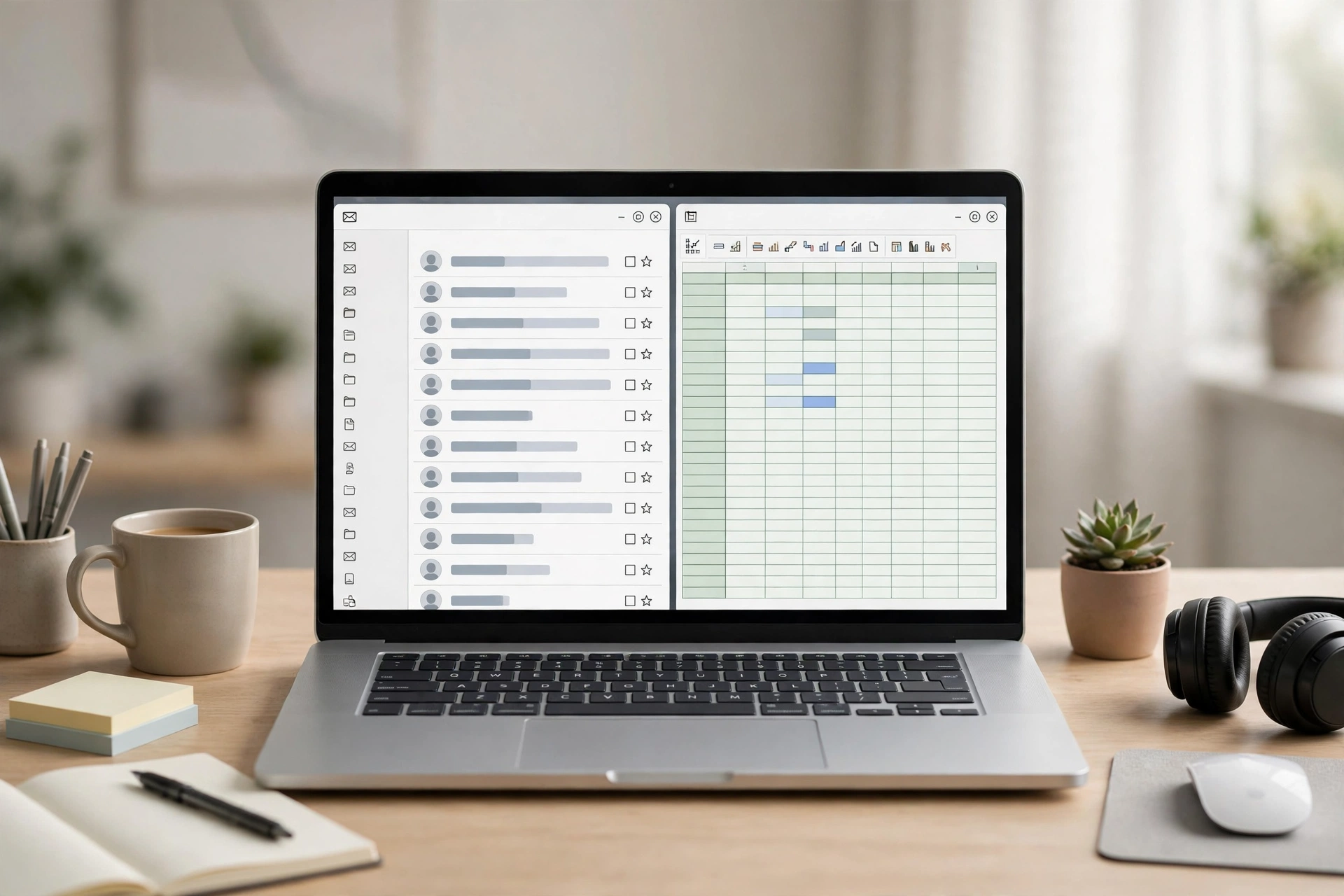
A typical VA workday on an RDP starts with a single sign-in. The VA opens the remote desktop connection, enters the login details, and lands on the same work desktop they left yesterday.
The morning usually begins with inbox triage: checking each client’s mail, flagging urgent messages, and noting what needs action. After that comes the planned task list, which might be data entry in the morning, research before lunch, and scheduling or social posting support in the afternoon. Files for each client stay in their own folders, and the VA works through them one client at a time.
How do you keep client work separate and secure on an RDP?
You keep client work separate and secure on an RDP by giving each client their own space and their own logins, and by never mixing them. Use a separate browser profile for each client, keep each client’s files in a folder named for that client, and sign out of a client’s accounts before switching to the next one. That routine takes a few extra seconds, but it prevents the most common VA mistake, which is acting in one client’s account while thinking you are in another’s.
Passwords deserve the same care. Use a strong, unique password for the RDP itself, and never reuse it for a client account. Turn on a screen lock on your own device, do not save RDP login details on a shared computer, and sign out properly at the end of each session.
It is also worth agreeing on the basics with each client before work starts: which tools you will use, where files live, and how you will hand work back. A short written agreement on those points protects both sides. If you work for US clients, check which location suits them best; a US-based desktop can feel more responsive, and choosing a USA RDP for remote work covers what to look for when location matters.

What are the limits of a basic RDP, and when should a VA upgrade?
The main limit of a basic shared RDP plan is that it comes with no admin rights. You can use the software that is already installed, and approved software can be installed through a support request, but you cannot install programs yourself whenever you like. For most VA work, inbox, spreadsheets, browsers, and scheduling tools, that is fine.
Heavy tools are the other limit. Video editing and large design files will feel slow on a basic shared plan, because resources are shared with other users. If a client’s work regularly involves that kind of load, a bigger plan is the honest answer. Likewise, if several clients need software installed on demand, it is time to look at a plan with full admin rights.
That upgrade path is simple. Admin RDP plans, from $9.99 per month, give the admin access a VA needs to install their own software. A private Windows VPS, from $6.99 per month, goes further with dedicated resources and full admin control, which suits VAs who run heavier tools or manage several clients at once. Start small, learn which tools your clients actually need, and upgrade only when a real task hits the limit.
From $4.99/mo · Shared Windows desktop · 24/7 support
How do you get started with RDP as a virtual assistant?
You get started by picking a plan that matches the work you already have, not the work you hope to get. If your clients need inbox, data entry, research, and scheduling, a Basic RDP plan is a sensible starting point. SadeemRDP offers Basic RDP from $4.99 per month for USA and Netherlands locations, and $5.99 per month for the UK, with fast activation after payment and 24/7 support.
After payment, you receive the server address and login details, usually within a short time. Sign in from your usual device, and set up your work space before your first paid task: one browser profile per client, one folder per client, and bookmarks for the tools each client uses. Microsoft lists its official remote desktop apps on the Microsoft Learn page on Remote Desktop clients, which is a good place to confirm you are using an official client.
Then run a small trial before you promise a client a full schedule on the new desktop. Do one real task end to end, like an inbox check and a spreadsheet update, and confirm that every tool you need opens and works as expected.
What else do people ask about virtual assistants using RDP?
Do I need my own PC to work as a virtual assistant on an RDP?
No, you do not need a powerful PC of your own, because the real work happens on the remote desktop. You still need a device to connect from, but it can be a modest laptop or a low-end PC, since the remote machine does the heavy lifting. A steady internet connection matters more than an expensive local computer.
Can a VA work for several clients on one RDP?
Yes, one RDP can serve several clients, as long as you keep their work properly separated. Use a separate browser profile and folder for each client, and sign out of one client’s accounts before opening the next. If client numbers grow a lot, a second desktop or a private VPS may be cleaner than crowding everyone onto one machine.
Can I install my own software on a Basic RDP plan?
No, a Basic RDP plan has no admin rights, so you cannot install software yourself. Approved software can be installed through a support request, but tasks that need you to install your own programs regularly call for an Admin RDP plan or a private Windows VPS instead. Check which tools your clients need before you choose.
Is client data safe on a remote desktop?
Client data on a remote desktop is as safe as the habits around it, so strong unique passwords, separate browser profiles per client, and signing out after each session matter a great deal. Avoid saving client logins on shared devices, and follow each client’s own rules for their tools and files. No setup replaces careful habits.
What if my internet or power goes out during a shift?
If your internet or power goes out, your remote desktop keeps running, and your open files and tabs stay as you left them. You can sign back in once you are connected again and pick up where you stopped, without losing work that was already saved.
A remote desktop will not make someone a good virtual assistant on its own. Reliable work, clear communication, and respect for client data do that. What an RDP does is give that work a tidy, separate home: one sign-in, one work-only desktop, and client work kept apart from personal life.
Related reading: how to transfer files between your PC and RDP.