
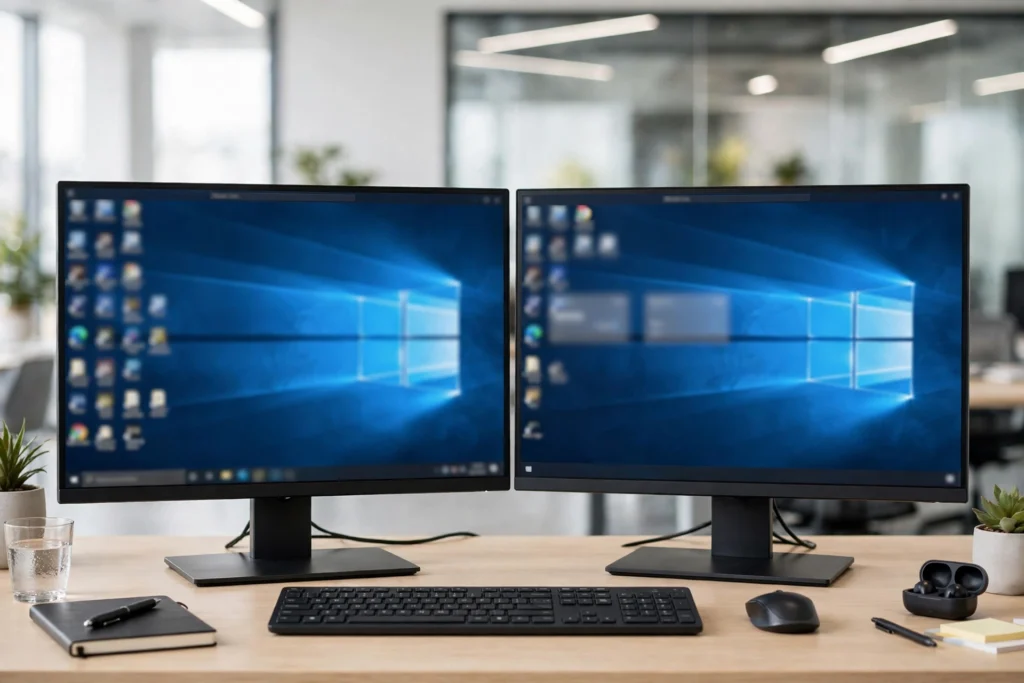
Yes, Remote Desktop can use more than one monitor. In the Windows client, tick “Use all my monitors for the remote session” on the Display tab before you connect, and the remote desktop spreads across your screens. If that option does not fit your setup, span mode stretches one wide session across your monitors instead.
By SadeemRDP Team
Last updated: November 11, 2026
One screen is fine for checking email. It gets tight when you need a spreadsheet open on one side, a browser on the other, and a chat window where you can see it. That is the point where a second monitor stops being a luxury and starts being part of how you work. Remote Desktop can keep up with that, and the setting takes less than a minute once you know where it lives.
The catch is that the setting sits on your own computer, not on the remote machine. The client you connect with decides how many of your screens the session can use. This guide covers the two main modes, the steps in the Windows client, the Mac app, and Linux clients, plus scaling and performance notes.
What are the two ways to use multiple monitors with RDP?
There are two modes, and they look different on your desk. The first is true multi-monitor mode, where each of your physical screens becomes its own screen inside the remote session. Windows on the remote desktop treat them as separate monitors, so you can maximize a program on the left screen while another fills the right one. The taskbar and Start menu behave much like they do on a local computer with two screens.
The second mode is span mode. It takes all your monitors and treats them as one very wide screen. The remote desktop stretches across the join between your monitors, and a maximized window can end up spread across both. Span mode is the older approach, and it still helps when the client or the setup cannot do true multi-monitor. For most people with two matching monitors, true multi-monitor is the better choice, because windows snap and maximize the way you expect.
How do you turn on multiple monitors in the Windows built-in client?
Open Remote Desktop Connection by typing mstsc in the Windows search box, then click Show Options at the bottom left. Go to the Display tab and tick the box that says “Use all my monitors for the remote session”. That single checkbox is the whole setting. Type the remote address, connect, and sign in as usual.
Two things matter before you connect. First, the session needs to run full screen, so keep the display slider at full screen. If you shrink the session window to part of one monitor, it drops back to a single screen. Second, the remote desktop takes on the resolution of each monitor, so a 1080p screen and a 4K screen show it at different sizes. If you are still learning the basics, this guide to what RDP is and how it works explains how a session is built.
What is span mode and when should you use it?
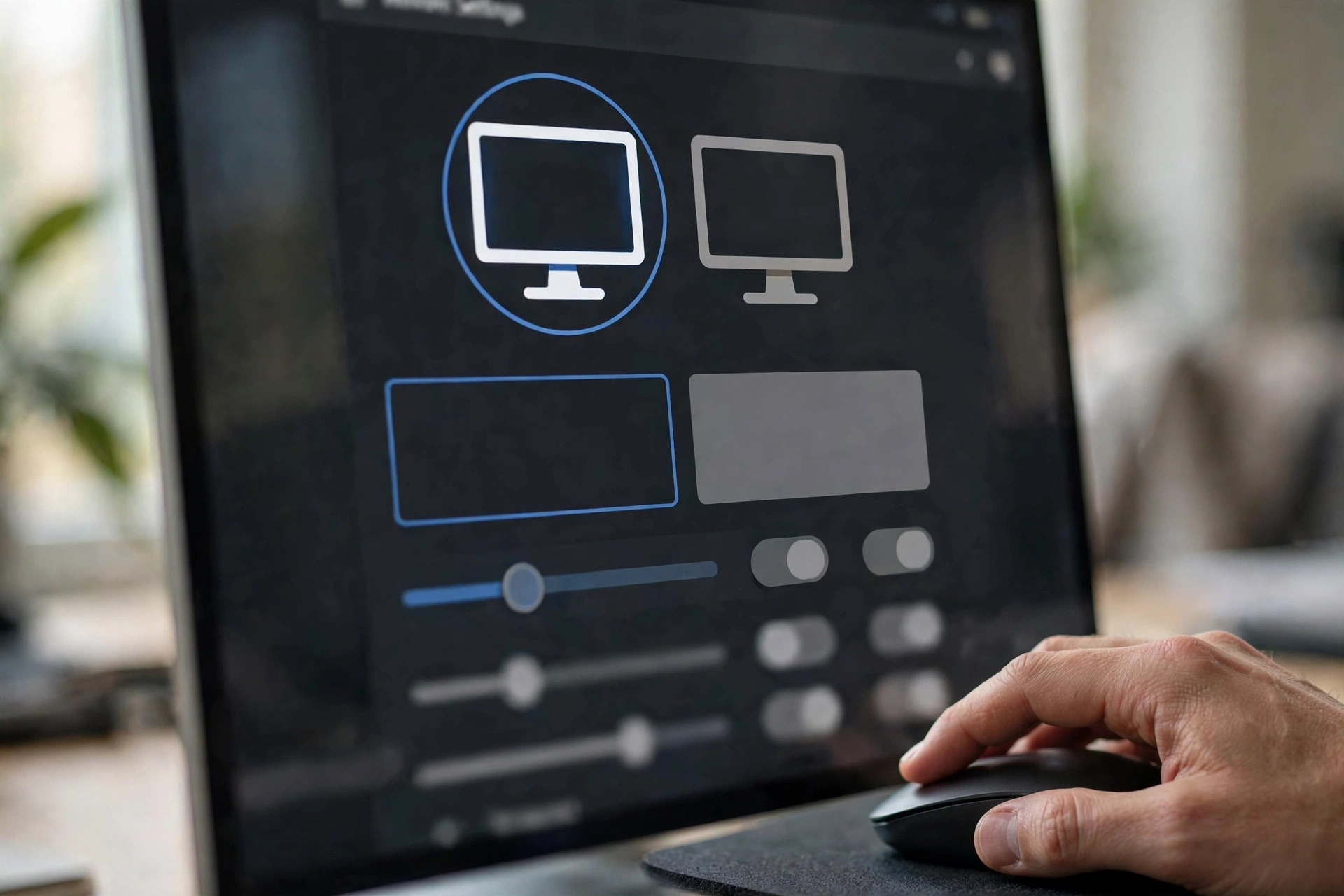
Span mode stretches a single remote desktop across every monitor you have. You start it from the command line by typing mstsc /span and then connecting, or by saving a connection file with the span setting in it. There is no checkbox for it in the Display tab, which is why many people never find it. Once the session opens, the remote desktop is one wide surface, and the join between your monitors runs through the middle of it.
Use span mode when true multi-monitor is not available, or when your monitors are very different sizes and the normal mode looks wrong. It also helps on older clients that do not offer the multi-monitor checkbox. The trade-off is window behaviour. A maximized program fills the whole width across both screens, and a window dragged to the middle can sit half on each screen. If your monitors are the same size and your client supports it, the checkbox in the Display tab gives a cleaner result.
How does multi-monitor work on a Mac?
On a Mac, you connect through the Microsoft Remote Desktop app from the App Store. Open the app, edit your saved connection, and look for the display settings for that PC. The app supports using more than one display in full screen, and it places the remote session across your connected monitors. Make sure your Mac is set to use your monitors as separate displays rather than mirroring them, because a mirrored Mac shows the same picture on both screens and gives the session nothing extra to use.
The Mac app has limits. Retina screens and mixed resolutions can make text look larger on one screen than the other, and full screen sessions use macOS Spaces, so moving between your Mac desktop and the remote session means swiping between spaces. If you mostly work in Windows programs from your Mac, this guide to running Windows programs on a Mac with RDP covers the setup.
How do you use multiple monitors with RDP on Linux?
Linux users have two common routes. Remmina, the popular graphical client, has a multi-monitor option in its connection settings, near the resolution and display choices. Tick it, save the connection, and the session opens across your screens. The other route is FreeRDP, a command line client, which has a multi-monitor flag you add when you start the connection. Both do the same job, so pick the one that suits how you work.
Linux clients can lag a little behind the Windows client on display features, so test with your own setup. If a setting does not work in one client, try the other. Chromebooks follow a different path again, and this guide to using RDP on a Chromebook explains how remote desktop works there. Microsoft documents the supported clients and their display options in its official Remote Desktop clients documentation.
From $3.99/mo · Full Windows desktop · 24/7 support
How do resolution and scaling work across different monitors?
When your monitors are not identical, the remote session has to deal with the difference. A typical setup is a laptop screen plus a larger external monitor, and the two often run at different resolutions. In true multi-monitor mode, each screen keeps its own resolution, so a window moved from one screen to the other can change size. That is normal, and it comes from the monitors, not from a fault in the session.
Scaling adds a second layer. Windows scales text and icons for each screen, and high resolution screens often use 125% or 150% scaling so text stays readable. If text looks tiny on one screen and large on the other, check the scaling on your local computer first, then reconnect. Matching your monitors as closely as you can, or setting the same scaling on both, makes the session feel calmer. Test it first: connect, open a program on each screen, and see if the sizes feel right.
How do you keep performance smooth and fix common problems?
More screens mean more picture to send, so a two-monitor session uses more bandwidth than a single screen. On a stable home connection you will hardly notice it, but on a weak or shared connection the session can feel slow, with windows that paint late when you drag them. If that happens, lower the color depth in the Display tab and turn off the desktop background and visual effects on the Experience tab. Those two changes cut the data the session sends. A wired connection also helps, because a steady link matters more than a fast one.
Three problems come up most often. If the second monitor stays black, close the session, check the multi-monitor box is still ticked, and reconnect in full screen. If the taskbar lands on the wrong screen, check which monitor is set as your main display on your local computer, then reconnect. If the session only uses one monitor, the cause is almost always the same: the session window is not full screen, or the checkbox was off when you connected. End the session fully and reconnect with the setting on. If the connection itself fails, this guide to fixing an RDP connection refused error works through the causes step by step.
Two monitors change how remote work feels. Email stays open on one screen while you work on the other, and you stop flipping between windows all day. The setup is a single checkbox in the Windows client, a display setting in the Mac app, or a flag in a Linux client. Pick true multi-monitor mode first, keep your resolutions close, and lower the display quality if the link feels slow.
Frequently Asked Questions
Can I use two monitors with RDP on any plan?
Yes. Multi-monitor is a setting in the client on your own computer, not a feature of the remote plan, so it works on any plan, including Starter RDP from $3.99/mo. The remote machine does not need special hardware. What changes with your plan is the speed of the machine, not the number of screens.
Why does my RDP session only use one monitor?
The usual reason is that the “Use all my monitors” box was off when you connected, or the session window is not full screen. Close the session, tick the box on the Display tab, keep the resolution slider at full screen, and connect again. A session started with the setting off will not pick up the second monitor.
Why is my second monitor black in RDP?
A black second monitor usually means the session started before the display setting applied, or your local graphics setup confused the client. End the session, wait about thirty seconds, and reconnect in full screen with the multi-monitor box ticked. If it stays black, try span mode, and check that your monitors are not set to mirror each other.
Does span mode work on a Mac?
The Mac app does not use the Windows mstsc /span command, so span mode is a Windows client feature. On a Mac, use the Microsoft Remote Desktop app and turn on its multi-display option in full screen instead. It gives you the same result, a session across your monitors, through the app’s own display settings.
Will two monitors make my RDP session slower?
A little, yes, because two screens send more picture data than one. On a stable connection you may not notice it. On a slow or shared connection, windows can paint late when you drag them across screens. Lower the color depth, turn off the desktop background in the Experience tab, and use a wired connection if you can.