
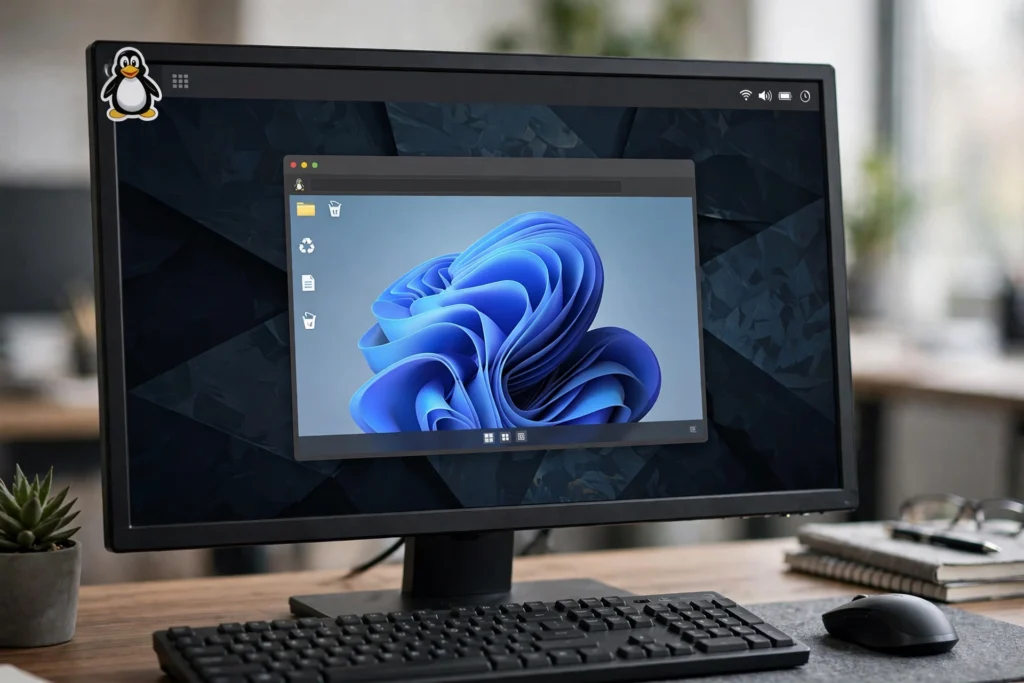
To use RDP on Linux, install a free RDP client such as Remmina or FreeRDP, add a new connection with the Windows computer name or IP address, then sign in with the Windows username and password. The full Windows desktop then opens in a window on your Linux computer.
By SadeemRDP Team
Last updated: November 10, 2026
Linux does not come with a built-in Remote Desktop client in the same way Windows does, but the job is still simple. A few free programs handle the connection, and the setup is mostly typing in an address, a username, and a password. Once the details are right, the Windows desktop appears on your Linux screen and works like any other window.
This guide covers the clients that work on Linux, how to install Remmina step by step, how to add a connection and sign in, and how to handle the keyboard, mouse, and display once you are connected. It also covers the problems that stop most first connections and explains when a rented Windows desktop is the simpler choice.
Which RDP clients are available on Linux?
Several RDP clients work on Linux, and the best known are Remmina, FreeRDP, GNOME Connections, and Vinagre. Remmina is a graphical client with a connection list, saved profiles, and support for RDP and other protocols in one place. FreeRDP is a free, open-source client that works from the command line and also powers the connection engine inside some graphical clients. GNOME Connections is a simple client that ships with some GNOME-based desktops, while Vinagre is an older GNOME remote desktop viewer that still handles basic RDP connections.
All four connect to the same kind of Windows desktop, so the choice comes down to how you like to work. A graphical client suits most people because the settings sit in clear fields on one screen. A command-line client suits people who connect from scripts or work on a server without a desktop.
Which Linux RDP client should you choose?
Remmina is the safest pick for most Linux users. It is free and open-source, it is widely available in Linux software centres and package managers, and it saves each connection so you do not type the same details every time. It also lets you set the screen size and shared folders for each saved connection.
FreeRDP is the better pick if you prefer the terminal or need to connect from a script. It is also free and open-source, and the project publishes its source and documentation at FreeRDP. GNOME Connections is a fine pick if it is already installed and you only need a plain connection. Vinagre works for a quick check, but Remmina gets more regular updates and has a larger user base, so help is easier to find. The Remmina project site at remmina.org lists downloads and documentation for the client.
How do you install Remmina on Linux?
Open the software centre or app store on your Linux system, search for Remmina, and install it from there. This is the easiest route on most desktop systems, because the software centre handles the install and any parts Remmina needs to run. If it is not listed there, use your distribution package manager to install it from your normal software sources.
After the install finishes, open Remmina from your applications menu. The first screen shows an empty connection list with a button to add a new connection. Before you go further, have the connection details ready: the name or IP address of the Windows computer, plus a username and password. If you are connecting to a rented desktop, your provider sends these details after payment, and the machine is already set up to accept your login.
How do you add a connection and sign in with Remmina?
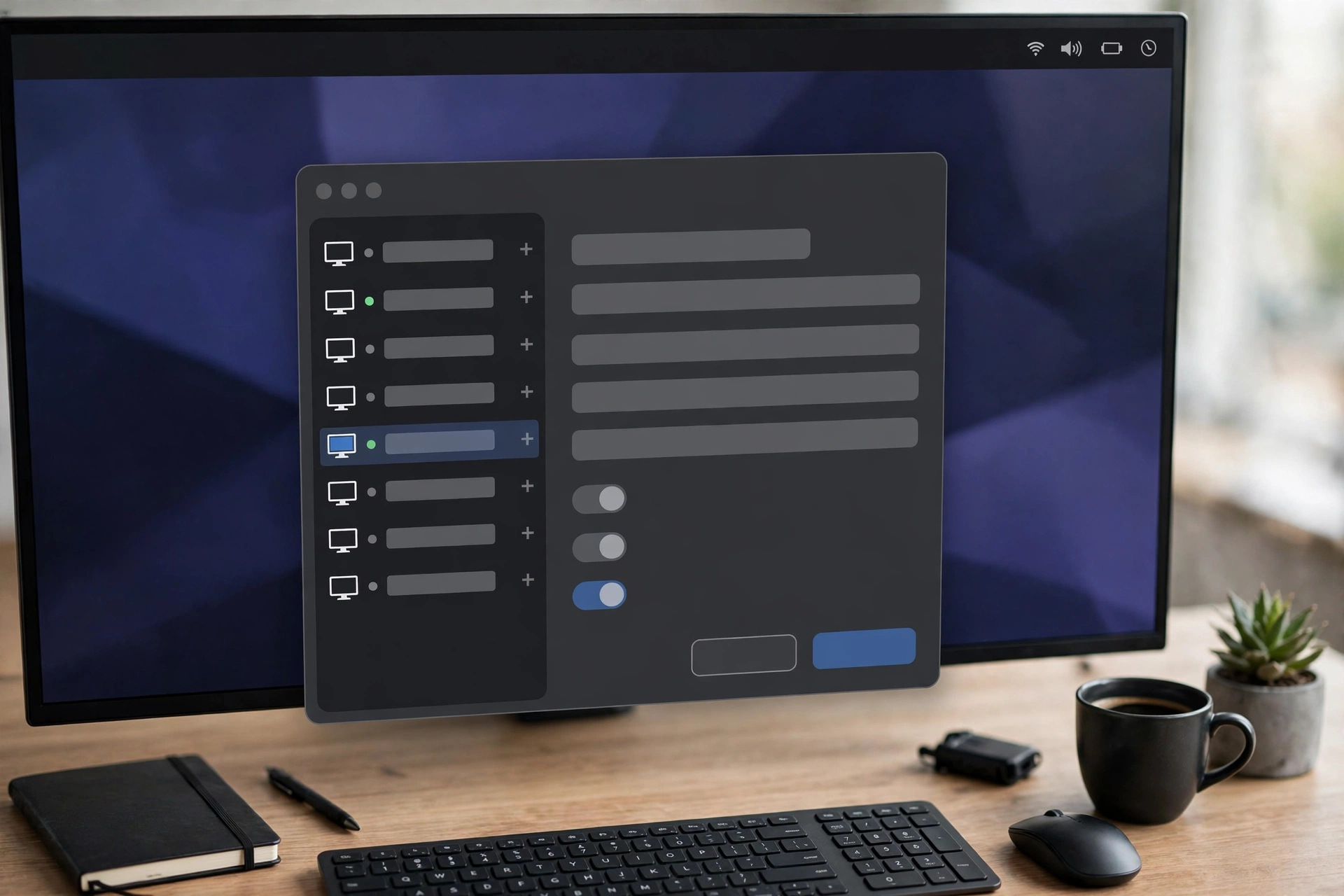
Click the button to add a new connection in Remmina, choose RDP as the protocol, and type a name for the connection so you can find it later. Then type the server address, which is the name or IP address of the Windows computer, and add the username and password. Save the connection, double-click it in the list, and the Windows desktop should open in a Remmina window.
If Remmina asks about a certificate the first time you connect, read the warning before you accept it. On a computer you own or a desktop from a provider you trust, accepting it is normal. If the sign-in fails, check the address first, then check that the username and password are typed exactly right, with the correct capital letters. A rented desktop removes one common worry here, because the provider keeps the machine switched on and ready to accept connections. This guide to what RDP is and how it works explains the basics of the connection before you start.
From $1.99/mo · Works with any Linux client · 24/7 support
How do you handle keyboard, mouse, and display settings on Linux?
The keyboard and mouse on your Linux computer control the remote Windows desktop directly, so typing and clicking work as they would on a local machine. One detail catches new users out: some keyboard shortcuts go to Linux first instead of Windows. The Windows key, for example, may open your Linux menu rather than the Windows Start menu. Remmina has settings to send keyboard shortcuts to the remote session, and using the on-screen Start button or the taskbar on the remote desktop avoids the problem entirely.
Display settings matter too, especially on a small laptop screen. Start with the remote desktop set to fit your Linux window, then switch to full screen when you need more room. Windowed mode lets you keep a browser or notes beside the remote session. If text looks too small, raise the remote resolution in the saved connection settings. Lowering the colour depth can also help a slow connection feel more responsive.
How do you fix the common first-connection problems on Linux?
Most first-connection failures come from a small list of causes. The most common is a wrong server address, so check the name or IP address letter by letter. The next is a wrong username or password, often a capital letter in the wrong place or a password that was changed on the Windows computer. The third is the remote computer itself: it must be switched on, awake, and set to accept remote connections, and the account you use must have a password set, because blank passwords are refused for remote logins.
If the address and password are right but the connection still fails, check the network. A firewall on the Windows computer or on your local network can block the connection, and a public Wi-Fi network can block it too. Try the same connection from a home network to rule that out. If the screen freezes after you connect, lower the resolution or colour depth in Remmina. A wired connection or Wi-Fi with full bars gives the steadiest session, and closing other programs that use the network helps as well.
When is a rented Windows desktop the simpler choice on Linux?
A rented desktop is the simpler choice when you need Windows software but only own a Linux computer. Linux cannot run Windows programs locally, so a program that only exists for Windows needs a real Windows machine somewhere. Renting gives you that machine without buying new hardware, and you connect with the same free client covered here. Browser RDP plans start from $1.99 a month for simple browsing and office work.
It is also simpler when the Windows computer must stay online around the clock. Your own PC has to stay switched on and awake, and a home internet connection can drop at the worst moment. A rented machine lives in a data centre with stable power and a fast connection, so it stays reachable while your own computer sleeps. Shared plans have no admin rights, so check the plan before you buy if you need to install software that asks for administrator access. If you use a different device some days, this guide to using RDP on a Chromebook shows the same idea on another system, and this guide to running Windows programs on a Mac with RDP covers the Mac side of the same setup.
Using RDP on Linux is a short job once the client is installed and the details are in hand. Pick Remmina for a graphical setup or FreeRDP for the terminal, add the connection with the right address and password, and learn the display and keyboard settings that suit your screen. Fix the address and password first when a connection fails, and use a rented desktop when you need a Windows machine that stays online around the clock.
Frequently Asked Questions
Can I use RDP on Linux for free?
Yes, the client software is free. Remmina and FreeRDP are both free, open-source RDP clients that you can install on Linux at no cost. You only pay for the Windows computer you connect to, if it is a rented desktop or a cloud machine, and for your own internet connection.
Which is the best RDP client for Linux?
Remmina is the best pick for most Linux users because it is free, widely available, easy to use, and saves each connection with its own settings. FreeRDP is the better pick if you prefer the terminal or need to connect from a script. Both connect to the same Windows desktops, so the choice depends on how you like to work.
Can I run Windows programs directly on Linux with RDP?
No, Linux cannot run Windows software locally, and RDP does not change that. RDP shows you the screen of a real Windows computer somewhere else, and the programs run on that Windows machine, not on your Linux computer. You still need a Windows computer, your own or rented, to run Windows programs.
Why does Remmina say it cannot connect to the server?
The usual causes are a wrong server address, a wrong username or password, or the remote computer being switched off, asleep, or not set to accept remote connections. Check the address and password first, confirm the remote computer is awake, and try again from a home network if a public network seems to be blocking the connection.
Do I need admin rights to use RDP on Linux?
No, you do not need admin rights on Linux just to install a client or connect to a remote desktop. You do need an account with a password on the Windows computer you connect to. Shared rented plans have no admin rights on the Windows side, so check the plan first if you need to install software there.
Related reading: how to fix an RDP black screen.