
To connect to RDP from an iPhone, install the free Microsoft Remote Desktop app from the App Store, add a new PC with its name or IP address, then sign in with the Windows username and password. Touch mode and a mouse pointer mode handle clicks on the small screen.
By SadeemRDP Team
Last updated: November 9, 2026
An iPhone can be a surprisingly useful way to reach a Windows computer. You might need to check a file on your work PC, restart a program that stopped, or keep an eye on a task that runs for hours. With the right app, your phone becomes a small window into that full Windows desktop, no laptop needed.
The setup takes about ten minutes once you have the details of the computer you want to reach. This guide walks through each step, from installing the app to signing in, using touch controls, and fixing the problems that stop most first connections. It also covers when a rented remote desktop is the simpler choice.
What do you need before you connect to RDP from an iPhone?
You need four things: an iPhone with the free Microsoft Remote Desktop app, the name or IP address of the Windows computer, a username and password for an account on that computer, and a stable internet connection. The Windows computer must also be set to accept remote connections, and it must be switched on and awake when you connect.
If you are connecting to your own computer, check that it runs an edition that can host a remote session, such as Windows 11 Pro. Windows Home can connect to another computer as a client, but it cannot accept incoming connections itself. If you are connecting to a rented desktop, your provider sends the connection details after payment, and the machine is already set up to accept your login. If you are new to the idea, this guide to what RDP is and how it works explains the basics before you start.
How do you install the Microsoft Remote Desktop app on iPhone?
Open the App Store on your iPhone, search for Microsoft Remote Desktop, and install the app published by Microsoft. It is free, and it works on iPhone and iPad with the same sign-in steps. Make sure the app you install is the official one from Microsoft, not a lookalike with a similar name.
Once it is installed, open the app and give it the permissions it asks for, such as local network access if it requests it. You do not need a Microsoft account to use the app for a basic connection. You only need the details of the Windows computer you want to reach. Microsoft publishes the official Remote Desktop clients documentation with download links for every platform, including iOS.
How do you add a PC and connect for the first time?
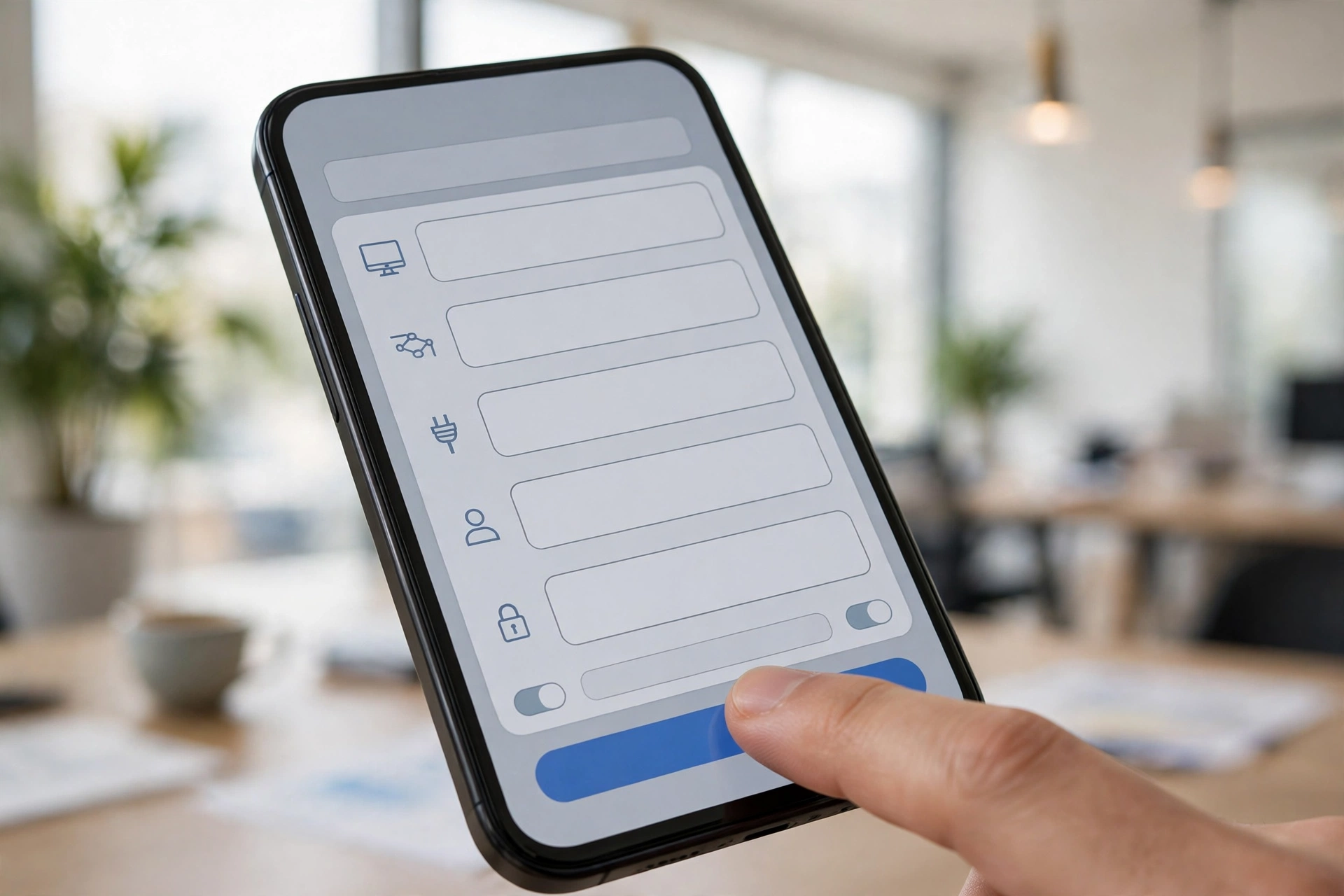
Tap the plus icon in the Remote Desktop app and choose Add PC. Type the PC name or IP address of the Windows computer, then tap User Account and add the username and password for an account on that computer. Save the entry, tap it in the list, and the Windows desktop should appear on your iPhone screen.
If the app asks about a certificate the first time you connect, read the warning before you accept it. On a computer you own or a desktop from a provider you trust, accepting it is normal. If the connection fails, check the three usual causes first: the PC name or IP is typed wrong, the remote computer is asleep or off, or the account has no password set, because blank passwords are refused for remote logins. The Android steps are almost the same, and this guide to connecting to RDP from an Android phone shows how the same client behaves on a phone screen.
From $1.99/mo · Works on any iPhone · 24/7 support
How do touch controls and mouse pointer mode work on iPhone?
The app offers two ways to control the remote desktop. In touch mode, you tap to click, drag to move windows, and pinch to zoom in and out. In mouse pointer mode, your finger moves a cursor around the screen, and a tap acts as a click. You can switch between the two modes from the toolbar at the top of the session.
Touch mode feels natural for big buttons and simple tasks, such as opening a file or checking a program. Mouse pointer mode is better for small controls, menus, and text fields, where a fingertip would cover the target. Zooming in helps a lot on a phone screen, since Windows menus and buttons were designed for a much larger display. A Bluetooth keyboard and mouse also work with the app if you want a closer match to sitting at a real desk.
How can you make the connection faster and more stable?
A stable connection matters more than raw speed for remote desktop work. Use Wi-Fi when you can, because it is usually steadier than mobile data, and stay close to the router if the picture stutters. If you must use mobile data, a 4G or 5G signal with full bars is fine for short checks, but long sessions can eat through a data allowance quickly.
Inside the app, you can lower the display quality to make a weak connection feel smoother. Tap the settings for your saved PC and reduce the resolution or turn off extra visual effects. This makes text a little less sharp, but the desktop responds faster and drops less often. If the session keeps freezing, close other apps on your iPhone, restart the connection, and check that the remote computer is not running a heavy update in the background.
When does a rented RDP make more sense than your own PC?
Your own PC works well when it is already on and you only need it now and then. A rented RDP wins when the computer must be reachable around the clock, when your home internet drops out, or when power cuts are common. The rented machine lives in a data center with stable power and a fast connection, so it stays online while your home PC sleeps.
It also wins when you need a Windows machine but only own an iPhone, a Mac, or a Chromebook. Instead of buying a second computer, you rent a desktop and connect to it with the same free app. Browser RDP plans start from $1.99 a month for simple browsing and office work, and they work on any iPhone with no extra setup. If you want to compare another device first, this guide to using RDP on a Chromebook shows the same idea on a different device.
Connecting to RDP from an iPhone is a short job once the details are in hand. Install the free Microsoft app, add the PC by name or IP address, sign in with a real account and password, and learn the two control modes. Keep the connection steady, zoom in when the screen feels cramped, and use a rented desktop when your own PC cannot stay on around the clock.
Frequently Asked Questions
Is the Microsoft Remote Desktop app free on iPhone?
Yes, the Microsoft Remote Desktop app is free to download and use on iPhone and iPad. You do not pay Microsoft for the app itself. You only pay for the Windows computer you connect to, if it is a rented desktop or a cloud machine, and for your own internet or mobile data.
Can I connect to any Windows computer from my iPhone?
You can connect to any Windows computer that is set to accept Remote Desktop connections and that you have an account on. You need its PC name or IP address, plus a username and password. Windows Home cannot host a session, so the remote computer needs Pro, Enterprise, Education, or a rented desktop.
Why does the RDP app say the PC cannot be found?
The usual causes are a wrong PC name or IP address, the remote computer being asleep or switched off, or the network blocking the connection. Check the address, wake the computer, and confirm both devices are online. If it still fails, check that the account you are using has a password set.
Can I use a keyboard and mouse with RDP on iPhone?
Yes, a Bluetooth keyboard and mouse can pair with your iPhone and work inside the Remote Desktop app. This makes typing and precise clicking much easier than using the touch screen alone. It is a good setup for longer sessions, such as writing documents or working in spreadsheets.
Is it safe to connect to RDP from my iPhone?
Yes, it is safe when you follow the basics. Use a strong, unique password on the Windows account, keep the remote computer updated, and only connect to computers you own or trust. Avoid saving your password in the app on a shared phone, and sign out when you finish the session.