

Connection refused means your computer reached the remote machine, but the machine turned the connection away. The usual causes are Remote Desktop being off, port 3389 closed, or a firewall blocking it. Check the address and port first, then confirm RDP is enabled and the firewall allows it.
By SadeemRDP Team
Last updated: November 11, 2026
You type the address, hit Connect, and instead of a login screen you get a short error: the remote computer refused the connection. It feels like the server is gone, but that is rarely the case. Refused is a specific answer, not a dead end. It tells you the machine is there, or at least something answered, and it said no. That detail narrows the problem a lot, and this guide works through the fixes in the order that solves most cases.
Most refused connections come down to a short list: a wrong address, Remote Desktop turned off, the wrong port, a firewall in the way, or a server-side problem you cannot fix from your side. Work through the steps below in order and test after each one, so you know exactly which change fixed it.
What does “connection refused” actually mean?
A refused connection is different from a timeout. A timeout means nothing answered at all, which usually points to a network problem or a machine that is off. Refused means your request reached something and was turned away. In practice, the address resolved and a route existed, but nothing on the other end was listening on the port you asked for, or a firewall rejected the attempt.
That is why the fix starts at the server side rather than your internet connection. If the port is closed, the service is off, or a rule blocks you, no amount of restarting your router will help. The sections below check each cause in turn, starting with the address you typed.
Did you type the address and port correctly?
Start with the address. A single wrong digit in an IP address sends you to a different machine, or to no machine at all, and the error looks the same. Check the address character by character against the one your provider sent you. If you use a hostname instead of an IP, try the IP address directly. That test tells you whether the problem is the name lookup or the connection itself.
Then check the port. Remote Desktop uses port 3389 by default, and most clients add it for you. Some setups use a custom port, and if your provider gave you one, it must be part of the address, usually written with a colon after the IP or hostname. If you connect to the default port while the server listens on a custom one, the connection will be refused. Confirm the port in the details your provider sent, and use the exact format they gave.
Is the remote computer on, and is Remote Desktop enabled?
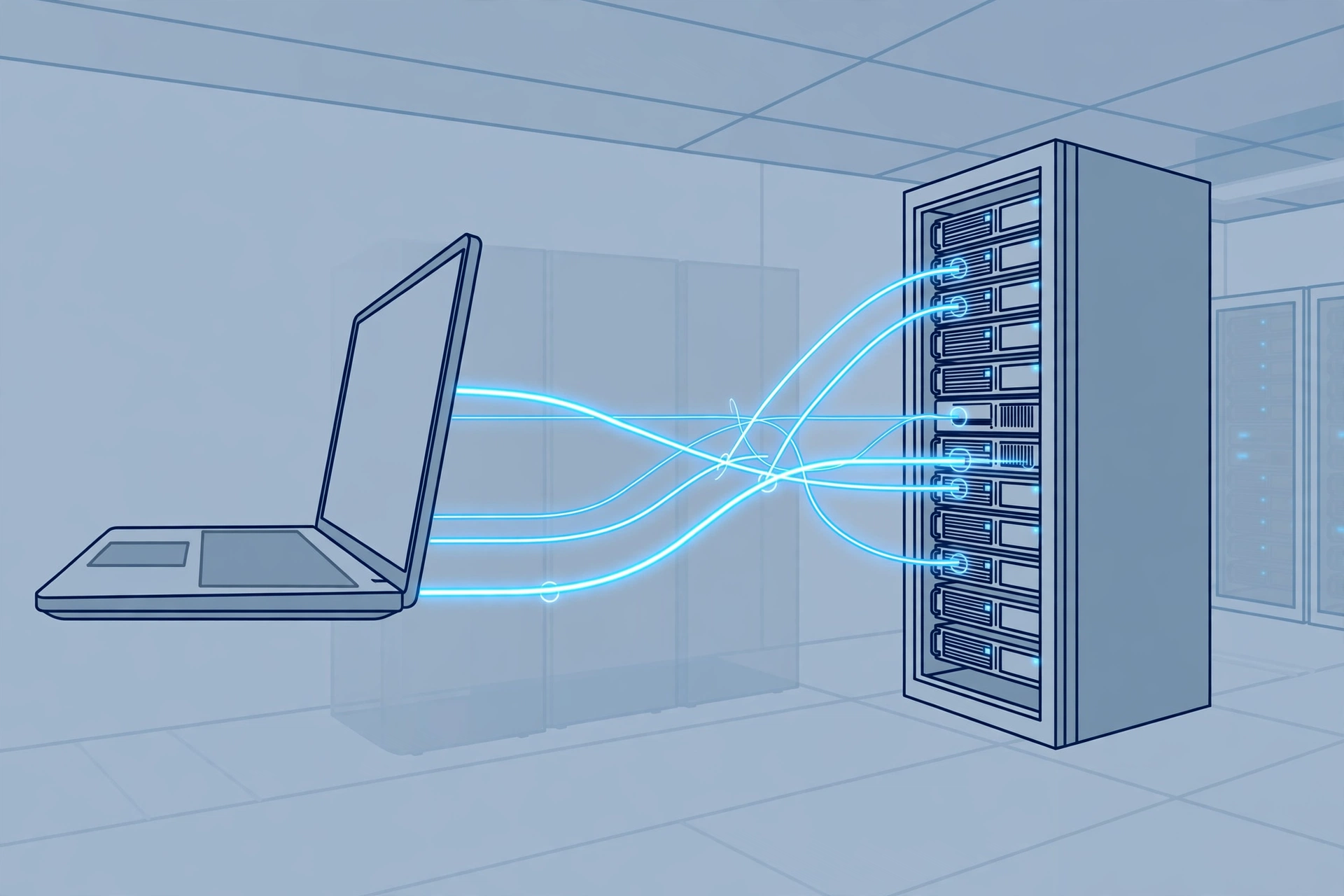
A refused error often means the remote machine is off, asleep, or has Remote Desktop turned off. On a computer you manage, check that it is powered on and not in sleep mode. Then open Settings, go to System, then Remote Desktop, and confirm the switch is on.
After a Windows update or a restart, Remote Desktop can end up off even when it was on before, so check it even if you are sure you turned it on. On a rented desktop, you cannot check this yourself, so ask support to confirm the machine is running and Remote Desktop is enabled. SadeemRDP support runs 24/7 and can check this from the server side. A related display problem has its own fix: this guide to fixing an RDP black screen covers sessions that connect but never draw a desktop.
Is port 3389 open, or is a custom port in use?
Port 3389 is the default door Remote Desktop listens on. If that port is closed on the server, or the server listens on a different port, your connection is refused. On a machine you control, check the Remote Desktop settings and any port-forwarding rules on your router. The port the server listens on must match the port your client connects to. Microsoft documents the supported clients and their requirements in its official Remote Desktop clients documentation.
Changing the listening port is a server-side change, and it needs admin rights. If you rent a desktop without admin access, do not try to change it yourself. Ask your provider which port the server uses and whether it is open. A plan with limited admin, like Admin RDP from $9.99/mo, may still not let you change port settings, while a Private Windows VPS from $6.99/mo gives you full admin, so you can check and change the port yourself.
Is Windows Firewall or your provider’s firewall blocking the port?
Firewalls are the most common cause of a refused connection that used to work. Windows Firewall has a rule that allows Remote Desktop through, and if that rule is off, the connection is refused even though everything else is right. On a machine you control, open Windows Defender Firewall, check the allowed apps, and confirm Remote Desktop is ticked for your network.
Rented desktops often have a second firewall at the provider level, which can block port 3389 even when Windows Firewall allows it. If your own firewall is fine and the connection is still refused, ask your provider to check their firewall rules for your server. The same applies after a plan change or a server move, which can reset firewall rules without warning. If your connection drops after it connects, this guide on why RDP keeps disconnecting looks at the causes behind unstable sessions.
From $3.99/mo · Fresh server, clean session · 24/7 support
Is the password wrong, or is the connection really being refused?
A refused error and a wrong password are different problems. A wrong password gives you a login screen first, then an error about credentials after you type them. A refused connection never shows the login screen at all. If you see the login prompt, the port is open and the service is running, so the problem is your credentials, not the connection.
If you never reach the login screen, do not keep retyping the password. Check the address, port, and firewall first. If you do reach the login screen and the password fails, reset it through your provider’s panel rather than guessing. Repeated failed logins can also trigger a lockout, which then looks like a new problem on top of the old one.
Is your network, VPN, or proxy in the way?
Some networks block Remote Desktop outright. Office networks, school networks, and public Wi-Fi often close port 3389, and the result is a refused connection that works fine from home. A VPN can cause the same problem if it routes your traffic through a server that blocks the port, or changes your address mid-session.
Test this by connecting from a different network, such as your phone’s mobile data. If it works there, the fault is in your first network, not the server. If you must use that network, ask its administrator whether port 3389 is allowed, or use a VPN that permits the port. A proxy in between can also break the connection, so try without it. Once you are in, this guide to using multiple monitors with RDP explains how to arrange a session across screens.
Is the server itself down, suspended, or full?
If every check above passes and the connection is still refused, the problem may be on the server itself. A plan that is suspended, usually after a missed payment, stops accepting connections. A server that is down or restarting does the same. Some servers also refuse new logins when too many sessions are already open.
None of these can be fixed from your side. Check your billing status, then ask support whether the server is up and whether your plan is active. If the server is down or the plan is suspended, no client setting will help. In that case a fresh server on a clean plan is the honest fix. A new machine starts with Remote Desktop enabled, the right port open, and no stuck sessions. If you are still learning the basics, this guide to what RDP is and how it works explains the parts of a connection and where each one can fail.
A refused connection is annoying, but it is also informative: something answered, and it said no. Work through the address, the port, Remote Desktop, and the firewall, and most cases end there. When the fault is on the server side, check with support, and if the server is down or the plan is suspended, start fresh rather than fighting settings that were never the problem.
Frequently Asked Questions
Why does RDP say connection refused but the server is online?
The server can be online while Remote Desktop is off or port 3389 is closed. Refused means your request arrived and was turned away, not that the machine is gone. Check that Remote Desktop is enabled, the port is open, and the firewall allows it. If you rent the desktop, ask support to confirm all three.
How do I know if port 3389 is blocked?
The simplest test is to try connecting from another network, such as mobile data. If it works there, your first network is blocking the port. On a machine you control, check the firewall rules and the listening port. If you rent the server, your provider can confirm whether the port is open at their firewall.
Can a VPN cause an RDP connection refused error?
Yes. Some VPNs route traffic through servers that block port 3389, or change your address in a way the server rejects. Disconnect the VPN and try again. If the connection works without it, the VPN is the cause. Switch to a VPN that allows the port, or connect without one.
Does connection refused mean my password is wrong?
No. A wrong password shows the login screen first and fails after you type it. A refused connection never reaches the login screen. If you never see the login prompt, check the address, port, and firewall instead of retyping the password. Reset the password only if you reach the login screen and it fails there.
What should I do if nothing fixes the refused connection?
Contact your provider’s support and tell them the exact error, the address you used, and what you already tested. They can check whether the server is up, your plan is active, and their firewall blocks the port. If the server is down or the plan is suspended, moving to a fresh server is the honest fix.
Comments