
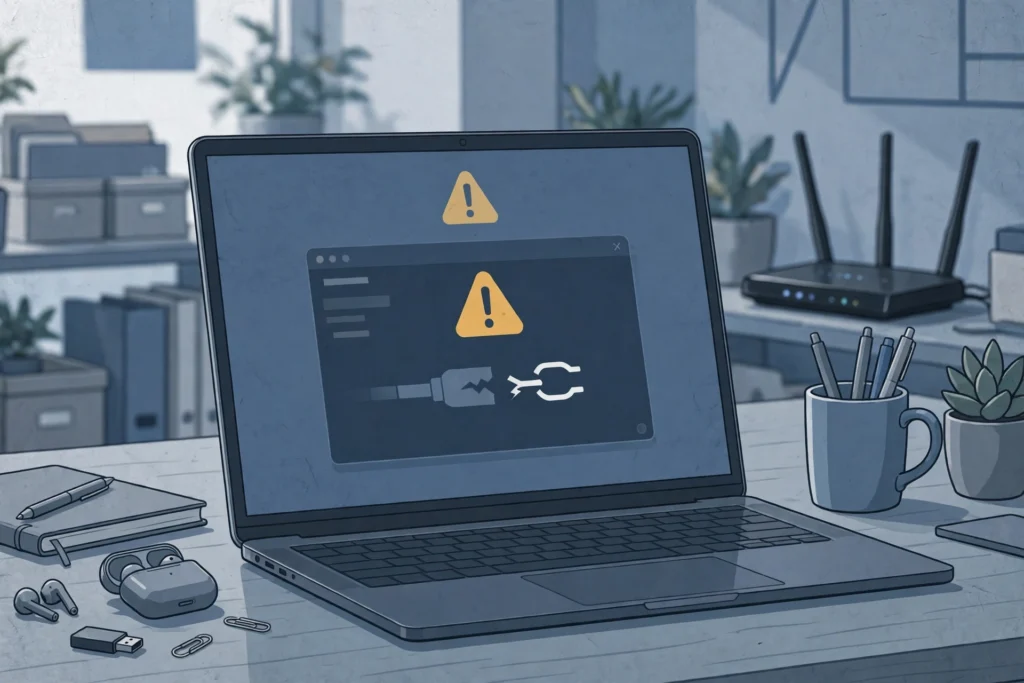
Your RDP session usually drops because of an unstable internet connection, an idle session timeout set by the provider, UDP packet loss, or a firewall closing the connection. Check your own network first, then turn off UDP in the client, enable reconnect, and ask support about idle timeouts if the drops follow a pattern.
By SadeemRDP Team
Last updated: November 6, 2026
Nothing breaks a work session quite like a remote desktop that drops every ten minutes. You log back in, reopen your programs, find your place again, and ten minutes later the screen freezes and the connection is gone. The problem feels random, but it almost never is. Disconnects follow patterns, and once you find the pattern, the fix is usually simple.
What makes an RDP session disconnect?
An RDP session disconnects when the connection between your computer and the server breaks, times out, or gets closed by a setting on either side. The most common causes are unstable home internet, idle session timeouts, UDP packet loss, firewall or antivirus interference, and an overloaded server.
Start by noticing when the drops happen. If the session drops after the same amount of idle time every time, for example after 15 or 30 minutes of no mouse movement, that points to a timeout setting. If it drops while you are actively working, and usually when the video stutters first, that points to your network. If it drops only on one network, such as hotel Wi-Fi, but never on your home connection, the network is the cause. The pattern tells you where to look.
Is it your internet or the server?
You can tell whether the problem is your internet or the server by testing both sides separately. Run a speed test, try a wired connection instead of Wi-Fi, and connect from a different network, such as your phone hotspot, to see if the drops stop.
Open a command prompt and run a continuous ping to the server address, for example ping -t your-server-ip. Watch for request timed out messages and for reply times that jump from 40 ms to 400 ms and back. Steady low ping with no timeouts means your link to the server is fine, so the cause sits elsewhere. Timeouts and wild jumps mean packets are being lost on the way, and no server setting will fix that. Also check whether other apps drop at the same time. If a video call freezes whenever RDP drops, the whole connection is at fault, not RDP.
How do idle timeouts drop your session?
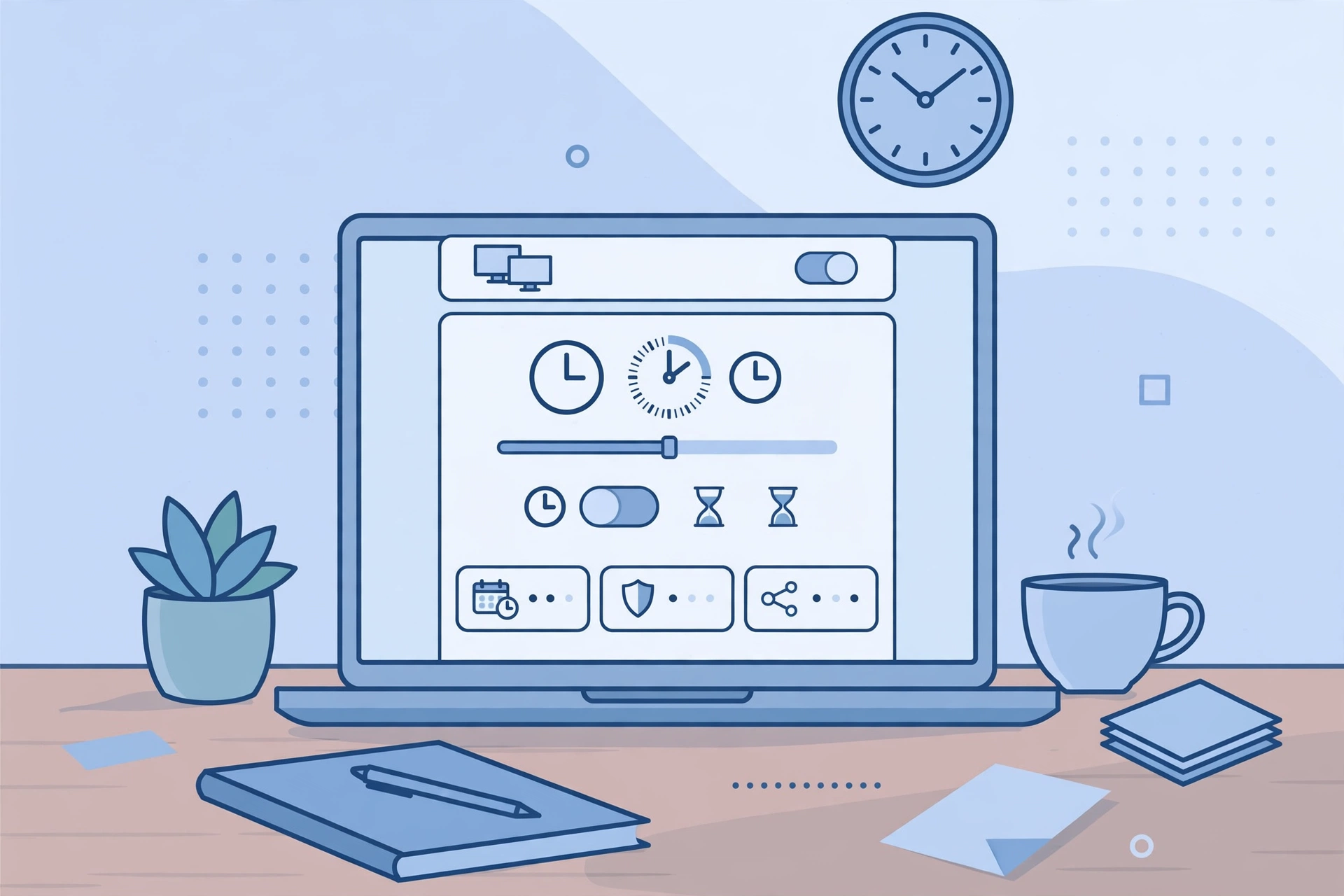
Idle timeouts drop your session because the server is set to end sessions that show no keyboard or mouse activity for a fixed time. Many providers set this limit, often around 15 to 30 minutes, to free up resources on shared servers.
The fix depends on your plan. If you have admin rights, you can change the setting on the server through Group Policy: Computer Configuration, Administrative Templates, Windows Components, Remote Desktop Services, Remote Desktop Session Host, Session Time Limits, then set the limit for idle sessions to a longer time or to Never. On a shared plan with limited admin rights, that setting is locked, so the practical fix is different: move the mouse or press a key every few minutes, keep a lightweight program running that refreshes the screen, or ask support whether they can raise the limit for your account. Never run a script that fakes activity without checking your provider rules first, because some providers treat that as abuse of a shared plan.
Can UDP settings cause random disconnects?
Yes, UDP can cause random disconnects. Modern RDP uses UDP alongside TCP because it handles real-time screen updates better, but UDP has no built-in recovery, so on a lossy connection the missing packets turn into freezes and dropped sessions.
Try turning UDP off in the client and see if the drops stop. In Group Policy on your own computer, go to Computer Configuration, Administrative Templates, Windows Components, Remote Desktop Services, Remote Desktop Connection Client, and enable Turn Off UDP On Client. The connection then runs on TCP only, which is slower to react but far more stable on a weak link. If you use the Microsoft Store Remote Desktop app instead of the classic client, the same idea applies through its connection settings. Also tick Reconnect if the connection is dropped in the Experience tab of the classic client, so a short break recovers on its own instead of leaving you at a login screen.
Does your firewall or antivirus kill the connection?
Your firewall or antivirus can kill an RDP connection when it treats the remote session as suspicious traffic, or when a NAT router closes the idle TCP connection after a few minutes. This is common on corporate networks and on routers with aggressive timeout settings.
First, check whether the drops happen only on one network. If RDP works fine at home but drops constantly at the office, the office firewall is the likely cause, and the network admin may need to allow outbound traffic on port 3389. On your own router, look for a TCP timeout or NAT session timeout setting and raise it if it is very short. A keep-alive setting on the server also helps here: it sends small packets at regular intervals so the connection never looks idle to the firewall. If you have admin rights, enable it in Group Policy under Remote Desktop Session Host, Connections, Configure keep-alive connection interval, and set it to a few minutes.
What should you check on the server side?
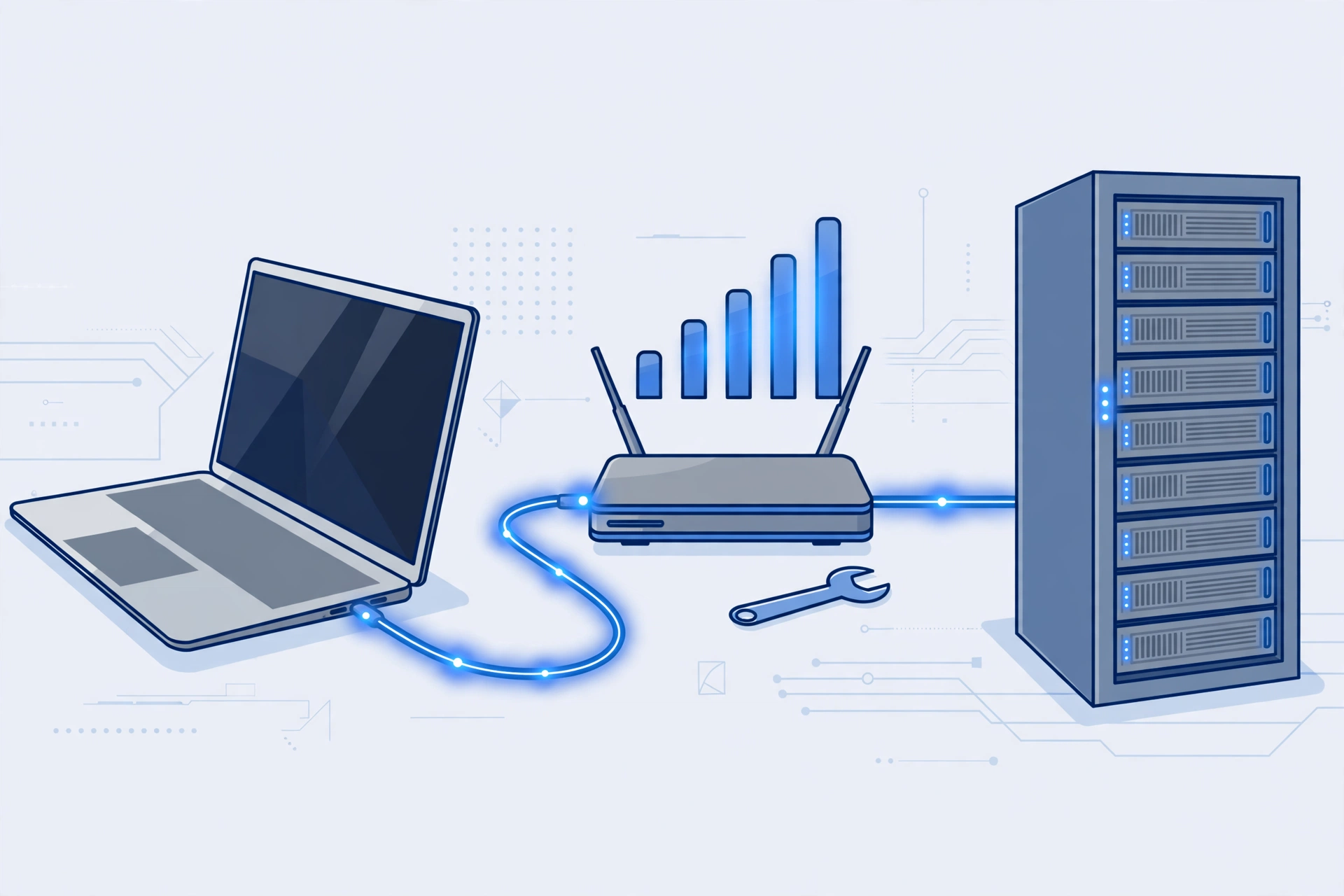
On the server side, check CPU and memory load, the Remote Desktop service itself, and whether other users on a shared server are affected. A server that is short on resources will drop sessions before it slows down gracefully.
Open Task Manager inside the session and look at CPU and memory. If CPU sits near 100 percent for long stretches, the server is overloaded, and disconnects are a symptom, not the disease. Restarting the Remote Desktop service can clear a stuck session state, but only do that if you have admin rights and no one else is working on the same machine. On a shared plan, you cannot see the server load, so the test is simple: ask support whether other users reported drops at the same time. If they did, the cause is on their side, and no client setting will fix it. If only your account drops, the cause is almost certainly on your side of the connection.
From $9.99/mo · Limited admin · 24/7 support
When is the plan itself the problem?
The plan itself is the problem when the server is shared, oversold, or too weak for what you run on it. If disconnects started after you added heavier software, or if they happen at the same busy hours every day, the plan may be the limit.
Shared plans put several users on one machine, and one heavy user can drag everyone down. If your work needs steady sessions, a private plan with dedicated resources removes that variable. Admin RDP from $9.99 a month gives you a more stable setup than a basic shared plan, and a Private Windows VPS from $6.99 a month gives you full admin rights, so you can set your own timeout and keep-alive values instead of asking support. Before you upgrade, though, rule out your own network with the ping test above. Paying more will not fix a bad Wi-Fi signal.
Frequently Asked Questions
Why does my RDP disconnect every 15 minutes?
A disconnect every 15 minutes almost always means an idle session timeout is set to 15 minutes on the server. The timer counts time without keyboard or mouse input, so even a running program does not reset it. Ask your provider to raise the limit, or move to a plan with full admin rights so you can change the setting yourself.
Does a slow internet connection cause RDP to disconnect?
Yes, a slow or unstable connection is the most common cause. RDP needs a steady link more than a fast one, so a connection that drops packets will disconnect even if the speed test looks fine. Use a wired connection, turn off UDP in the client, and lower the display settings to reduce the data the connection has to carry.
How do I stop RDP from disconnecting when idle?
Keep the session active with regular input, or change the idle timeout if you have admin rights. In Group Policy, set the idle session limit to a longer time or to Never. On a shared plan where that setting is locked, ask support to adjust it, or switch to a private plan where you control the server settings.
Can a VPN cause RDP disconnects?
Yes, a VPN can cause disconnects, especially if the VPN itself drops and reconnects, or if it routes your RDP traffic through a slow or distant server. Try connecting without the VPN to see if the drops stop. If they do, switch to a closer VPN server or split the traffic so RDP goes outside the VPN tunnel.
Is it safe to change the RDP port to fix disconnects?
Changing the port does not fix disconnects, because the port has nothing to do with connection stability. It only helps against automated scans. If you still want to change it, read our guide on how to change your RDP password and port first, and note that you need admin rights for the registry and firewall steps.
Most disconnects come down to one of four things: a shaky network, an idle timeout, UDP packet loss, or a firewall closing the connection. Work through them in that order, and test after each change so you know which one fixed it. If the drops follow a strict time pattern, check the timeout settings. If they happen while you are working, check the network. For the bigger picture on keeping a remote desktop stable, read our guide on why your RDP is lagging and how to fix it, and if you want to lock the account down properly, read how to secure your RDP account from hackers. If slow internet is part of the problem, our guide on how to make RDP faster on a slow internet connection covers the settings that cut bandwidth the most. Microsoft’s documentation on Remote Desktop Services explains how the service works: Microsoft Learn, Remote Desktop Services. For background on the protocol, see the Remote Desktop Protocol page on Wikipedia.
Related reading: how to fix an RDP black screen.
Related reading: fixing an RDP connection refused error.
Comments